A shared inference server can support several chat clients without loading the model separately in each client. vLLM runs the model, while Open WebUI connects to its OpenAI-compatible API to make that model available in web chat.

An administrator account and an already-serving vLLM chat model are required. Automatic tool-call support matters even for a plain question because Open WebUI can include its built-in tools in a chat request.
An External connection sends requests from the Open WebUI backend. The endpoint must therefore be reachable from that backend, which may run on another machine or inside a container; browser access alone does not establish that route.
For Open WebUI requests using automatic tool choice, vLLM needs --enable-auto-tool-choice and a parser matching the served model. The Qwen3 deployment instructions use --enable-auto-tool-choice --tool-call-parser hermes in the server's launch configuration. Other models can require a different vLLM tool-call parser. The server also needs enough context capacity for the conversation and tool definitions.
Steps to connect vLLM to Open WebUI:
- Open the user menu in the lower-left corner of Open WebUI.
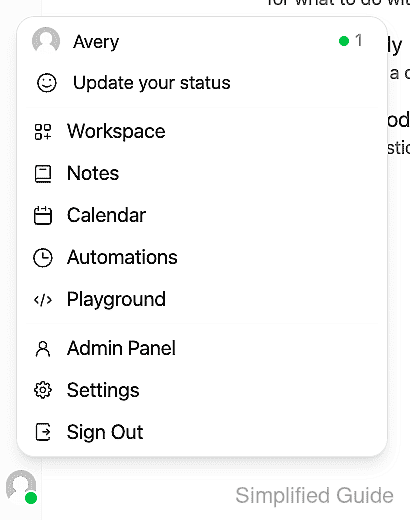
- Select Settings from the user menu.
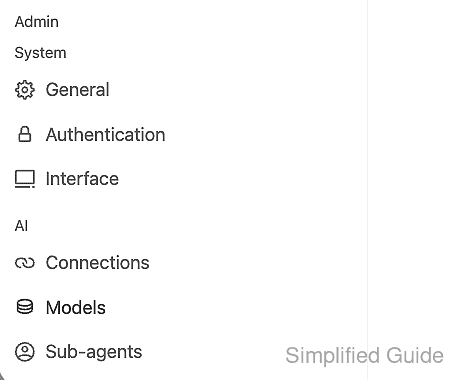
- Select Connections under Admin → AI.
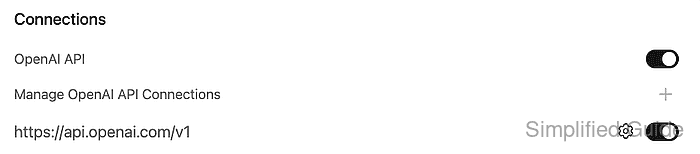
Personal and administrator settings share one dialog in Open WebUI 0.12.4. The OpenAI API section handles vLLM's compatible API.
- Click the plus button beside Manage OpenAI API Connections.
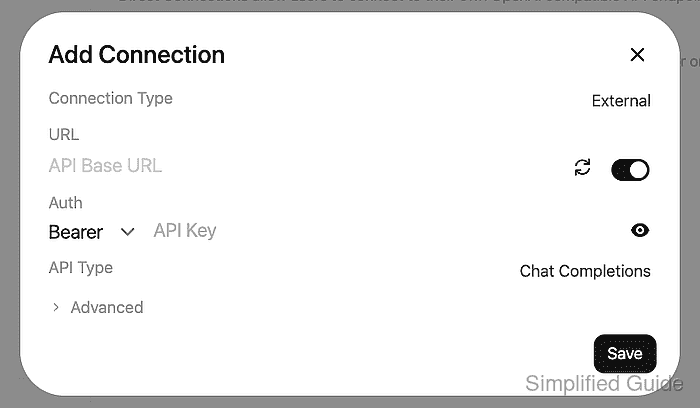
The Add Connection dialog defaults to External, Bearer authentication, and Chat Completions.
The connected server receives chat content, and anyone with its API key can use the inference service. A private network limits who can reach vLLM; HTTPS protects prompts and credentials when traffic crosses an untrusted network.
- Enter the reachable vLLM base address ending in /v1 in URL.
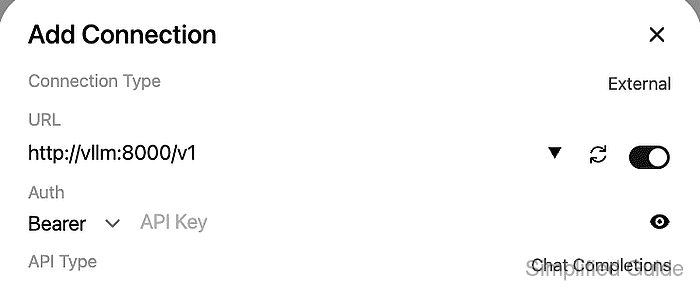
http://vllm:8000/v1 works when vllm is the server's service name on a shared Docker network. For vLLM on the Docker Desktop host, the address can be http://host.docker.internal:8000/v1 instead. Inside the Open WebUI container, localhost refers to that container. The full /chat/completions path does not belong in URL.
Related: How to fix Open WebUI localhost connection errors in Docker - Enter the vLLM server's key in the masked API Key field.
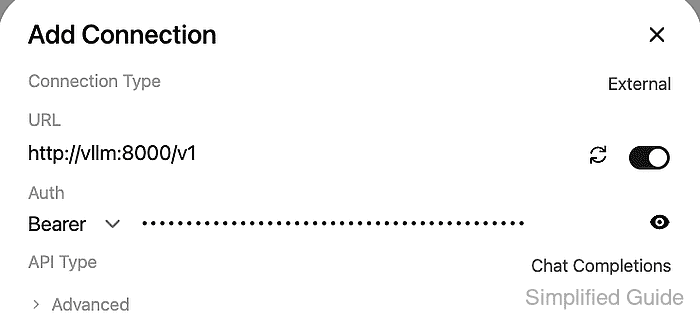
Bearer sends this key in the Authorization header. It is the inference server's credential, not an Open WebUI login token; the eye button reveals it on screen.
- Click the circular-arrow Verify Connection button beside URL.
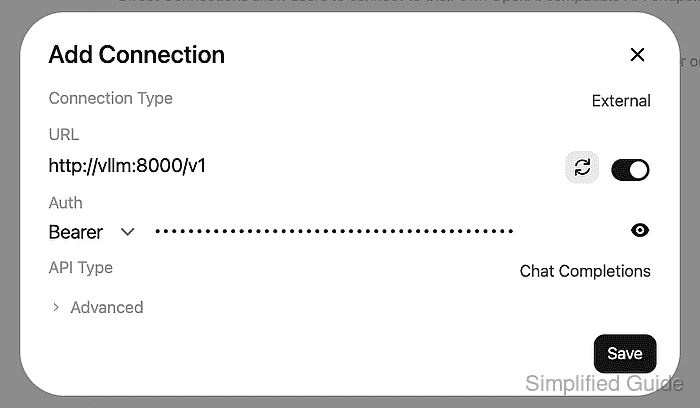

Server connection verified confirms that the backend can retrieve vLLM's model list using the entered key. It does not test generation or automatic tool-choice compatibility.
- Connect vLLM with Save in the Add Connection dialog.
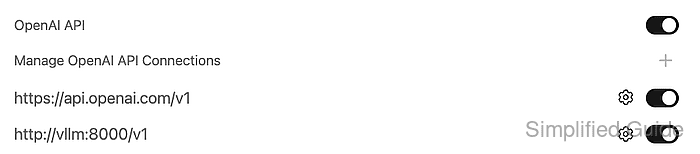
The dialog closes and the enabled vLLM URL appears in the connection list.
- Click Back to return to chat.
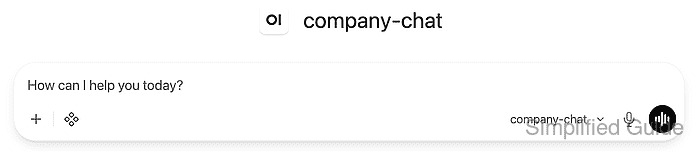
- Open New Chat with the sidebar's pencil icon.
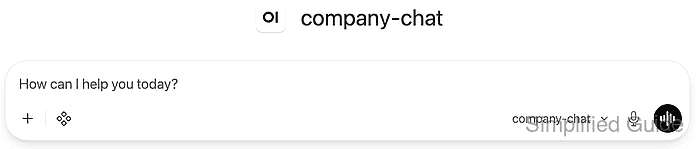
- Open the model picker in the chat composer.
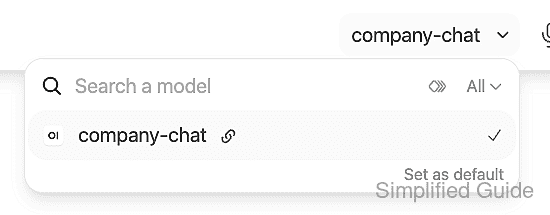
The picker can already display a model name. A missing vLLM model calls for a model-list refresh before testing chat.
- Select the model ID served by vLLM.

company-chat is the served model name shown here; another server may expose the model's repository name or its own alias.
- Enter What is 2 + 2? in the message box.

- Click Send message to submit the question.
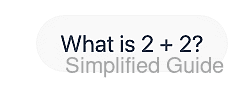
- Confirm that the vLLM model answers the question in chat.
A completed answer such as The result of 2 + 2 is 4. establishes that generation works through the saved connection. A model-list success followed by an automatic tool-choice error means the server prerequisite is still unmet.