SearXNG gathers results from several search engines through a self-hosted endpoint. Open WebUI can use SearXNG for web search in chats without a commercial search-provider API key.
An existing Open WebUI Docker installation can reach a separate SearXNG container over a shared Docker network. Administrator access and a connected chat model that supports native tool calling with Function Calling set to Native are required; a model that only writes ordinary replies may never request a search. The container name open-webui below stands for your existing instance.
Self-hosting the search endpoint does not keep queries offline. SearXNG forwards them to upstream search engines, and Open WebUI can send retrieved page content to the selected model provider. Public, non-sensitive questions avoid disclosing private information during a first search, and citations still need checking against their source pages.
Steps to connect SearXNG web search to Open WebUI:
- Create a private directory for the SearXNG configuration copy.
$ mkdir -m 700 searxng-config
The generated configuration contains a secret key. This new directory keeps its copy private; an existing directory with this name needs a different unused name in the file-copy commands.
- Create a Docker network for the two containers.
$ docker network create open-webui-search - Connect the existing Open WebUI container to the network.
$ docker network connect open-webui-search open-webuiThis adds a network without replacing the container, changing its image, or removing its existing networks and data volume. The connection must be included in any later recreation of that container.
- Start SearXNG with persistent storage.
$ docker run --detach \
  --name searxng \
  --network open-webui-search \
  --mount type=volume,source=searxng-config,target=/etc/searxng \
  --mount type=volume,source=searxng-cache,target=/var/cache/searxng \
  docker.io/searxng/searxng@sha256:2e89be29298f7c29287f55ace8ffa61d4d88b9d1d7039456ba7426b15cdc8b4b
This pins SearXNG 2026.11.14-a7128d5d1. Docker prints the container ID and downloads missing image layers. The named volumes retain configuration and cache data separately from the container. No host port is published; containers on open-webui-search can reach port 8080. SearXNG creates /etc/searxng/settings.yml with its own secret key at first startup. This private instance uses the default disabled limiter; a public search service needs a separate access-control and rate-limiting design.
- Copy the generated settings file into the private directory.
$ docker cp searxng:/etc/searxng/settings.yml searxng-config/settings.yml
If startup has not created the file yet, docker logs searxng shows the startup error or progress. A successful copy provides the file for the next edit. The file and its secret key must stay out of shared screenshots and tickets.
- Run your text editor on searxng-config/settings.yml.
$ nano searxng-config/settings.yml
nano is one terminal editor; your usual text editor works too.
- Add the following search block at the end of settings.yml.
search:
  formats:
    - html
    - json
The generated file already contains use_default_settings: true and a server block. Those entries and the generated secret_key stay intact. For an existing configuration with a search block, json belongs in its existing formats list rather than in a duplicate block. HTML is enabled by default; the SearXNG format setting must also allow JSON for Open WebUI.
- Save searxng-config/settings.yml.
- Copy the edited file back into the SearXNG container.
$ docker cp searxng-config/settings.yml searxng:/etc/searxng/settings.yml
- Restart SearXNG to load the JSON format setting.
Restarting briefly interrupts searches using this service. The named configuration volume retains the settings and secret key.
$ docker restart searxng - Request JSON search results from inside the Open WebUI container.
$ docker exec open-webui curl --fail --silent --show-error \
  'http://searxng:8080/search?q=Open+WebUI+SearXNG&format=json'
The response must be JSON with a nonempty results array containing titles and URLs. A 403 means JSON is still disallowed or another access rule rejected the request; the active search.formats setting and restart need checking. A name-resolution or connection error means the container names, shared network, or running SearXNG service need correction before proceeding. An empty results array means the endpoint responded but found nothing; unresponsive_engines identifies blocked, rate-limited, or unavailable upstream engines. A different enabled engine or a later retry may work; CAPTCHA challenges must not be bypassed. Nonempty results allow the provider setup to continue.
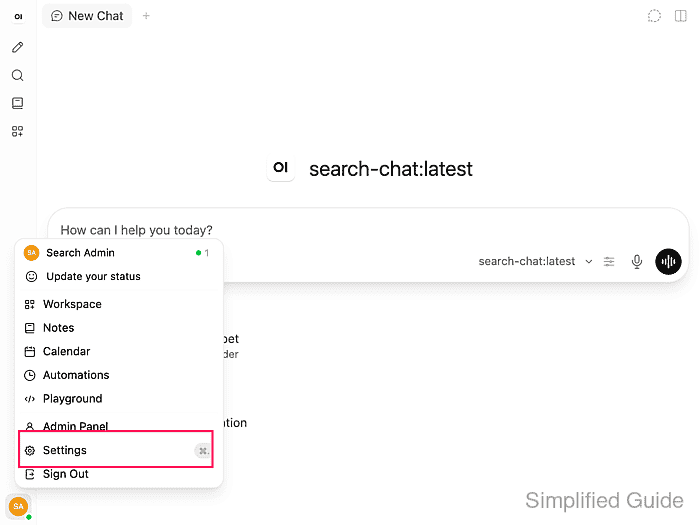
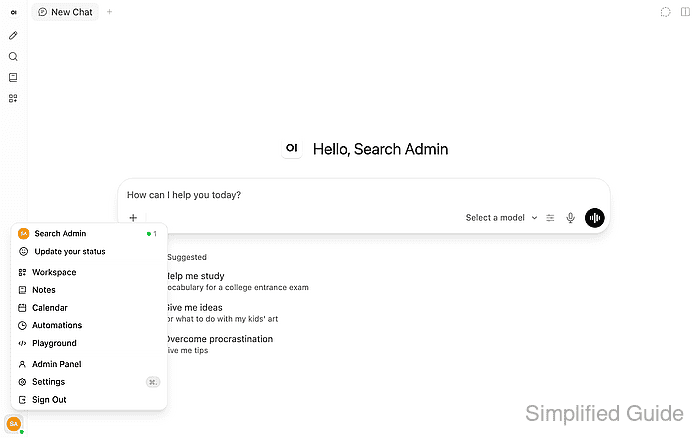
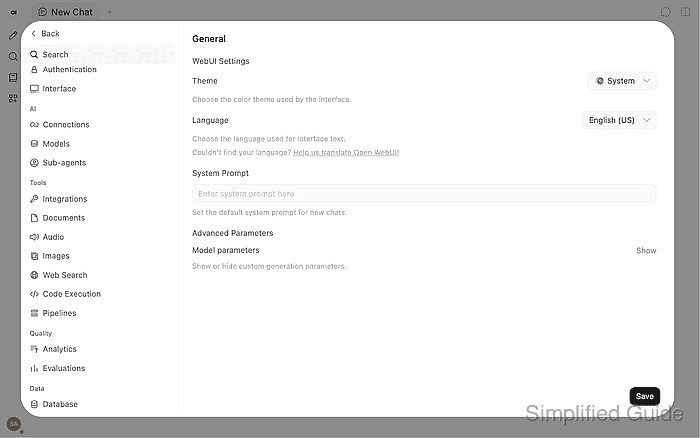
- Open Settings from your administrator profile menu.
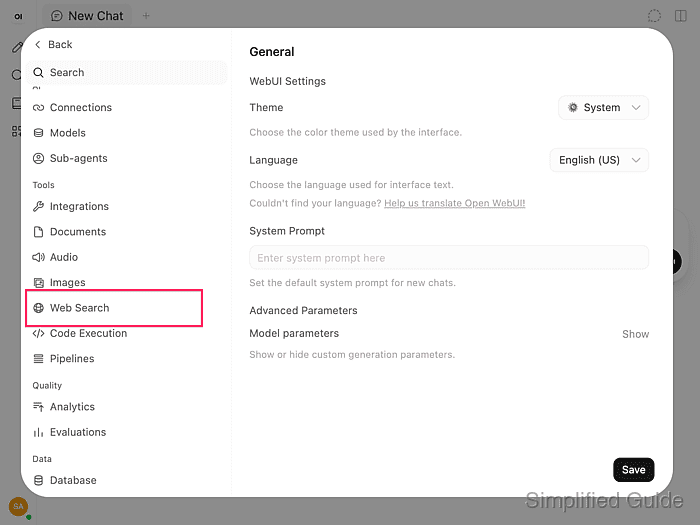
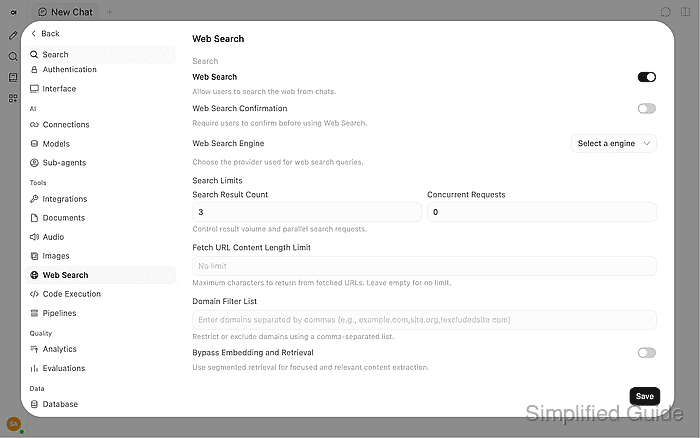
- Select Web Search under Admin → Tools.
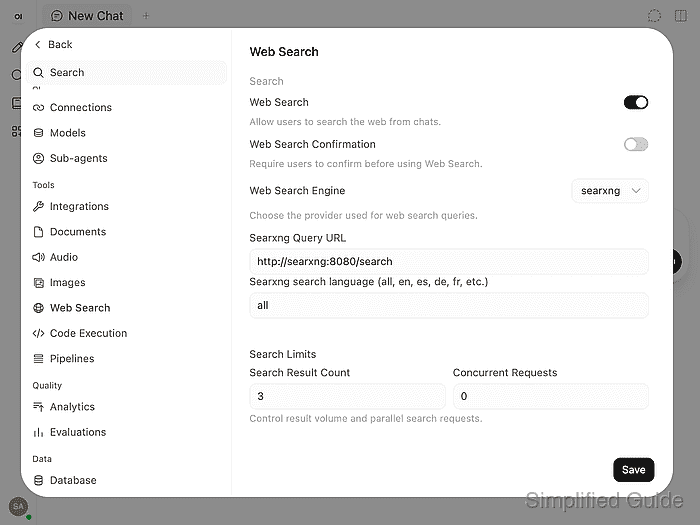
- Turn on Web Search.
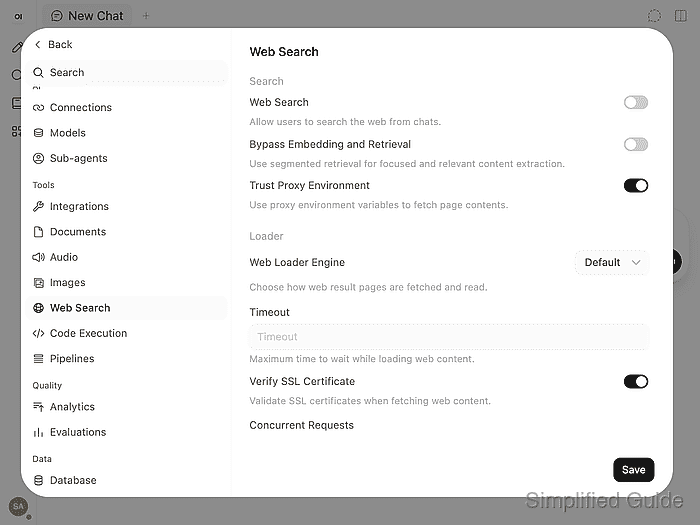
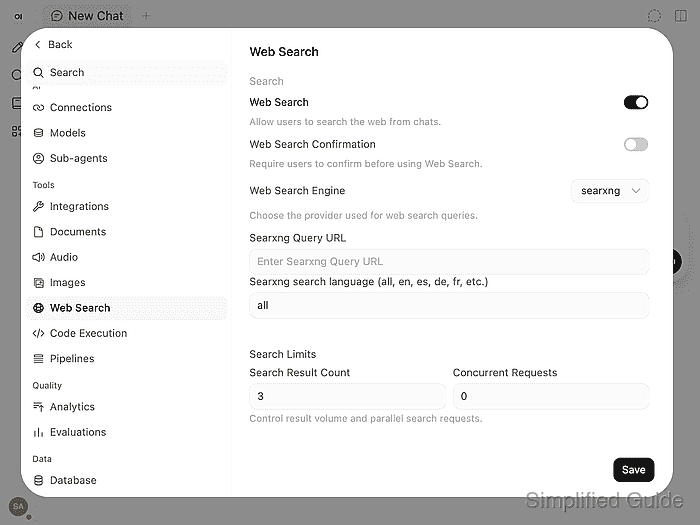
- Select searxng as the Web Search Engine.
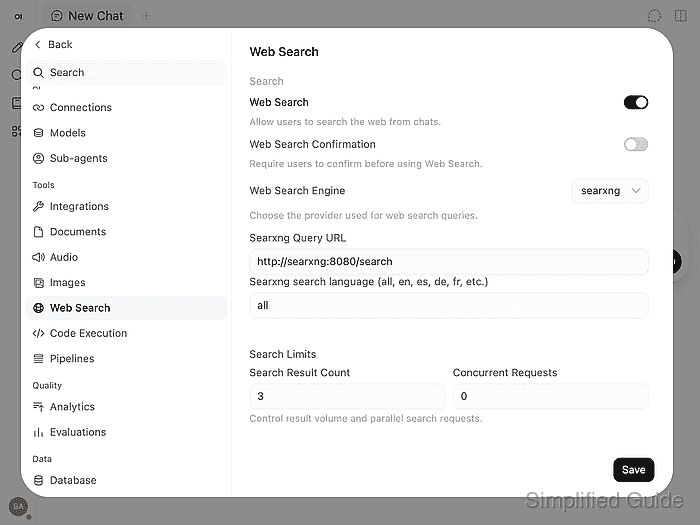
- Enter http://searxng:8080/search in Searxng Query URL.
The address must work from the Open WebUI server. localhost there refers to Open WebUI's container, not SearXNG. Current Open WebUI adds the search query and format=json itself, so the base /search endpoint is sufficient.
Admin-panel settings persist across container recreation only while ENABLE_PERSISTENT_CONFIG stays at its default, enabled value. With it disabled, environment values take precedence at the next recreation.
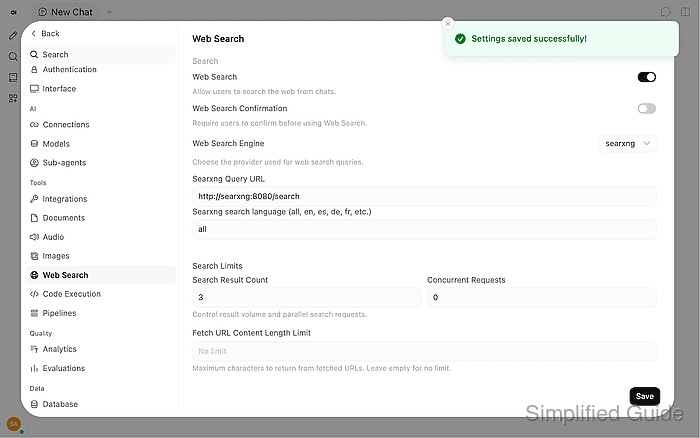
- Click Save to connect Open WebUI to the SearXNG endpoint.
- Reload the Open WebUI page.
- Reopen Settings from your administrator profile menu.
- Select Web Search under Admin → Tools.
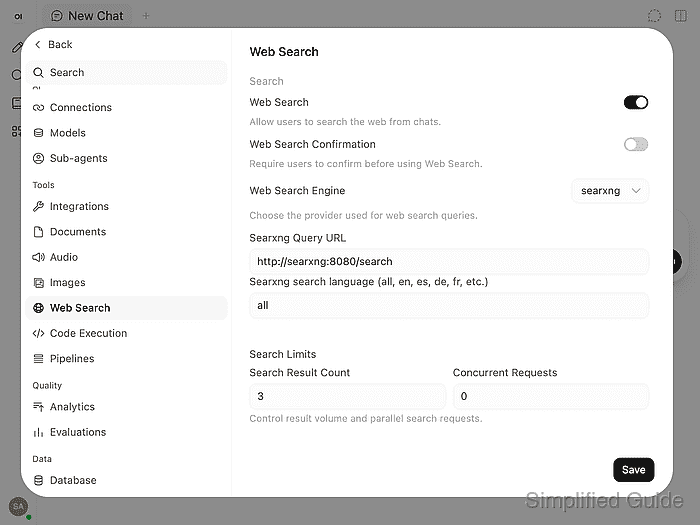
- Confirm the saved provider values match the SearXNG endpoint.
Web Search remains on, Web Search Engine is searxng, and Searxng Query URL still contains the endpoint. Reverted values mean the save did not persist.
- Click Back to return to the chat.
- Open the + menu in an empty chat with your tool-capable model selected.
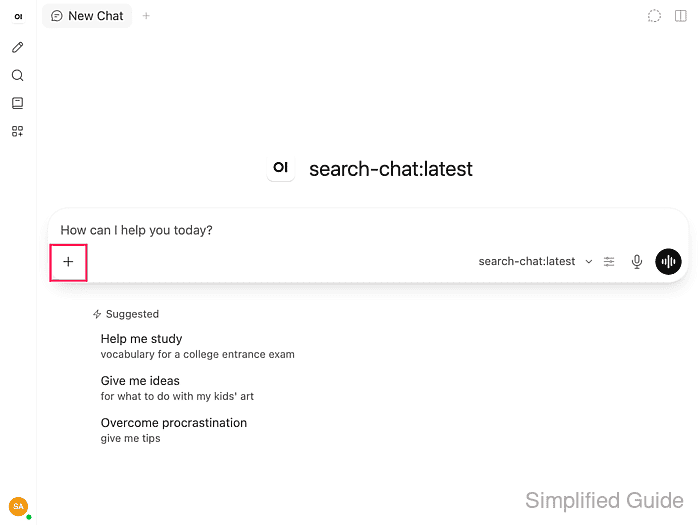
search-chat:latest is the model name shown here; your connected provider supplies your model names. Native function calling must be available for the selected model.
- Enable Web Search in the menu.
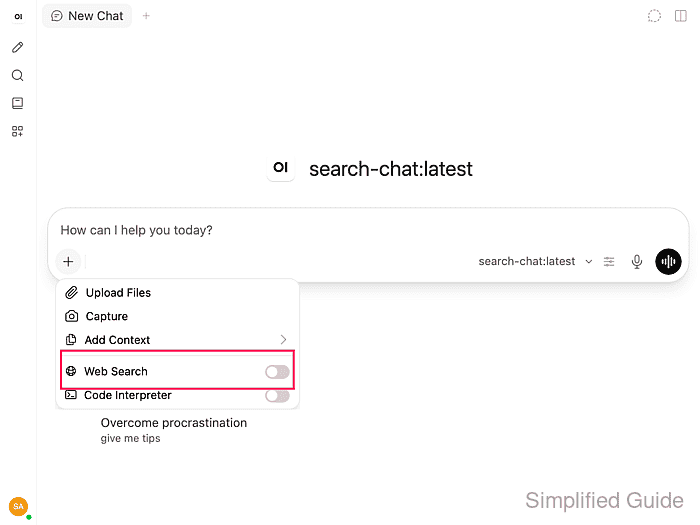
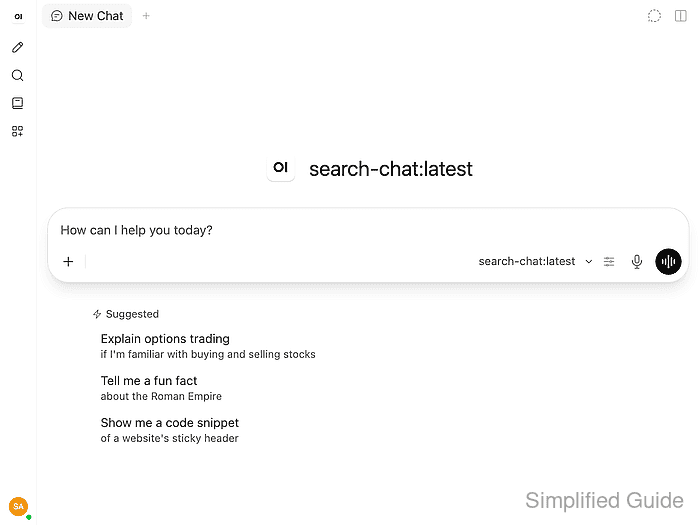
- Enter a public question asking for the official SearXNG provider documentation.
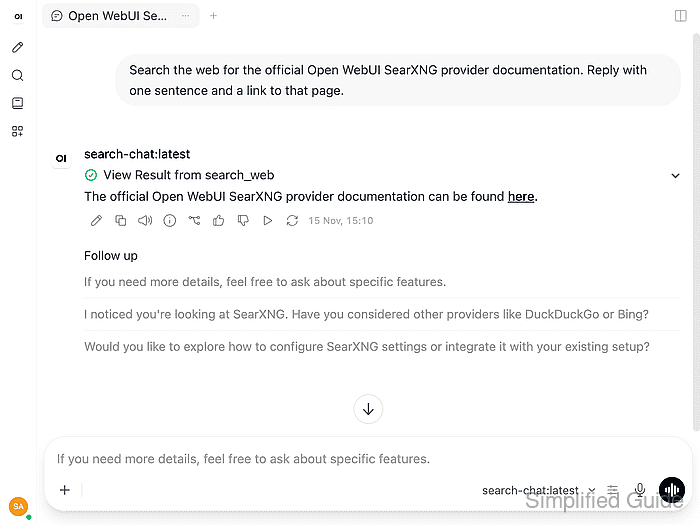
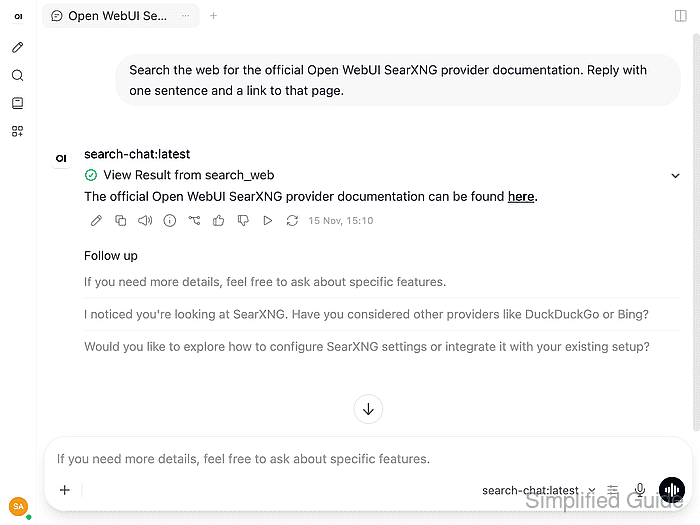
Search the web for the official Open WebUI SearXNG provider documentation. Reply with one sentence and a link to that page.
- Send the message.
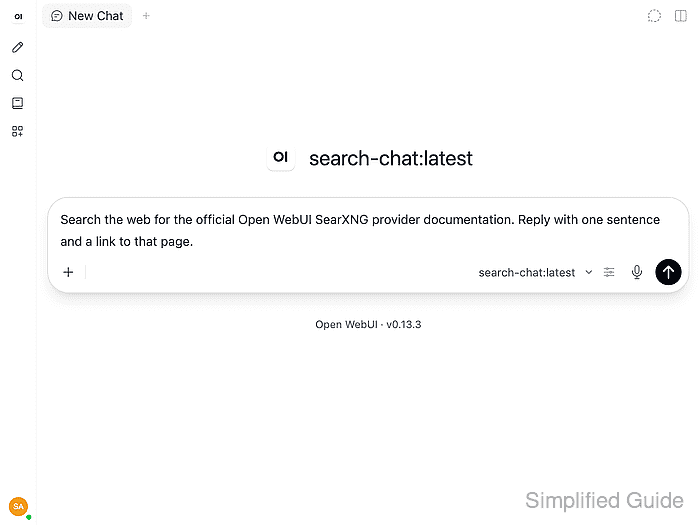
- Check the reply for a completed web search and a cited answer.
The reply should link to the official SearXNG provider page on docs.openwebui.com. An empty reply, a failed search, or an answer without a source does not prove the connection. When the JSON request already works, the selected model's native tool support and Open WebUI's result-page loading are the next checks. Bypassing page loading or retrieval is not required for this connection.
- Expand View Result from search_web to inspect the returned URLs.
- Open the official documentation link in the reply.
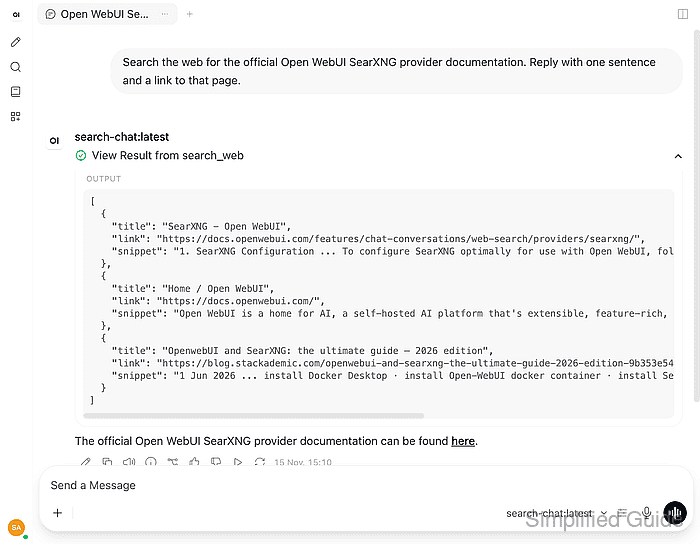
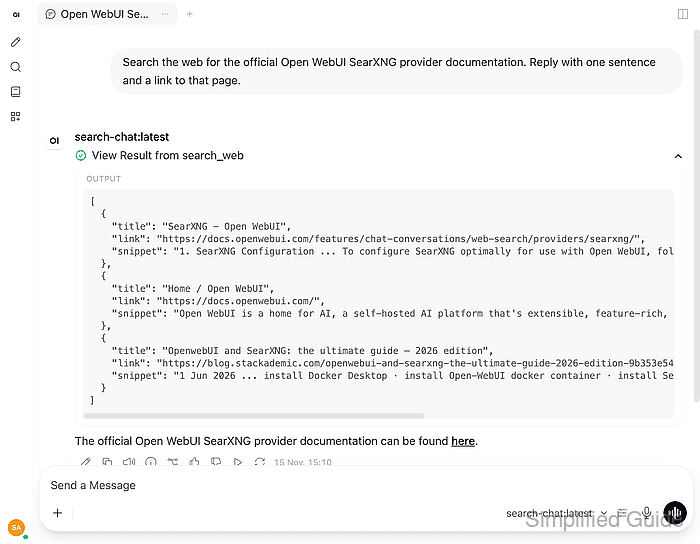
- Confirm the opened source matches a URL returned by the search.
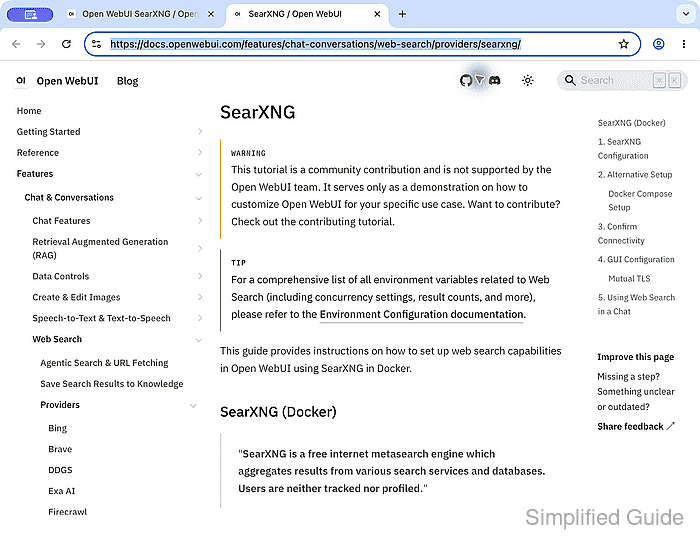
The browser address should match a link value returned by search_web, and the page heading should be SearXNG. A citation to an unrelated URL or a page that could not be fetched is a failed check.