A chat model's training data cannot describe every newly published page. Open WebUI web search lets a conversation find current information through a configured search provider and use source pages in its answer.

The external engine connects to an existing custom search API, not an ordinary search website. It requires an administrator account, the provider's endpoint and API key, and a working chat model. Deploying a search service such as SearXNG is a separate task.
Search queries leave the instance for the configured provider, and page content can reach the selected model provider. Non-sensitive questions are suitable for the first test. Retrieved pages may contain misleading instructions or inaccurate claims, so source attribution helps you inspect an answer without making the content trustworthy.
Steps to enable Open WebUI web search with an external provider:
- Confirm the existing search API implements the external-provider contract. Example output:
[
  {
    "link": "https://search.example.com/support-hours",
    "title": "Platform Support hours",
    "snippet": "Platform Support Team contact schedule and routing information."
  }
]
The request uses a POST to the complete configured URL with an Authorization: Bearer header and a JSON body such as {"query":"Platform Support hours","count":3}. The response must be a flat JSON array containing link, title, and snippet fields. Result links must be reachable from the Open WebUI server and allowed by its web-fetch policy. Private-network pages are blocked by default. The provider may receive a model-generated search query rather than the exact chat message. The upstream external-provider documentation describes the contract.
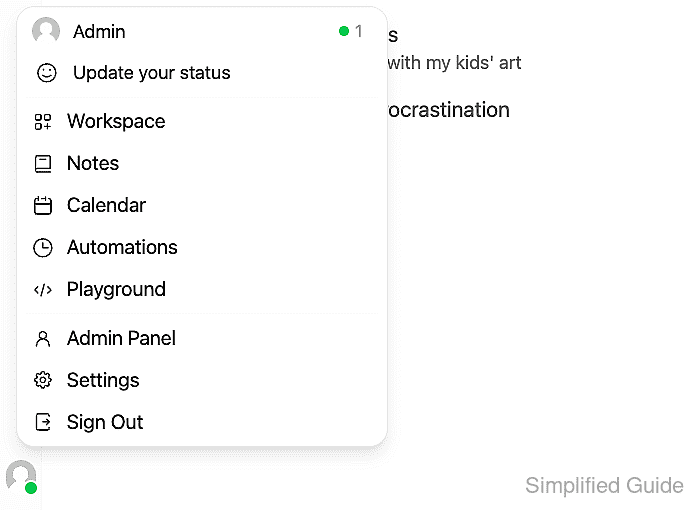
- Open your profile menu at the bottom of the sidebar while signed in as an administrator.
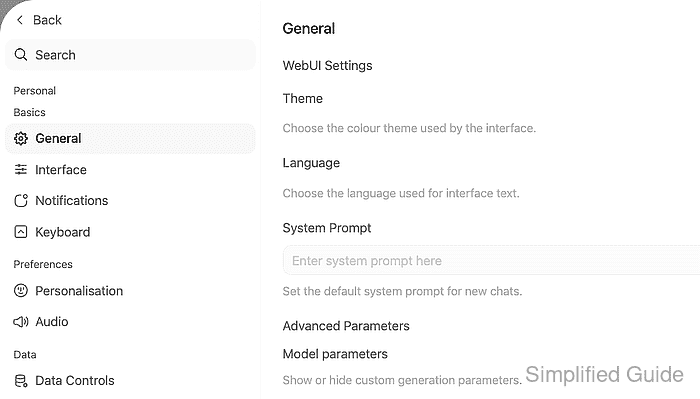
- Select Settings.
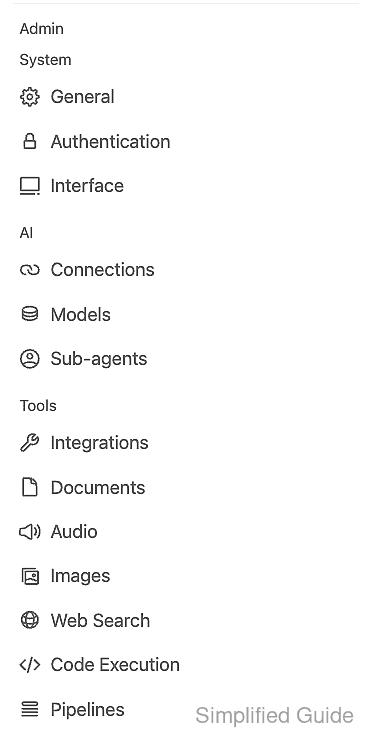
- Scroll the settings sidebar to Web Search under Admin → Tools.
- Select Web Search.
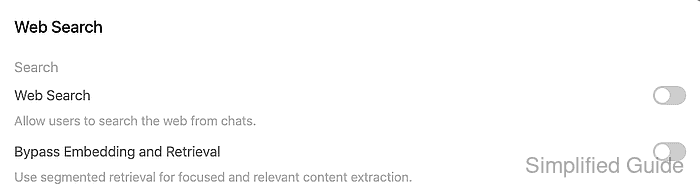
- Turn on Web Search.
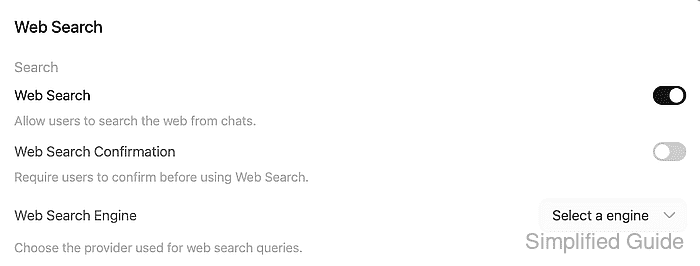
- Select external as the Web Search Engine.
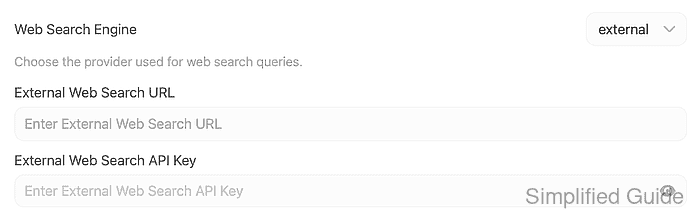
- Enter the provider's complete HTTPS endpoint in External Web Search URL.
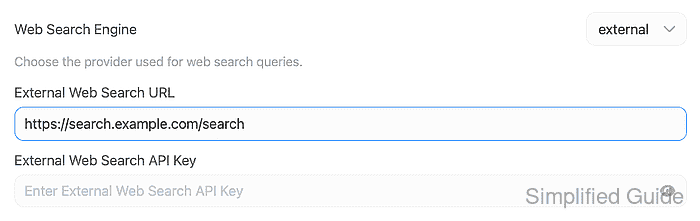
The endpoint shown is https://search.example.com/search. Your provider supplies its own URL, including the search path.
The next field stores the provider's credential. Screenshots, tickets, shared transcripts, and browser recordings must not reveal it; an exposed key requires rotation at the provider.
- Enter the provider key in External Web Search API Key with its value masked.
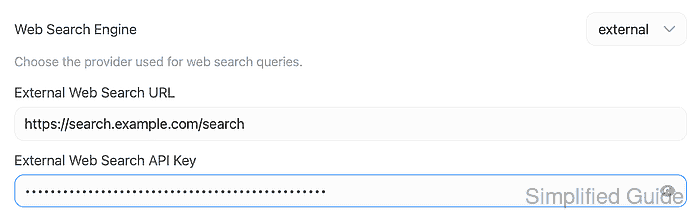
This is the search provider's key, not an Open WebUI API key.
- Set Search Result Count to 3 for the initial test.

This limits the requested results per search, subject to what the provider returns.
- Set Concurrent Requests under Search Limits to 1.

This runs queries in each traditional web-search batch one at a time. It does not serialize native search_web tool calls.
- Confirm Bypass Web Loader is off.

The traditional search path fetches result pages with this switch off. Turning it on uses snippets instead.
- Confirm Bypass Embedding and Retrieval is off.

This preserves the traditional retrieval path. Native tool calling handles search snippets and page fetching through separate tools rather than relying on these bypass switches.
- Click Save to apply the search settings.

- Click Back to leave Settings.
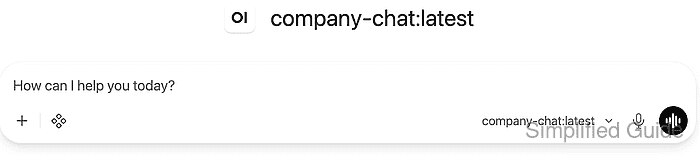
- Start a New Chat.
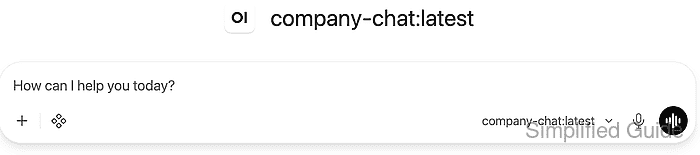
- Open the model picker in the message box.
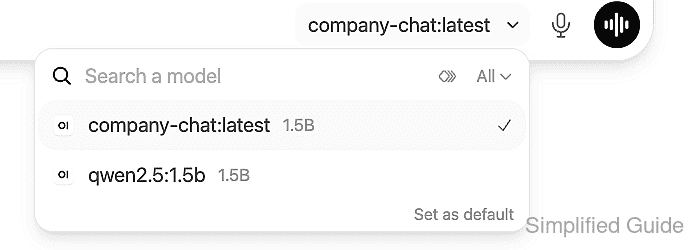
- Select a chat model that supports native tool calling.
The model shown is company-chat:latest. Available names depend on your connected provider.
- Open Integrations using the four-diamond icon beside the + button.
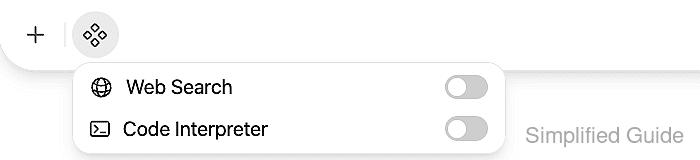
- Enable Web Search for the conversation.
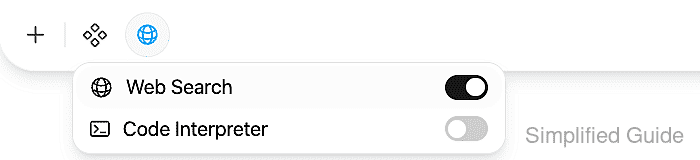
A blue globe appears in the message box. Ordinary accounts also need permission to use Web Search.
- Enter a non-sensitive question whose answer is on a page returned by your provider.
Use web search to find Platform Support hours. Open the returned page and tell me the team's weekday support hours. Cite the source.

The sample question assumes the provider indexes a support-hours notice. A question about your own indexed public information serves the same purpose.
- Send the message.

- Expand View Result from search_web in the reply.
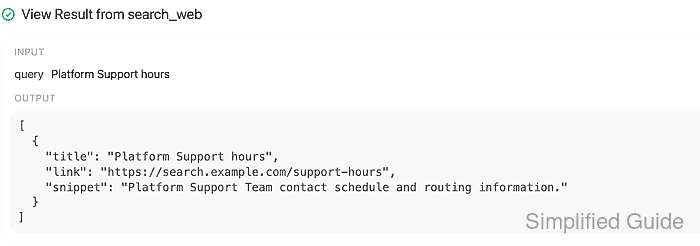
The INPUT shows the search query, and OUTPUT contains the returned title, link, and snippet. A link or a plausible answer alone does not establish that the model read the page.
- Enter a follow-up asking the model to read the returned URL.
Call fetch_url with url https://search.example.com/support-hours. Quote the weekday hours from the fetched content and cite that source.

Your returned URL replaces the sample URL. In Native mode, search_web finds results and fetch_url reads a page. Fetched pages can supply citations; search snippets alone do not create source entries.
- Send the follow-up.

- Expand View Result from fetch_url to inspect the fetched URL.

A green check marks the completed page fetch. A red error or an empty response does not establish that the page was read. Provider authentication, server reachability, TLS trust, and the server's web-fetch policy can prevent loading.
Related: How to fix Open WebUI localhost connection errors in Docker - Check the reply for an answer attributed to the fetched page.

The reply here includes weekdays from 09:00 to 17:00 UTC and a search.example.com citation. The wording and source count depend on your question and returned pages.
- Expand 1 Source beneath the reply.

The count can be higher when the model reads several pages.
- Open the returned URL's entry in the source list.
The source viewer contains the text fetched from that URL. The support notice here states the same weekday hours and UTC time zone as the reply. A different page or unsupported answer does not confirm that the intended source supplied the information.