Open WebUI sends each chat turn to the model shown in the chat model picker. When Ollama exposes several local models, choosing the intended entry keeps the conversation on the local runtime, model size, and capability set expected for that session.
Ollama-backed entries appear only after Open WebUI can reach the Ollama API and refresh its model list. The Ollama connection uses the native Ollama endpoint, usually port 11434, so the picker should show the same model ID that Ollama reports through its model-list API.
Start with an Ollama connection already saved in Open WebUI and at least one model pulled. Selection is complete when the chat model picker shows the target Ollama model and a short prompt returns a response from that model.
Steps to select an Ollama model in Open WebUI:
- Confirm that Ollama exposes the model that should be selected.
$ curl --fail-with-body --silent --show-error "http://ollama.example.net:11434/api/tags"
{
  "models": [
    {
      "name": "llama3.2:latest",
      "model": "llama3.2:latest",
      "modified_at": "2026-07-05T09:45:00+08:00",
      "size": 2019393189,
      "details": {
        "family": "llama",
        "parameter_size": "3.2B",
        "quantization_level": "Q4_K_M"
      }
    }
  ]
}
Use the Ollama URL reachable from the machine that runs the model service. A local workstation often uses http://127.0.0.1:11434, while a shared server may use a host name or container service name.
- Refresh the Open WebUI model list and confirm the same Ollama model appears.
$ curl --fail-with-body --silent --show-error "https://openwebui.example.com/api/models?refresh=true" \
  -H "Authorization: Bearer <open-webui-token>"
{
  "data": [
    {
      "id": "llama3.2:latest",
      "name": "llama3.2:latest",
      "object": "model",
      "owned_by": "ollama"
    }
  ]
}
The request uses an authenticated Open WebUI token. If Ollama lists the model but Open WebUI does not, recheck the saved Ollama base URL and refresh the model list again.
Related: How to refresh the Open WebUI model list - Open a new chat in Open WebUI.
- Select the Ollama model from the chat model picker.
Use the picker search field when the instance includes many cloud and local models. If the model is missing, refresh the model list after confirming the Ollama connection.
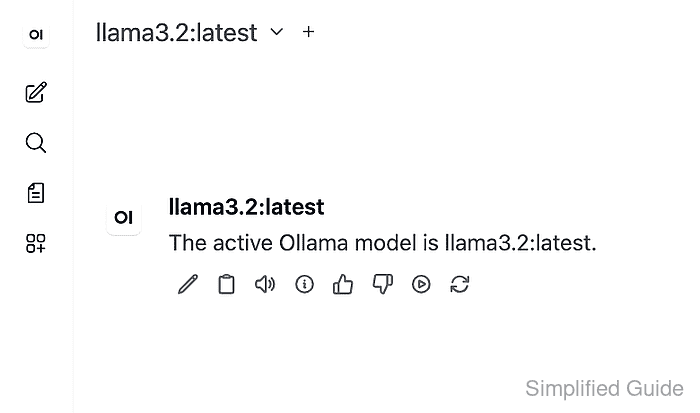
Related: How to connect Ollama to Open WebUI - Send a short prompt and confirm the response appears below the same Ollama model name.
Name the active Ollama model.
The model label above the response should match the model selected in the chat header. That visible state proves the chat is using the selected Ollama model rather than only showing a saved provider connection.

Mohd Shakir Zakaria is a cloud architect with deep roots in software development and open-source advocacy. Certified in AWS, Red Hat, VMware, ITIL, and Linux, he specializes in designing and managing robust cloud and on-premises infrastructures.


