A local chatbot needs Ollama serving a pulled model and Open WebUI reaching that service from its backend runtime. Pairing them gives a browser chat interface for a model that stays on the workstation or server running Ollama.
Ollama exposes its API on port 11434 by default. When Open WebUI runs in Docker, the container must use a host-reachable address such as http://host.docker.internal:11434 instead of http://localhost:11434, because localhost inside the container is the container itself.
Start with Ollama already running and at least one model pulled. The finished setup should show that model in the Open WebUI selector and return a short response from the chat page.
Steps to set up an Ollama chatbot in Open WebUI:
- Confirm that Ollama exposes a local chat model.
$ curl --fail-with-body --silent --show-error http://localhost:11434/api/tags
{
  "models": [
    {
      "name": "llama3.2:latest",
      "model": "llama3.2:latest",
      "modified_at": "2026-07-05T09:10:00+08:00",
      "size": 2019393189,
      "details": {
        "family": "llama",
        "parameter_size": "3.2B",
        "quantization_level": "Q4_K_M"
      }
    }
  ]
}
If the list is empty, pull a model in Ollama before starting Open WebUI.
- Start Open WebUI with its Ollama URL pointed at the host.
$ docker run --detach \
  --name open-webui \
  --publish 3000:8080 \
  --add-host=host.docker.internal:host-gateway \
  --env OLLAMA_BASE_URL=http://host.docker.internal:11434 \
  --mount type=volume,source=open-webui,target=/app/backend/data \
  --restart unless-stopped \
  ghcr.io/open-webui/open-webui:main
<container-id>
--add-host=host.docker.internal:host-gateway makes the host alias work on Linux Docker engines that do not provide it automatically. Docker Desktop provides the same name by default.
Related: How to run Open WebUI with Docker - Wait for the Open WebUI health endpoint to answer.
$ curl --fail-with-body --silent --show-error http://localhost:3000/health {"status":true} - Open Open WebUI in a browser.
http://localhost:3000
- Create the first administrator account or sign in with an existing administrator account.
The first account on a fresh Open WebUI data volume becomes the administrator for provider settings and user management.
- Select the Ollama model in the chat model picker.
If the model does not appear, reload the page or refresh the model list after confirming the container can reach http://host.docker.internal:11434.
Related: How to refresh the Open WebUI model list - Send a short test prompt and confirm the response appears in the chat.
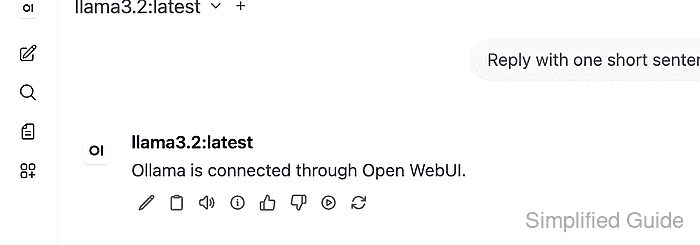
Reply with one short sentence that says Ollama is connected.
The selected model name should stay visible in the chat header while the response is generated. If the model list works but the response fails, check the Ollama logs and the Open WebUI provider connection.
Related: How to troubleshoot Open WebUI provider connection errors

Mohd Shakir Zakaria is a cloud architect with deep roots in software development and open-source advocacy. Certified in AWS, Red Hat, VMware, ITIL, and Linux, he specializes in designing and managing robust cloud and on-premises infrastructures.


