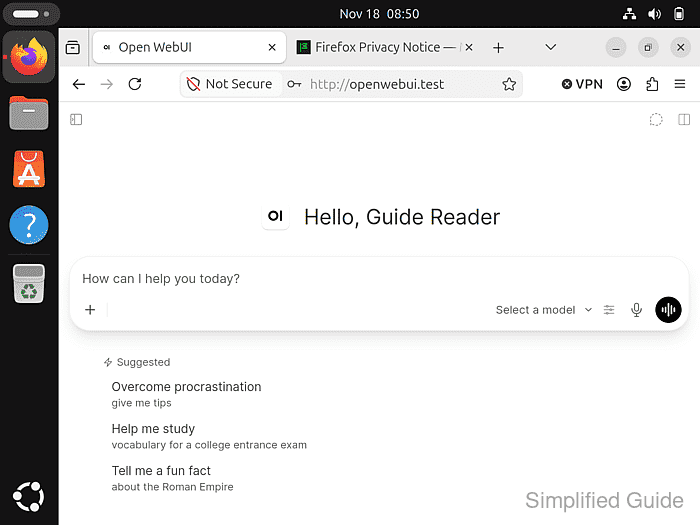
The browser decides which sites can capture audio from your microphone. If Open WebUI blocks Dictate over plain HTTP, use the server's trusted HTTPS address so the browser can ask for microphone access.
Browsers make an exception for localhost because it refers to the device running the browser. On a phone or another computer, the server's LAN address still needs HTTPS, even when both devices are on the same network.
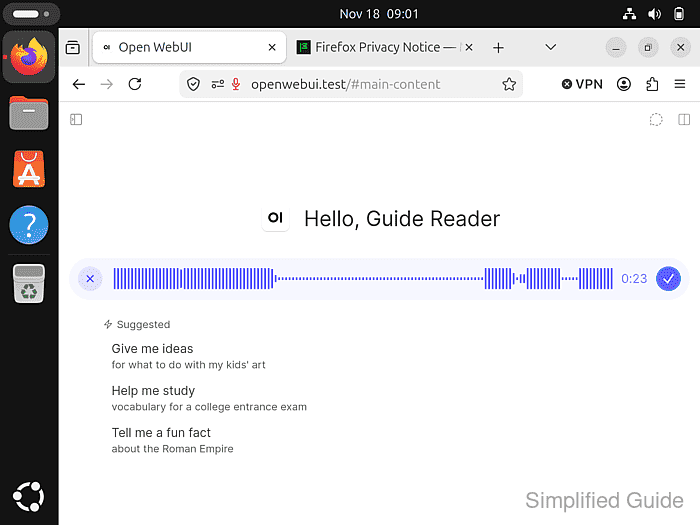
The recording waveform shows whether your voice reaches the chat box. With the default speech-to-text engine, Open WebUI sends the recording to the server for transcription after you finish. Moving bars show that the browser captured sound, while the text in the chat box shows what the server recognized.
Steps to fix microphone input not working in Open WebUI:
- Click the Dictate microphone in an Open WebUI chat you already have open and signed in over plain HTTP.
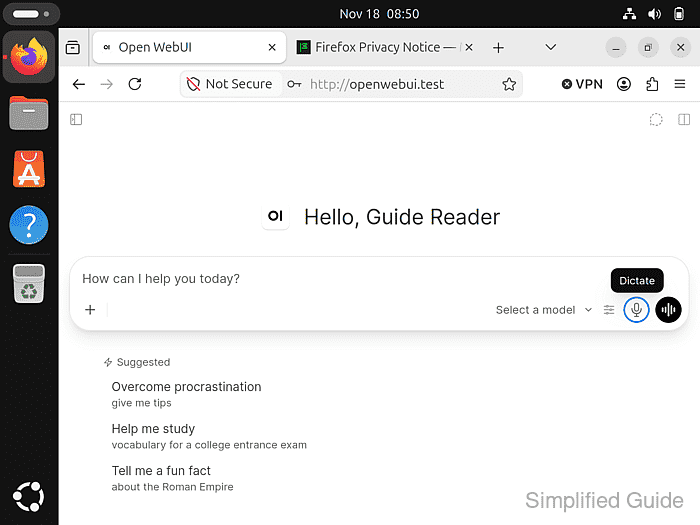
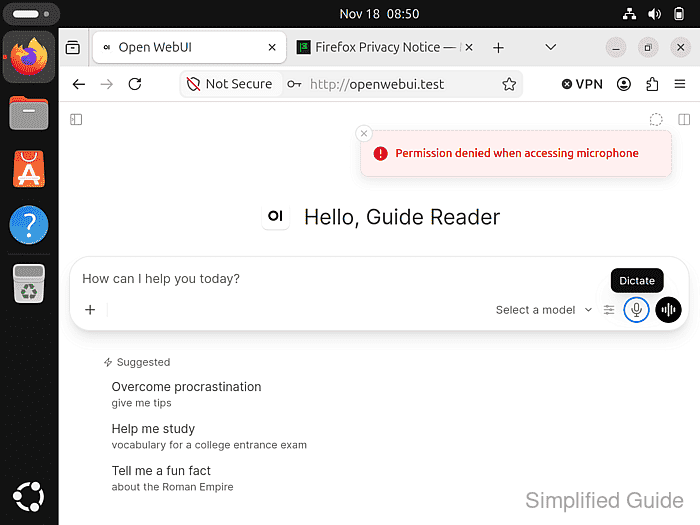
Open WebUI can show Permission denied when accessing microphone without opening a browser prompt. Skip this test if you are signed out or already using trusted HTTPS.
- Open the trusted HTTPS address for the same Open WebUI server from your browser's address bar.
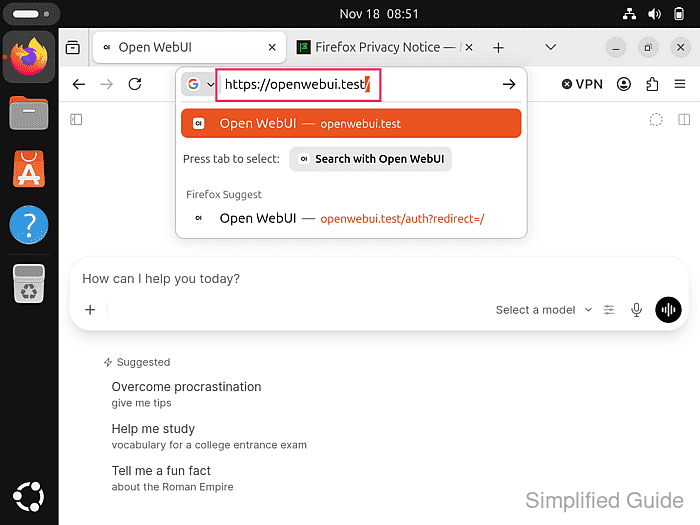
If the browser shows a certificate warning, stop before signing in and ask the administrator to correct the certificate. If the instance has no HTTPS address yet, the administrator can set one up with a reverse proxy.
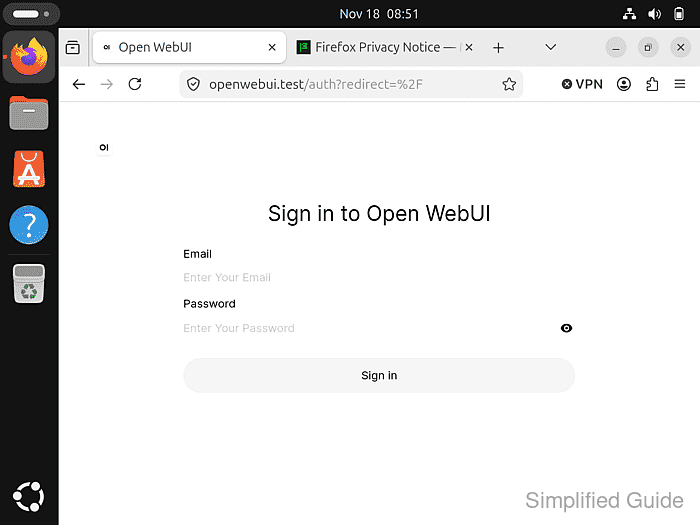
- Sign in with the same Open WebUI account if the trusted HTTPS site asks you to.
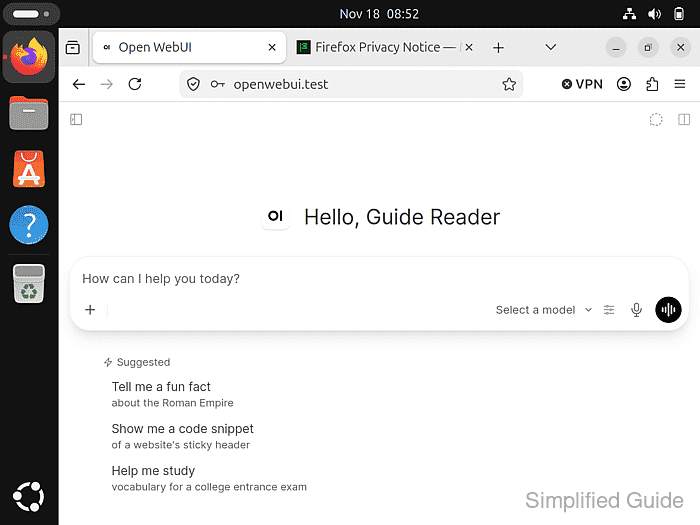
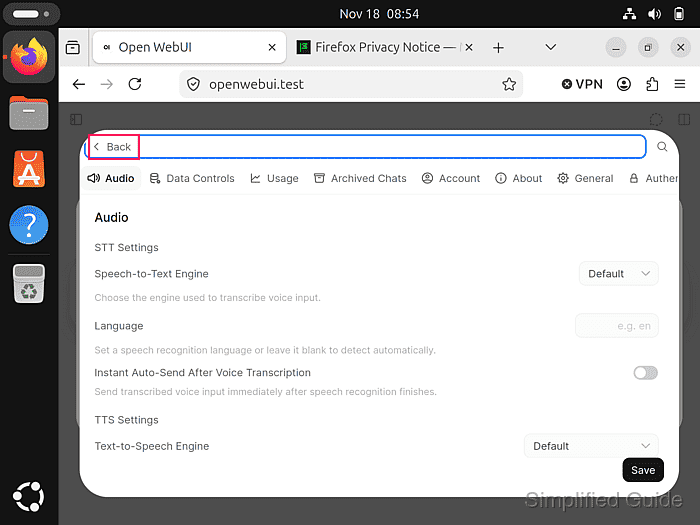
- Check that Speech-to-Text Engine in your Open WebUI Settings → Audio is set to Default.
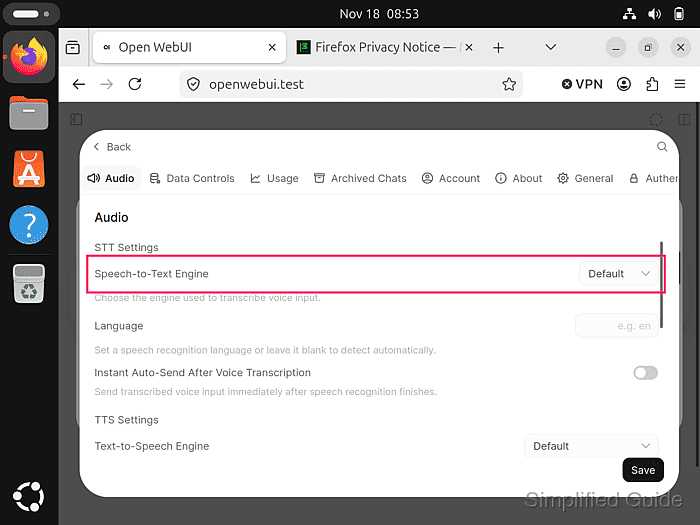
Default uses the server's configured engine. The recording test requires a working server engine, which your administrator can verify if you are unsure. If Web API is selected, switch to Default for this test and save the change.
- Check that Instant Auto-Send After Voice Transcription is off.
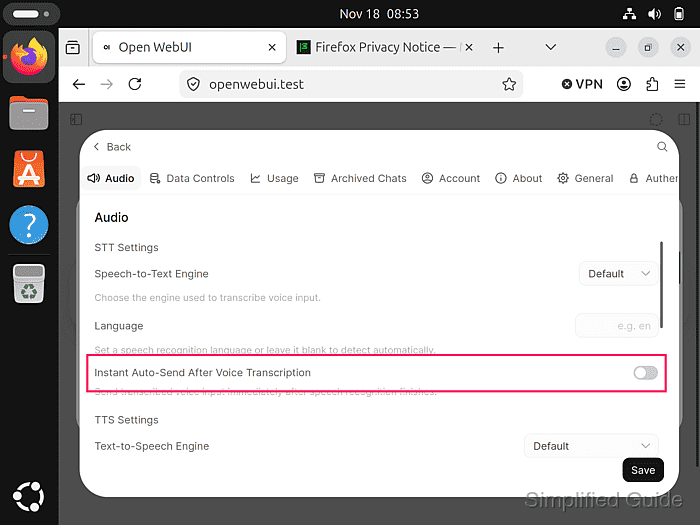
If auto-send is on, turn it off and save before testing so the phrase stays in the chat box.
- Click Back in Settings to return to the chat box.
- Click Dictate in an empty chat box on the HTTPS page.
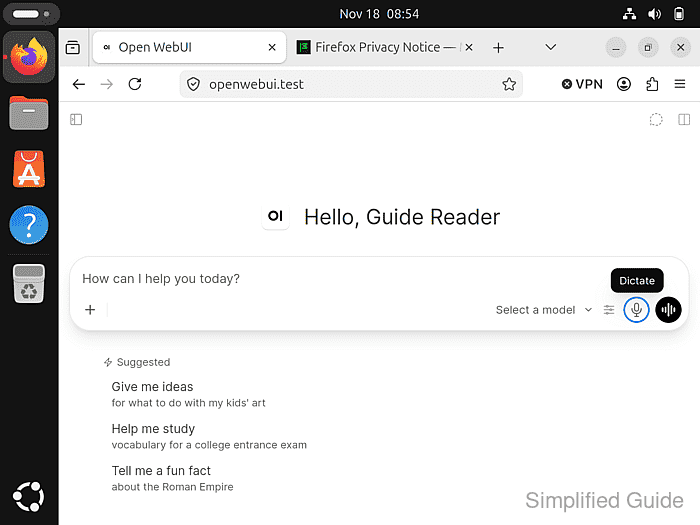
The microphone is next to the separate Voice mode button. If recording starts immediately, the site already has access and you can go straight to saying the test phrase. If there is no prompt or recording, check for a saved browser block on this HTTPS site or a microphone restriction in the device's privacy settings. Firefox microphone permission help explains how to clear a site block.
- Select the microphone you want to use from the input dropdown if the browser prompt offers a choice.
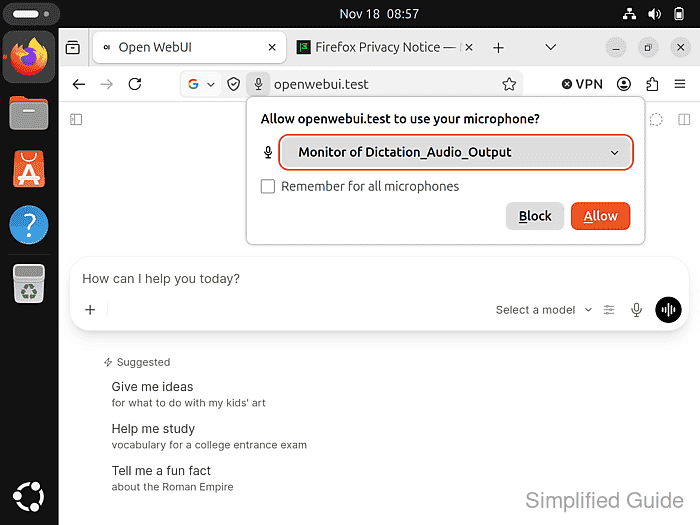
- Click Allow if the browser asks to share your microphone with the Open WebUI site.
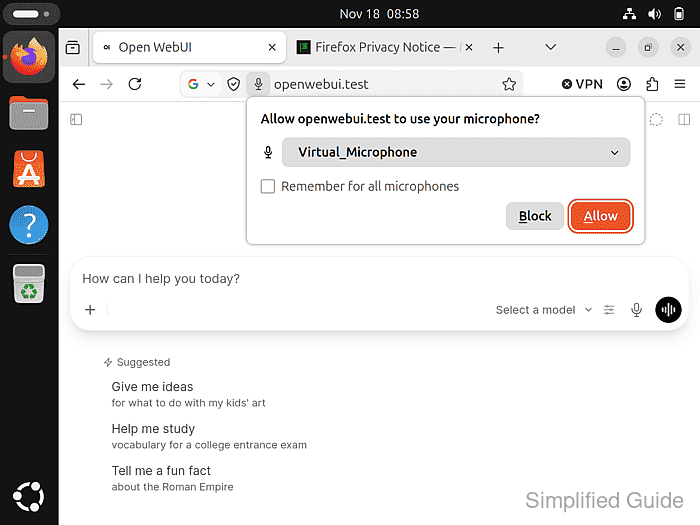
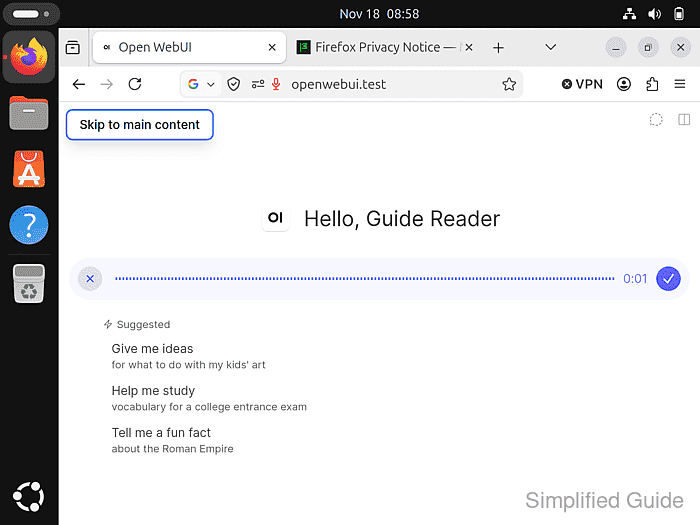
Open WebUI displays a recording bar once the browser grants access.
- Say “The blue lantern is on the wooden table” into the selected microphone.
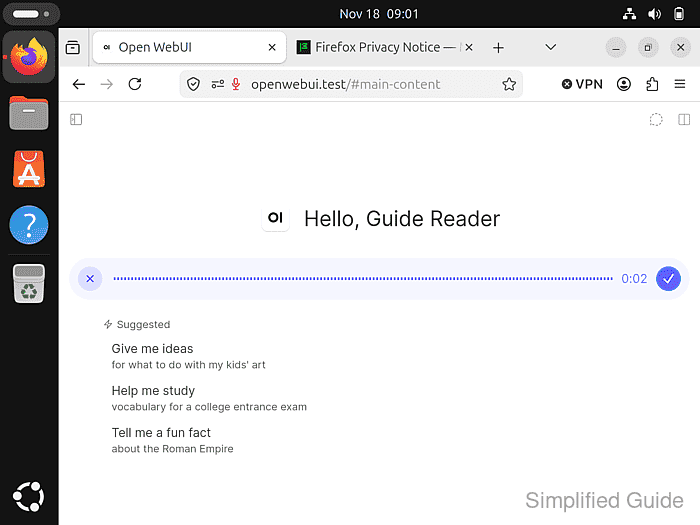
The bars should rise with your voice. If they stay flat while you speak, check the selected input, the microphone's mute control, and the browser and device permissions before testing again.
- Click the Finish checkmark at the right end of the recording bar.
- Check that you can recognize your test phrase in the editable, unsent chat box.
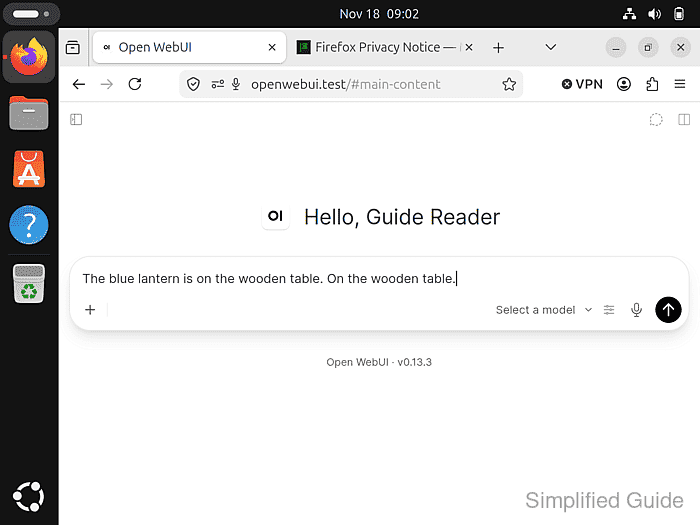
The chat box shown contains the intended sentence and repeats “On the wooden table.” An empty, unrelated, or unrecognizable result fails the phrase check. If the bars moved but the text is missing or has wrong or repeated words, check the server's configured speech-to-text engine. If you plan to send the text, review it first and correct any errors.