Many MCP servers run as local processes and exchange messages over stdio rather than listening for HTTP requests. mcpo bridges that boundary, exposing the server's tools through an OpenAPI endpoint that Open WebUI can call from a chat.
The mcp-server-time server provides a read-only starting point with current-time and time-conversion tools. A separate Docker container keeps its runtime apart from Open WebUI, while a shared private network lets the backend reach mcpo by container name. Native remote MCP connections use a different transport and connection type.
A tool connection grants access to the capabilities of its server. A time lookup needs no host files or extra privileges, but replacing it with a filesystem or command server can grant much broader access. An administrator session and an already-connected model with tool-calling support are required; the model must execute a lookup rather than merely write a plausible time.
Steps to connect a stdio MCP server to Open WebUI with mcpo:
- Create a private directory for the mcpo build files.
$ mkdir -m 700 mcpo-time
Docker must already be running, and open-webui below is your existing Open WebUI container. The network connection leaves the existing image, ports and data volume in place.
Related: How to run Open WebUI with Docker - Create mcpo-time/Dockerfile in your text editor with the time-server dependencies.
- Dockerfile
FROM python@sha256:df540bfd30bd380e89a349611ce42aa67bcb542d58c047706616eb6ba2f86a1b
RUN pip install --no-cache-dir mcpo==0.0.20 mcp-server-time==2026.1.26 mcp==1.26.0 fastapi==0.115.12
ENTRYPOINT ["mcpo"]
The base is the Python 3.12 slim Bookworm image. These versions keep mcpo 0.0.20 with the MCP 1.x client it imports; newer time-server releases require MCP 2.x. The FastAPI pin also avoids a startup incompatibility. Updating a package independently can break this combination.
Related: mcpo documentation - Build the mcpo image from that directory.
$ docker build --tag mcpo-time:0.0.20 mcpo-time
- Create mcpo-time/mcpo.env in your text editor with a new random secret from your password manager.
- mcpo.env
MCPO_API_KEY=replace-with-your-random-secret
The key authorizes every tool exposed by this proxy. The placeholder must be replaced locally; the same secret will be entered in Open WebUI. Anyone with Docker administration access can inspect the container's configuration.
- Restrict the environment file to your account.
$ chmod 600 mcpo-time/mcpo.env
- Create a Docker network for the backend connection.
$ docker network create mcpo-net - Attach the existing Open WebUI container to mcpo-net.
$ docker network connect mcpo-net open-webuiThe existing container name is a replaceable reader value. An already-connected container needs no second network attachment.
- Start mcpo with the time server as its stdio child process.
$ docker run -d --name mcpo-time \
  --network mcpo-net \
  -p 127.0.0.1:8000:8000 \
  --env-file mcpo-time/mcpo.env \
  --entrypoint sh mcpo-time:0.0.20 \
  -c 'exec mcpo --host 0.0.0.0 --port 8000 --api-key "$MCPO_API_KEY" -- mcp-server-time --local-timezone UTC'
Everything after -- is the stdio server command. mcpo launches it inside this container, so that executable and its dependencies must exist there. The host port is bound only to loopback; Open WebUI uses the private Docker network. No host directory or Docker socket is mounted.
- Open mcpo's API documentation at http://127.0.0.1:8000/docs.
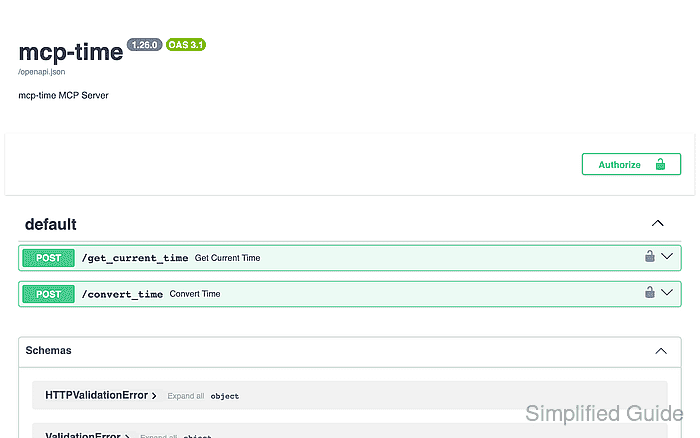
The operations list should contain POST /get_current_time and POST /convert_time. The documentation and schema are public by default, while the tool operations require the API key. If the page is unreachable, inspect the startup log with docker logs mcpo-time. The log should name mcp-server-time --local-timezone UTC and report application startup complete on port 8000. An import error or an exited process requires repair before connection setup; the pinned packages above address the known dependency incompatibilities. A running listener with an unreachable page points to the host-port mapping.
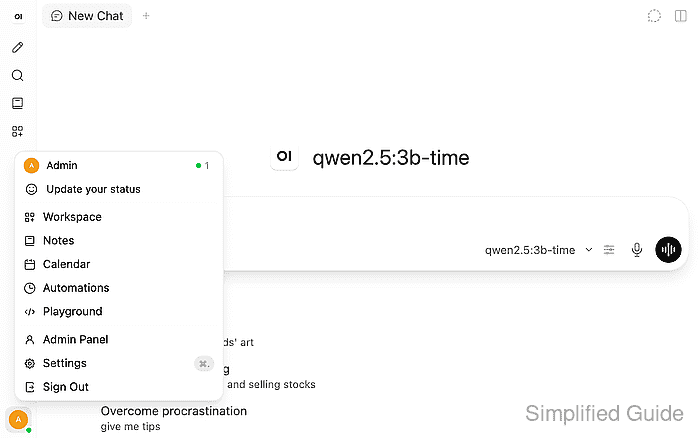
- Open your user menu in Open WebUI.
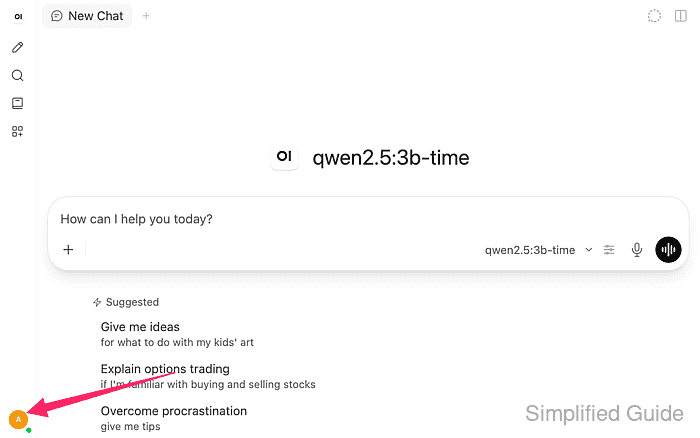
- Select Settings.
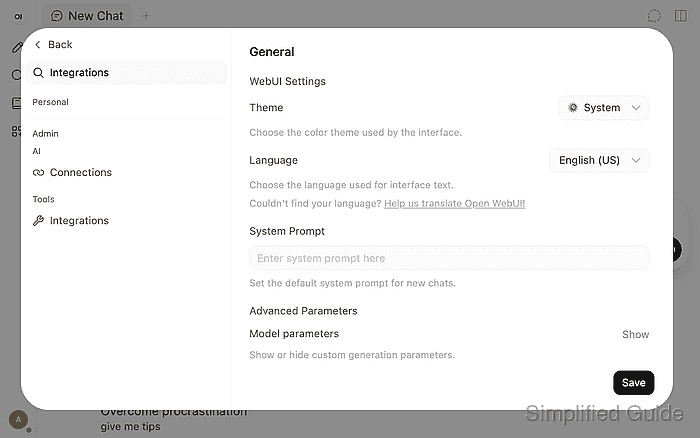
- Enter Integrations in the settings search.
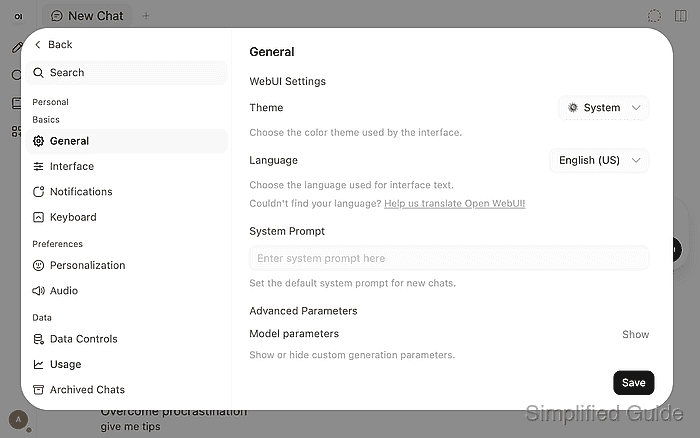
- Select Integrations under Admin → Tools.
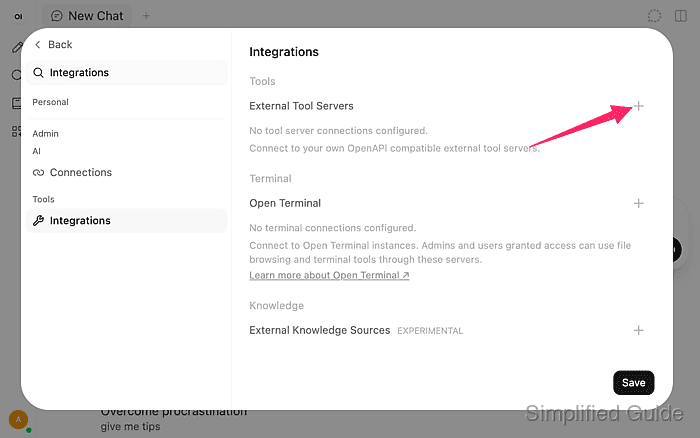
- Click the Add Connection plus beside External Tool Servers.
- Enter Time MCP in Name.
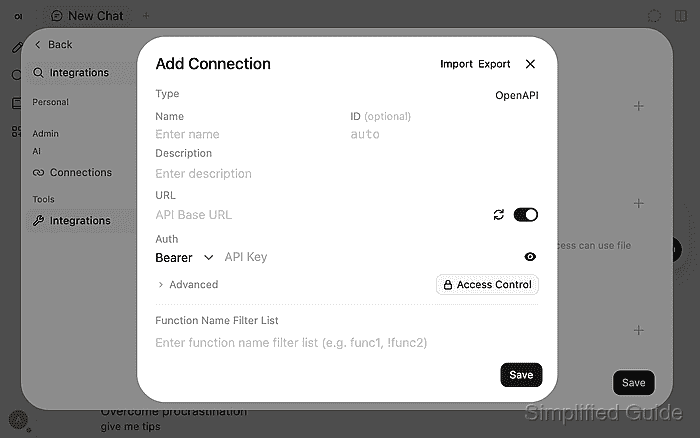
The default Type is OpenAPI, which matches mcpo's HTTP interface. MCP Streamable HTTP is for a native remote MCP server.
- Enter http://mcpo-time:8000 in URL.
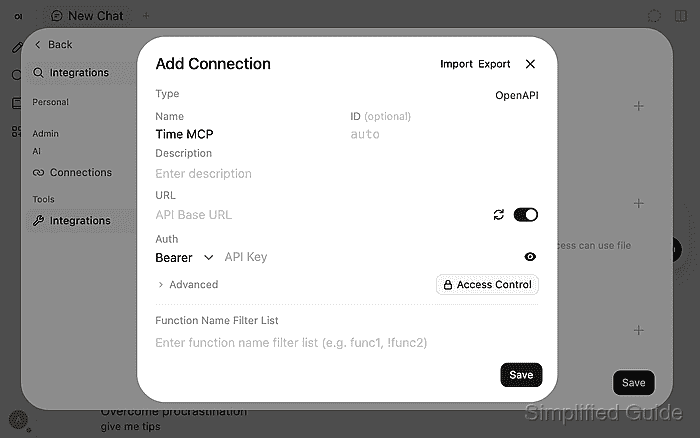
This is the container name and internal port from the shared network. localhost here would refer to the Open WebUI container. The default schema path is openapi.json; no /mcp suffix belongs on the mcpo base URL.
- Enter the secret from mcpo-time/mcpo.env in the Bearer API-key field.
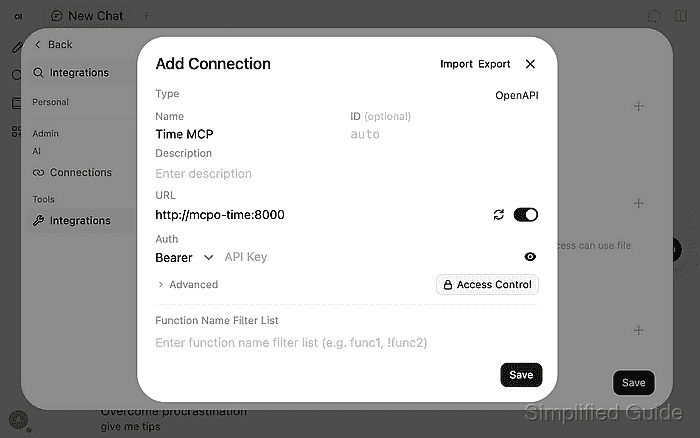
The field takes the secret alone, without the word Bearer. The connection's default authentication mode is Bearer.
- Click Verify Connection beside URL.
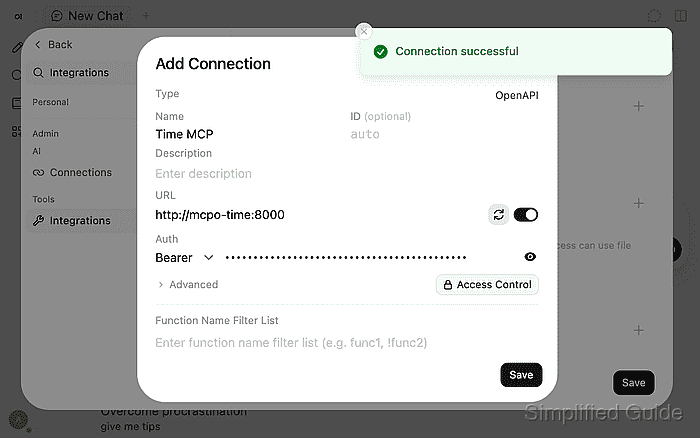
Connection successful confirms schema access from the backend. It does not prove the key or a tool call because the schema is public. An unreachable URL needs the container name, shared network and listener repaired; a reachable schema lets you continue to the authenticated chat test.
Admin settings survive container recreation while ENABLE_PERSISTENT_CONFIG stays at its default, enabled, and the Open WebUI data volume is retained. With persistent configuration disabled, environment values take precedence after recreation.
- Connect Open WebUI to Time MCP with the dialog’s Save button.
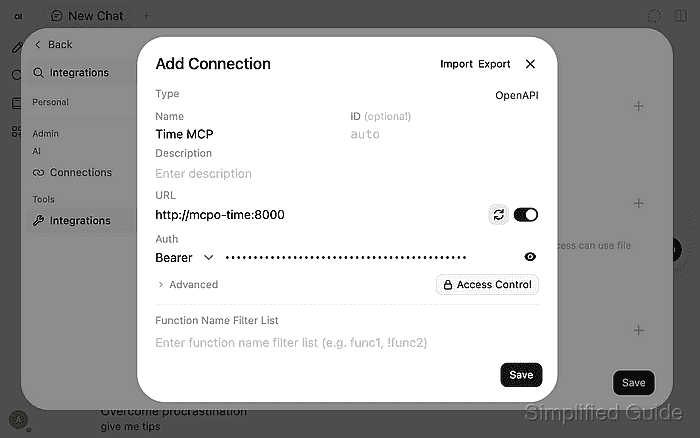
- Return to chat with Back.
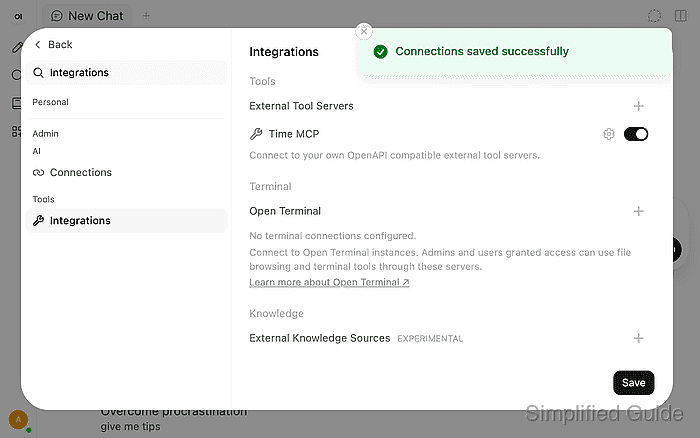
Time MCP should now appear as an enabled external tool server.
- Reload Open WebUI with your browser’s reload shortcut.
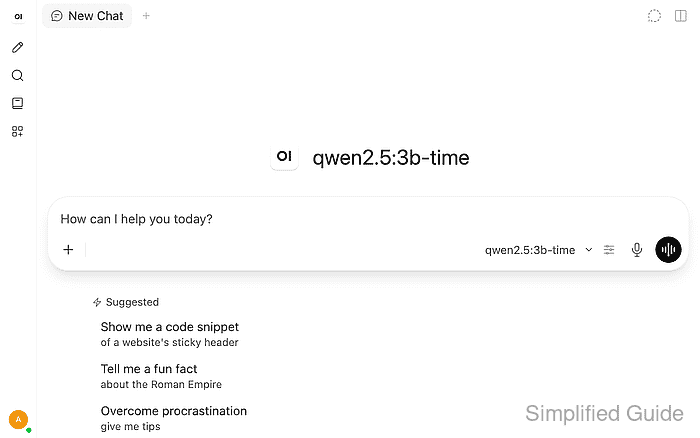
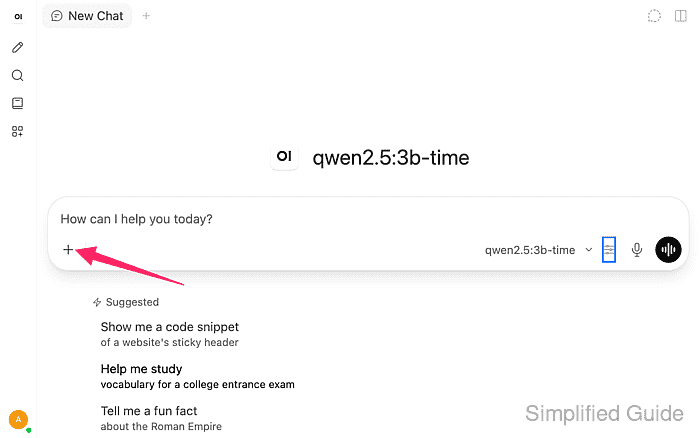
A chat opened before the server was added can retain its older tool list. A connected model with native tool-calling support must already be selected in the composer. The displayed qwen2.5:3b-time is a local name for Qwen2.5 3B with an 8192-token context; your model can have a different name.
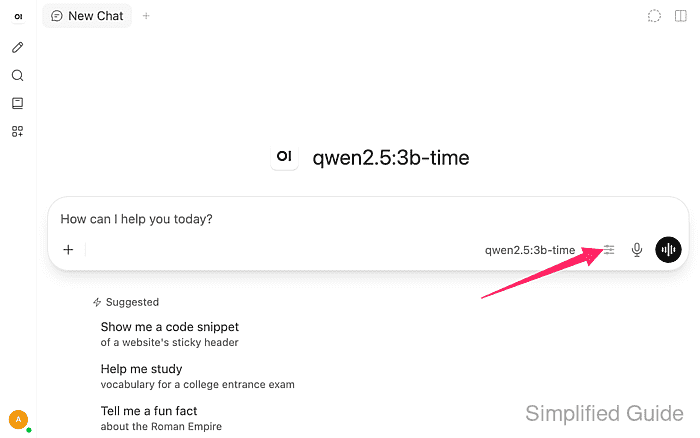
- Open Model controls beside the selected model in the composer.
- Expand Advanced Params.
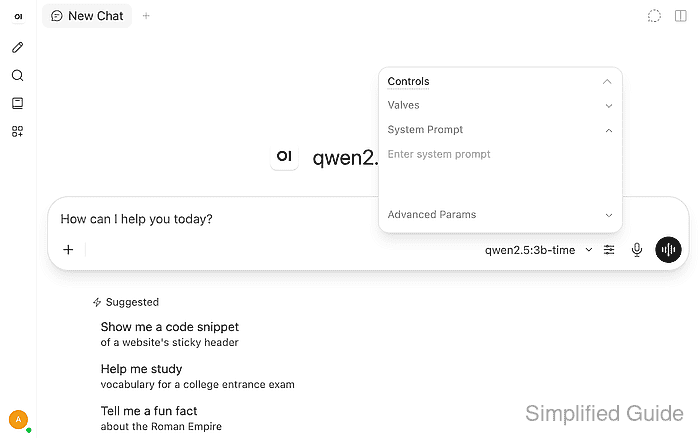
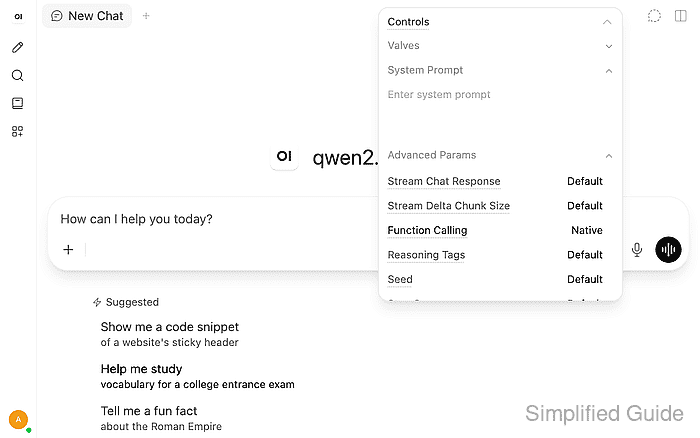
- Change Function Calling from Default to Native.
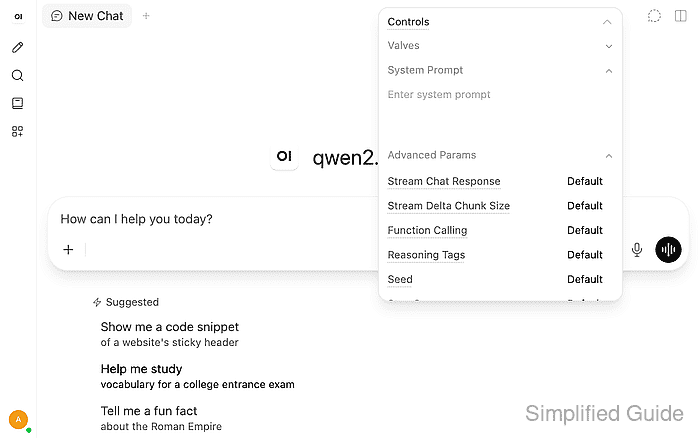
Native passes tool definitions through the model provider's tool-calling interface. A model without that capability needs a compatible replacement; changing the label cannot add model support.
- Close the controls with Escape.
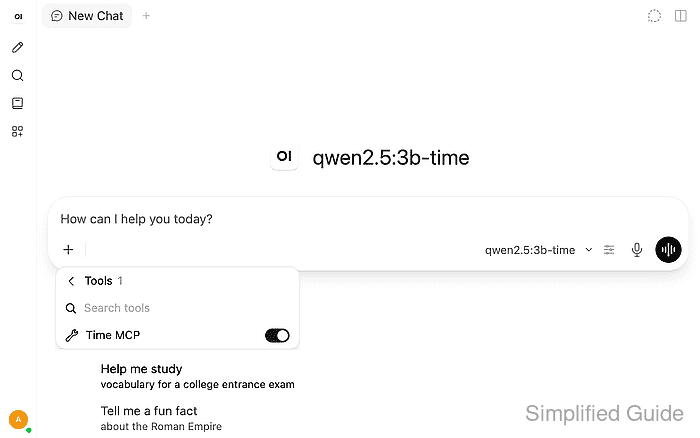
- Open the composer's + menu.
- Open Tools in the menu.
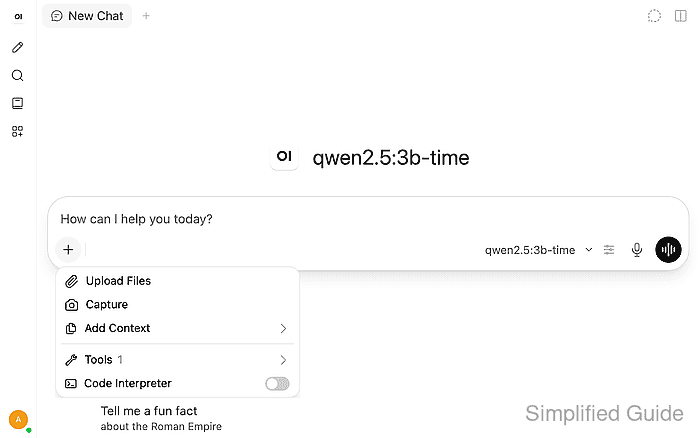
- Enable Time MCP for the chat.
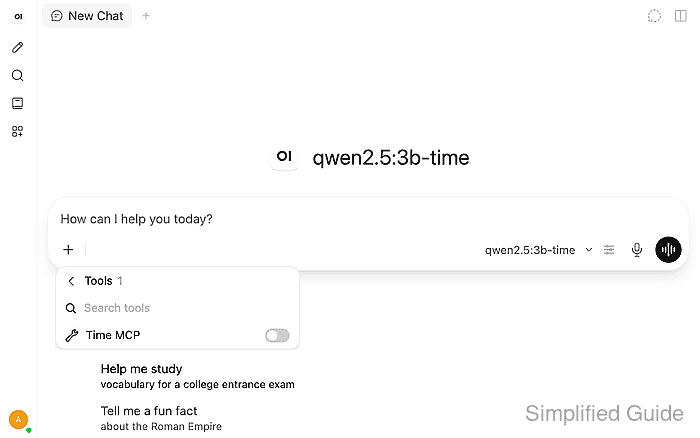
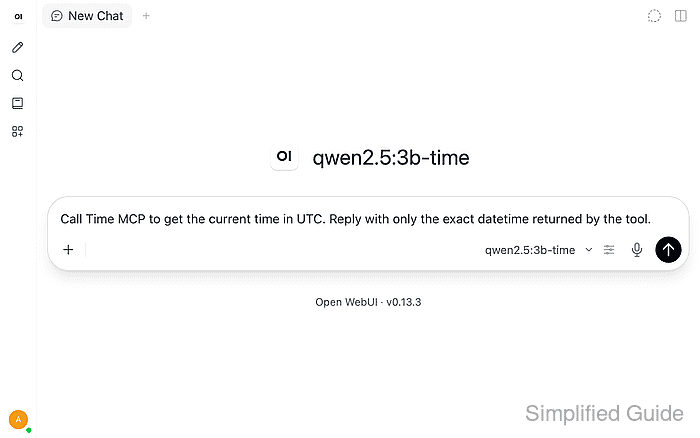
- Enter a request for the server's current UTC time in the message box.
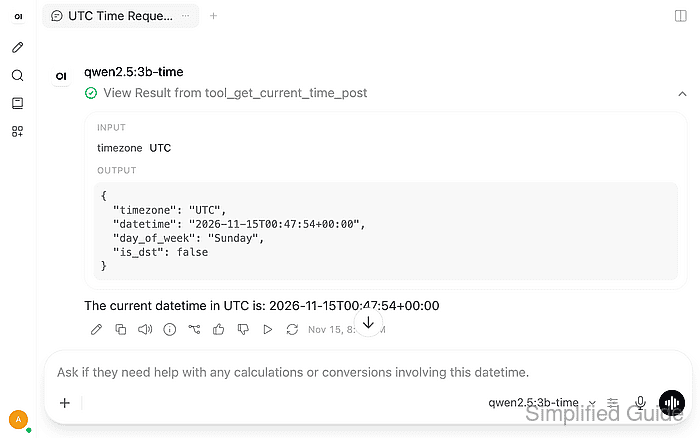
Call Time MCP to get the current time in UTC. Reply with only the exact datetime returned by the tool.
- Send the request with Enter.
- Expand the time tool's View Result entry in the response.
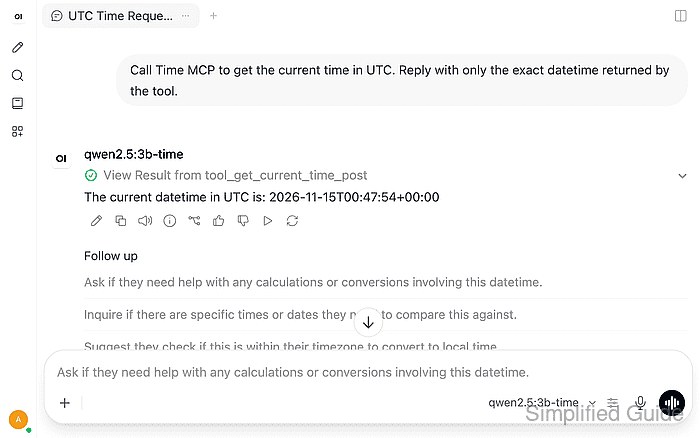
- Confirm that the reply reports the UTC datetime shown in the tool's OUTPUT.
The call's INPUT should specify UTC, and its returned datetime should agree with the reply. A missing key produces 401 and a wrong key produces 403; either requires the Bearer value to match mcpo.env before a new request. A connection error requires backend reachability to be restored. A reply without a tool-result entry leaves the lookup unproven even if its time looks plausible.