LM Studio can run local models from a desktop app while exposing them through an OpenAI-compatible API server. Connecting that server to Open WebUI lets a local model appear in the web chat model picker, so users can keep Open WebUI chats, workspaces, and access controls while inference stays on the machine running LM Studio.
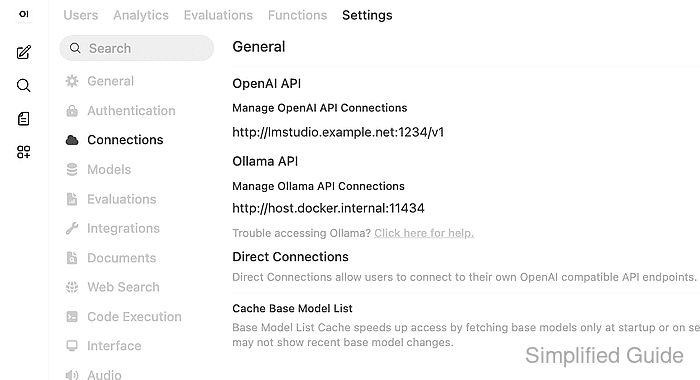
The LM Studio server normally listens on port 1234 and serves OpenAI-style routes under /v1. Open WebUI stores the endpoint in Admin Panel → Settings → Connections → OpenAI, where it can list models and send chat completion requests through the same interface used for other compatible providers.
Container networking is the usual point of failure. If Open WebUI runs in Docker and LM Studio runs on the host desktop, the provider URL usually needs a host-reachable address rather than the loopback address that only works from the desktop itself.
Steps to connect LM Studio to Open WebUI:
- Start the LM Studio local server with the model that Open WebUI should expose.
$ lms server start --port 1234
The desktop app can also start the server from Developer → Local Server. Keep the server bound to localhost unless another host or container must reach it, because the API can run local model inference.
- Confirm that the LM Studio server lists the loaded model.
$ curl --fail-with-body --silent --show-error "http://127.0.0.1:1234/v1/models"
{
  "object": "list",
  "data": [
    {
      "id": "lmstudio-community-local-chat",
      "object": "model",
      "owned_by": "lmstudio"
    }
  ]
}
Use the model id returned here when selecting or testing the model in Open WebUI. If the list is empty, load a model in LM Studio before continuing.
- Probe the same endpoint from the Open WebUI runtime.
$ docker exec open-webui curl --fail-with-body --silent --show-error "http://host.docker.internal:1234/v1/models"
{
  "object": "list",
  "data": [
    {
      "id": "lmstudio-community-local-chat",
      "object": "model",
      "owned_by": "lmstudio"
    }
  ]
}
Use http://host.docker.internal:1234/v1 when Open WebUI runs in Docker Desktop and LM Studio runs on the host. For Linux Docker hosts, use a reachable host gateway address, a LAN address, or a shared network route that the container can resolve.
Related: How to troubleshoot Open WebUI provider connection errors - Open Admin Panel → Settings → Connections → OpenAI and add the LM Studio endpoint as an OpenAI-compatible connection.
Set Base URL to http://host.docker.internal:1234/v1 for the Docker-host pattern. Use a placeholder key such as lm-studio unless a proxy in front of LM Studio requires a real API key.
- Save the connection and refresh the model list in Open WebUI.
If the model does not appear, verify the exact /v1 base URL from inside the Open WebUI runtime and remove any older unreachable provider entry before testing again.
Related: How to refresh the Open WebUI model list - Open a new chat, select the LM Studio model, and send a short prompt.
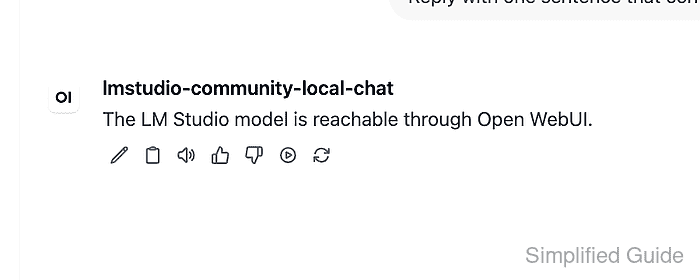
The selected model should answer through the LM Studio server. A visible chat response proves the model list, provider URL, selected model ID, and chat completion route together.

Mohd Shakir Zakaria is a cloud architect with deep roots in software development and open-source advocacy. Certified in AWS, Red Hat, VMware, ITIL, and Linux, he specializes in designing and managing robust cloud and on-premises infrastructures.


