llama.cpp can serve GGUF models through an OpenAI-compatible HTTP API, which lets Open WebUI use a local model as a normal chat backend. Connecting the server through the Connections settings keeps model selection, chat history, and user access inside Open WebUI while inference stays on the machine running llama-server.
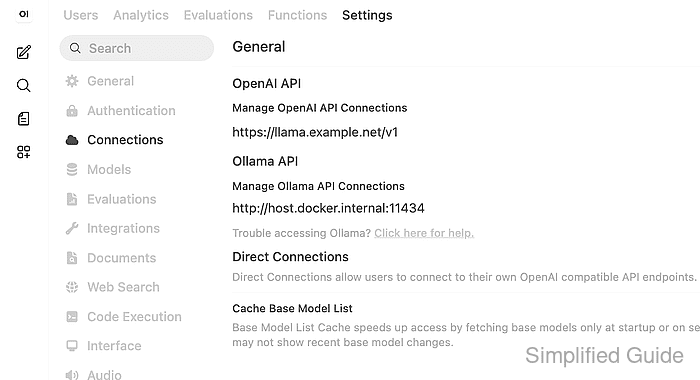
The llama-server endpoint exposes model listing and chat completion routes under /v1. Open WebUI stores that endpoint in its OpenAI API connection layer, and the Llama.cpp provider type tells Open WebUI to use llama.cpp-specific behavior such as model unload support when the server reports loaded model state.
For a common Docker deployment, Open WebUI runs as a container named open-webui and llama-server runs on the Docker host. Use the same model ID in the provider check, the saved connection, and the final chat smoke test so a missing model, a container networking problem, or a wrong provider URL fails before users depend on the connection.
Steps to connect llama.cpp to Open WebUI:
- Start llama-server with the model that Open WebUI should expose.
$ llama-server --model /srv/models/local-gguf-chat.gguf --host 0.0.0.0 --port 8000
Bind to 127.0.0.1 instead of 0.0.0.0 when Open WebUI is not in a container and no other host should reach the model server. If the server listens on the LAN, protect it with firewall rules, reverse-proxy authentication, or a private network.
- Confirm that the llama.cpp server lists the loaded model.
$ curl --fail-with-body --silent --show-error "http://127.0.0.1:8000/v1/models"
{
  "object": "list",
  "data": [
    {
      "id": "local-gguf-chat",
      "object": "model",
      "owned_by": "llama.cpp"
    }
  ]
}
The model ID returned here is the value to select in Open WebUI later. A slow-loading model may not appear until llama-server finishes loading the GGUF file.
- Probe the same endpoint from the Open WebUI container.
$ docker exec open-webui curl --fail-with-body --silent --show-error "http://host.docker.internal:8000/v1/models"
{
  "object": "list",
  "data": [
    {
      "id": "local-gguf-chat",
      "object": "model",
      "owned_by": "llama.cpp"
    }
  ]
}
Use http://host.docker.internal:8000/v1 when Open WebUI runs in Docker Desktop and llama-server runs on the host. Use a shared Docker network name, LAN address, or service DNS name when that is how the container reaches the model server.
Related: How to troubleshoot Open WebUI provider connection errors - Open Admin Panel → Settings → Connections → OpenAI and add the llama.cpp endpoint as a connection.
Choose Standard / Compatible when tabs are shown, set Provider to Llama.cpp, set Base URL to http://host.docker.internal:8000/v1 for the Docker-host pattern, and use a placeholder API key such as sk-no-key-required unless a proxy in front of llama-server requires one.
- Save the connection and refresh the model list in Open WebUI.
If the model list stays empty, recheck the exact /v1 base URL from inside the Open WebUI runtime and remove any old unreachable provider URLs before testing again.
Related: How to refresh the Open WebUI model list - Open a new chat, select the llama.cpp model, and send a short prompt.
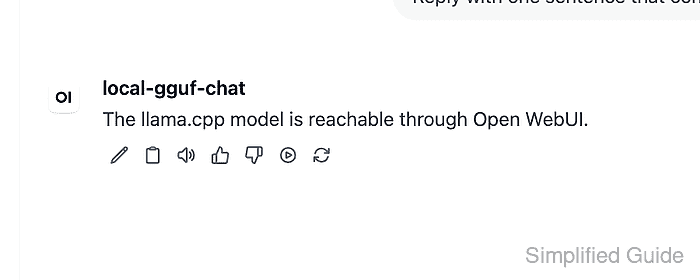
The selected model should answer from the local llama-server instance. A visible chat response proves more than saved configuration because it exercises Open WebUI, the provider URL, the model ID, and the chat completion route together.

Mohd Shakir Zakaria is a cloud architect with deep roots in software development and open-source advocacy. Certified in AWS, Red Hat, VMware, ITIL, and Linux, he specializes in designing and managing robust cloud and on-premises infrastructures.


