Saved conversations in Open WebUI belong to an account and remain available after the browser closes. Clearing chat history removes that account's active and archived conversations when they are no longer needed.
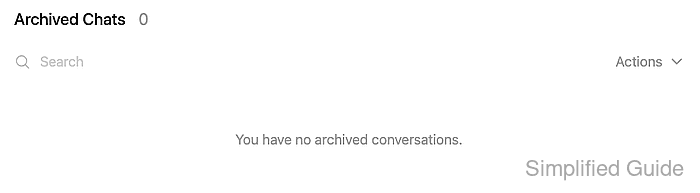
The Delete All Chats action affects the signed-in account, including its archived chats. Other users' histories, user accounts, model connections, and knowledge bases remain in place; clearing chats does not sign you out or erase the server.
Deletion cannot be undone in the chat interface. A saved export of conversations you need to keep must exist before confirmation; archiving is not a backup because archived chats are deleted too.
Steps to clear Open WebUI chat history:
- Open the left sidebar in Open WebUI.
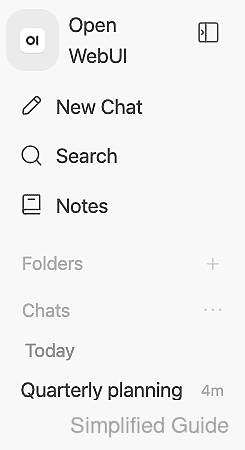
- Open the profile menu for the account whose history you intend to delete.
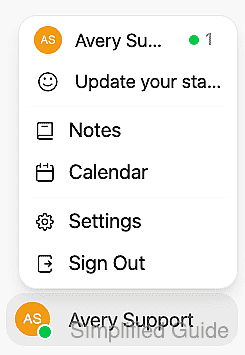
The name at the bottom of the sidebar identifies the signed-in account. If it is the wrong account, stop before deleting any chats.
- Select Settings from the profile menu.
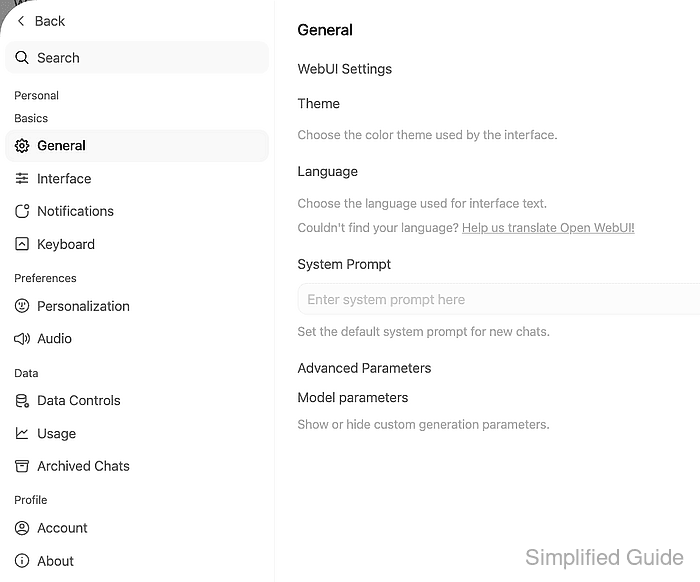
- Select Data Controls under Data in Settings.
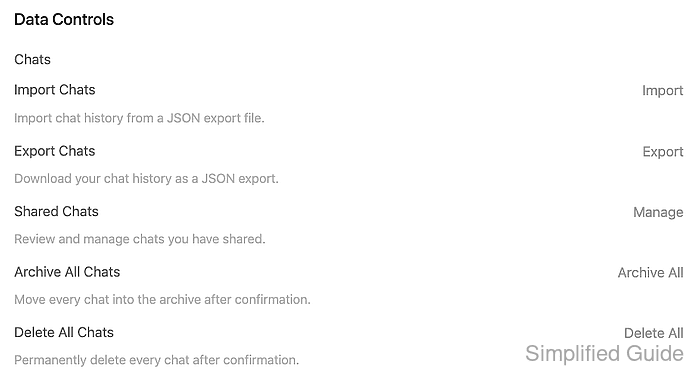
If Delete All Chats is missing, the account may not have chat deletion permission.
- Click Delete All beside Delete All Chats.
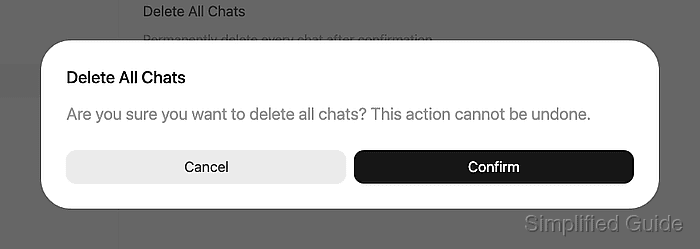
Confirmation permanently deletes active and archived conversations for this account. Without an export or backup, the deleted conversations cannot be recovered through the interface.
- Click Confirm in the Delete All Chats prompt.
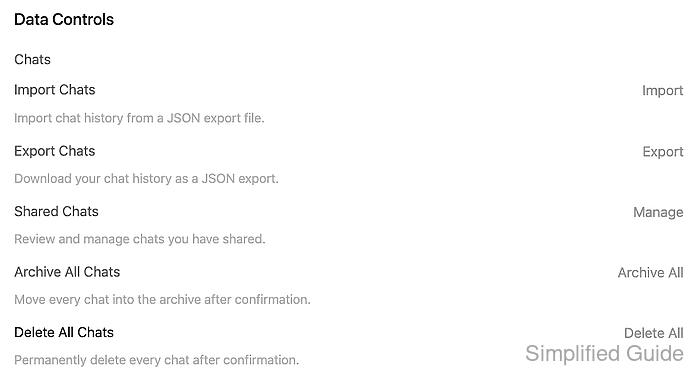
- Select Archived Chats in Settings.
The count should be 0 with the message You have no archived conversations.
- Click Back to close Settings.
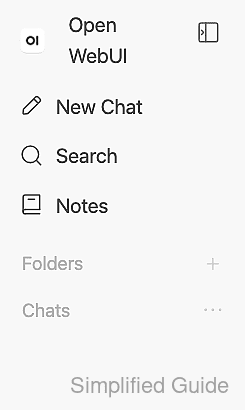
- Reload Open WebUI in the browser.
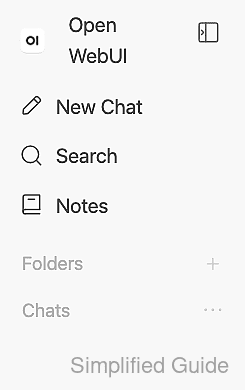
- Confirm the removed conversation titles no longer appear under Chats.
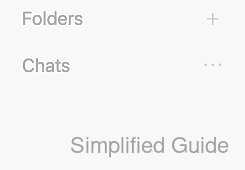
The empty list should persist after the reload. Titles that return mean the history has not been cleared successfully.