Ollama GPU support depends on hardware, driver version, and the model actually loaded into memory. A host can have a supported GPU and still run a specific model on CPU when memory, drivers, or container runtime settings are wrong.
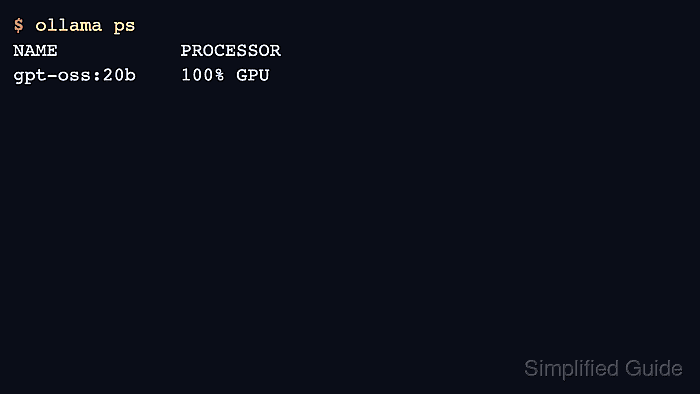
Use vendor tools for the hardware check and ollama ps for the runtime check. The PROCESSOR column is the proof surface that shows whether a loaded model is on GPU, CPU, or split across both.
The campaign host showed GPU offload for the local model, but GPU-specific install and Docker commands still require matching hardware and drivers before publication-grade proof.
Related: How to list running Ollama models
Related: How to run Ollama with Docker GPU access
Related: How to set Ollama context length
Steps to check Ollama GPU support:
- Check NVIDIA driver visibility on NVIDIA hosts.
$ nvidia-smi
+-----------------------------------------------------------------------------+
| NVIDIA-SMI 570.00       Driver Version: 570.00       CUDA Version: 12.8     |
##### snipped #####
- Check AMD ROCm visibility on AMD hosts.
$ rocminfo | grep -m1 'Name:'
  Name:                    gfx1100
Use the driver stack recommended for the GPU family.
- Load a model with a short request.
$ ollama run gpt-oss:20b "Return only OK." OK - Check the loaded model processor column.
$ ollama ps
NAME           ID              SIZE     PROCESSOR    CONTEXT    UNTIL
gpt-oss:20b    17052f91a42e    12 GB    100% GPU     131072     4 minutes from now
- Reduce context length or choose a smaller model if the model falls back to CPU.
$ OLLAMA_CONTEXT_LENGTH=8192 ollama serve
Related: How to set Ollama context length

Mohd Shakir Zakaria is a cloud architect with deep roots in software development and open-source advocacy. Certified in AWS, Red Hat, VMware, ITIL, and Linux, he specializes in designing and managing robust cloud and on-premises infrastructures.


