A built static app can look ready in a release directory but still fail at the web edge when Nginx points at the wrong root, an old server block handles the hostname, or client-side routes return 404. Treat the deploy as a handoff between the build output, the document root, and the server block that answers the public hostname.
The static files in this example are copied from dist into /var/www/static.example.com and served by a dedicated Nginx server block. The block uses root for file lookup, index for the entry page, and try_files so real files are served directly while single-page app routes fall back to /index.html.
The commands assume Nginx is already installed on a Linux host and that static.example.com will point to that host after DNS is updated. Check the site locally with a Host header before changing DNS or adding TLS; that proves Nginx selected the intended server block and read the copied files.
Related: How to test Nginx configuration
Related: How to manage the Nginx service
Related: How to configure Let's Encrypt SSL in Nginx
Steps to deploy a static app on Nginx:
- Build or collect the static release files and confirm that the output directory contains index.html.
$ ls dist
assets
favicon.ico
index.html
Replace dist with the directory produced by the app build, such as build, public, or another release artifact directory. Do not point Nginx at the project source directory when only compiled static output should be public.
- Create the document root for the static app.
$ sudo install -d -m 0755 /var/www/static.example.com
- Copy the release files into the document root.
$ sudo rsync -a --delete dist/ /var/www/static.example.com/
The trailing slashes copy the contents of dist into the document root. The --delete option removes old hashed assets that disappeared from the newest build.
- Create the Nginx server block for the app hostname.
$ sudoedit /etc/nginx/conf.d/static.example.com.conf
server {
    listen 80;
    server_name static.example.com;

    root /var/www/static.example.com;
    index index.html;

    access_log /var/log/nginx/static.example.com.access.log;
    error_log /var/log/nginx/static.example.com.error.log;

    location / {
        try_files $uri $uri/ /index.html;
    }
}
For a plain static site that should return 404 for missing paths, change the final try_files item to =404 instead of /index.html.
- Test the Nginx configuration before applying it.
$ sudo nginx -t
nginx: the configuration file /etc/nginx/nginx.conf syntax is ok
nginx: configuration file /etc/nginx/nginx.conf test is successful
Related: How to test Nginx configuration
- Reload Nginx so the new server block is used.
$ sudo systemctl reload nginx
Use sudo nginx -s reload on hosts where Nginx is running without systemd.
Related: How to manage the Nginx service
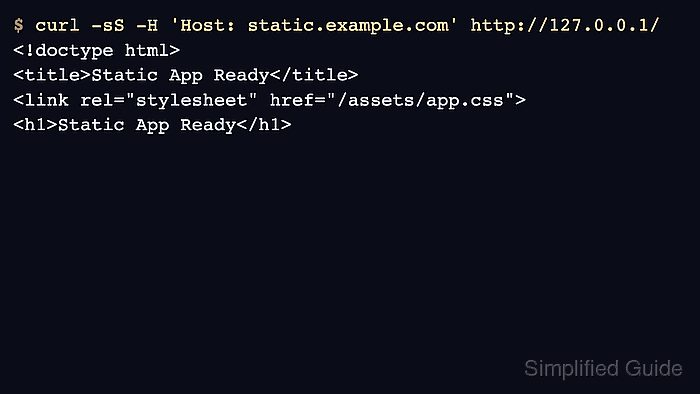
- Request the app through Nginx with the public host header.
$ curl -sS -H 'Host: static.example.com' http://127.0.0.1/
<!doctype html>
<title>Static App Ready</title>
<link rel="stylesheet" href="/assets/app.css">
<h1>Static App Ready</h1>
If the Nginx welcome page or another site answers, the request did not match this server block. Check server_name, conflicting default servers, and the hostname used in the request.
- Check a client-side route when the app uses browser routing.
$ curl -sS -H 'Host: static.example.com' http://127.0.0.1/dashboard
<!doctype html>
<title>Static App Ready</title>
<link rel="stylesheet" href="/assets/app.css">
<h1>Static App Ready</h1>
The same entry page on a client-side route confirms the try_files fallback is serving /index.html. Skip this check when the site intentionally returns 404 for missing paths.
- Request the public hostname after DNS points to the Nginx host.
$ curl -sS http://static.example.com/
<!doctype html>
<title>Static App Ready</title>
<link rel="stylesheet" href="/assets/app.css">
<h1>Static App Ready</h1>
The public hostname returning the deployed entry page proves DNS, listener selection, and file serving are aligned. Add HTTPS after the HTTP path is working.

Mohd Shakir Zakaria is a cloud architect with deep roots in software development and open-source advocacy. Certified in AWS, Red Hat, VMware, ITIL, and Linux, he specializes in designing and managing robust cloud and on-premises infrastructures.


