When an NFS client cannot see a share or mounts it with unexpected permissions, the server-side export table shows what the server is actually prepared to share. Checking that table separates a missing active export from a client-side mount, DNS, firewall, or protocol-version problem.
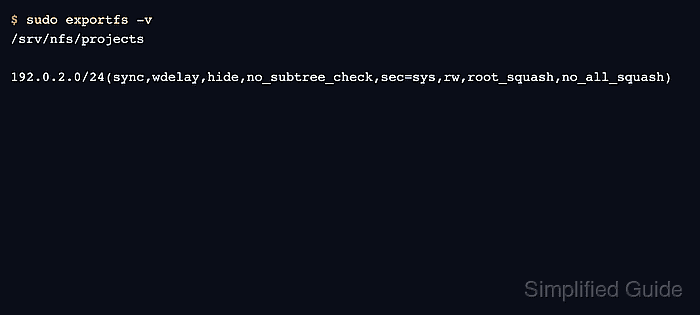
Linux NFS servers read export definitions from /etc/exports and from matching drop-in files under /etc/exports.d. The exportfs command maintains the active export table, and exportfs -v displays each exported directory with the client selector and options that are loaded for that selector.
Run the server-side check before changing client mount files or firewall rules. A loaded export still has to match the network path, protocol version, filesystem permissions, and any UID/GID mapping, Kerberos, or TLS policy, but the active table is the fastest place to confirm that the server accepted the intended path, selector, and options.
Related: How to create an NFS export
Related: How to reload NFS exports
Steps to list NFS exports on a server:
- Open a shell on the NFS server with an account that can use sudo.
- List the active export table with verbose options.
$ sudo exportfs -v
/srv/nfs/projects
		192.0.2.0/24(sync,wdelay,hide,no_subtree_check,sec=sys,rw,root_squash,no_all_squash)
The first line is the local directory being exported. The indented line shows the client selector and the options currently loaded for that selector.
- Confirm that the expected directory appears in the output.
If the directory is missing from exportfs -v, clients cannot mount it from the active export table even if the path still exists on disk.
- Confirm that the client selector matches the intended host, subnet, netgroup, or wildcard.
A selector such as 192.0.2.0/24 covers that subnet. A hostname, single IP address, netgroup, or broad wildcard can appear instead depending on the export definition.
- Check the loaded options for the access rule that matters to the client.
Look for access and mapping options such as ro or rw, sync, root_squash, no_root_squash, and sec=. Defaults may appear in the active table even when the source file only lists the options that were changed from policy defaults.
- Print the active export table in source-file style when comparing it with /etc/exports entries.
$ sudo exportfs -s
/srv/nfs/projects  192.0.2.0/24(sync,wdelay,hide,no_subtree_check,sec=sys,rw,root_squash,no_all_squash)
exportfs -s displays the current export list in a format suitable for /etc/exports, which makes it easier to compare a loaded rule with saved export definitions.
- Compare the loaded export with the saved definition file.
$ cat /etc/exports.d/projects.exports
/srv/nfs/projects 192.0.2.0/24(rw,sync,no_subtree_check,root_squash)
exportfs reads /etc/exports and files under /etc/exports.d whose names end in .exports. Drop-in files with another suffix are ignored.
- Reapply the saved export definitions only when the source file is correct but the active table is missing or stale.
$ sudo exportfs -ra
No output usually means exportfs accepted the definitions. Fix any reported syntax, missing-path, or unsupported-filesystem error before checking the table again.
Related: How to reload NFS exports
- Query from an allowed client after the server-side table is correct.
$ showmount --exports files.example.net
Export list for files.example.net:
/srv/nfs/projects 192.0.2.0/24
showmount depends on the mount discovery service and may not answer on NFSv4-only servers. Treat the server-side exportfs table as the first proof of what the server loaded, then run a real mount test when client access still needs validation.
Related: How to list NFS exports from a client
Related: How to mount an NFS export on Linux

Mohd Shakir Zakaria is a cloud architect with deep roots in software development and open-source advocacy. Certified in AWS, Red Hat, VMware, ITIL, and Linux, he specializes in designing and managing robust cloud and on-premises infrastructures.


