Public share links let a Nextcloud user give someone access to a file or folder without creating an account for the recipient. The link should expose only the intended item, use the least permission needed, and be checked from a browser session that is not already signed in.
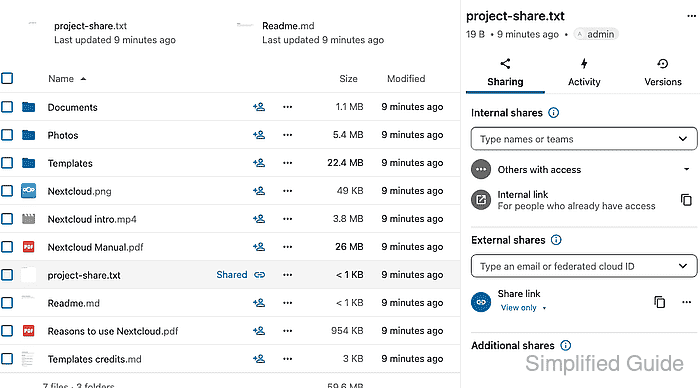
The Files app manages link shares from the sharing sidebar. A public link for a single file can be view-only, while folders may allow upload or editing depending on the server's sharing policy and the permission selected by the owner.
Treat every public link as a real access path. A copied URL can be forwarded outside the original conversation, so use passwords, expiration dates, or removal when the server policy or file sensitivity requires tighter control.
Steps to create a public share link in Nextcloud:
- Sign in to the Nextcloud web interface as the file owner.
- Open the Files app.
- Find the file or folder that should be shared.
- Click the item's sharing icon or shared-status text to open the sharing sidebar.
The sharing sidebar shows internal shares, public links, and additional sharing options for the selected item.
- In External shares, click Create public link.
- Confirm the new link share appears in the sidebar.
The share entry should show Share link and the selected permission, such as View only for a file that recipients should only read.
- Open the share action menu if the link needs a password, expiration date, download restriction, or a different permission.
Do not leave sensitive files on an unrestricted public link unless the server policy and recipient workflow explicitly allow it.
- Copy the public link from the share entry.
https://cloud.example.com/s/<public-token>
The token in a real share URL grants access to the item. Do not paste a live token into tickets, screenshots, or documentation unless that exposure is intended.
- Open a private browser window or a different browser profile.
- Paste the copied share URL and load the page.
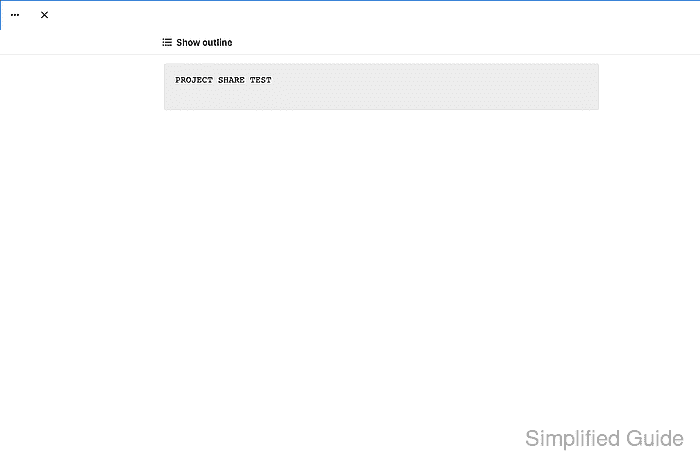
- Confirm the public page opens the intended file or folder without a signed-in session.
A public file share should show only the shared item and the permissions allowed by the link.
- Send the link to the recipient through the approved channel.
- Remove the link after the sharing window ends if the item should no longer be public.
Open the same sharing sidebar, use the action menu for the link share, and delete the share when access is no longer needed.

Mohd Shakir Zakaria is a cloud architect with deep roots in software development and open-source advocacy. Certified in AWS, Red Hat, VMware, ITIL, and Linux, he specializes in designing and managing robust cloud and on-premises infrastructures.


