Passwords can be stolen or reused across services. Two-factor authentication in Nextcloud adds a code from an authenticator app to new browser sign-ins, so knowing the account password alone is insufficient.
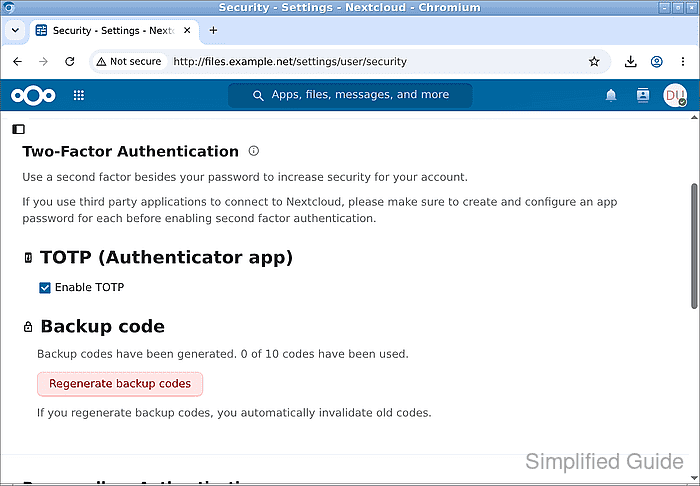
The TOTP (Authenticator app) provider pairs your account with an app that generates a new time-based code every 30 seconds. The app can generate codes offline, but its clock must agree with the server's clock. A server administrator must make this provider available before you can enroll your account.
Backup codes provide a way back into your account if your authenticator is lost or unavailable. Each backup code works once and needs to be stored separately from the authenticator. Desktop, mobile, and WebDAV clients that cannot handle a second-factor prompt need their own app passwords instead of the account password.
Starting point: a signed-in Nextcloud account over HTTPS and a TOTP-compatible authenticator app. Clients that need app passwords should already be configured to use them.
Related: How to create a Nextcloud app password
Related: How to configure the Nextcloud desktop sync client
Related: How to mount Nextcloud WebDAV on Linux
Enabling a second factor can lock you out if you lose the authenticator without usable backup codes. Keep the original signed-in browser session open until a separate sign-in succeeds.
Steps to enable two-factor authentication in Nextcloud:
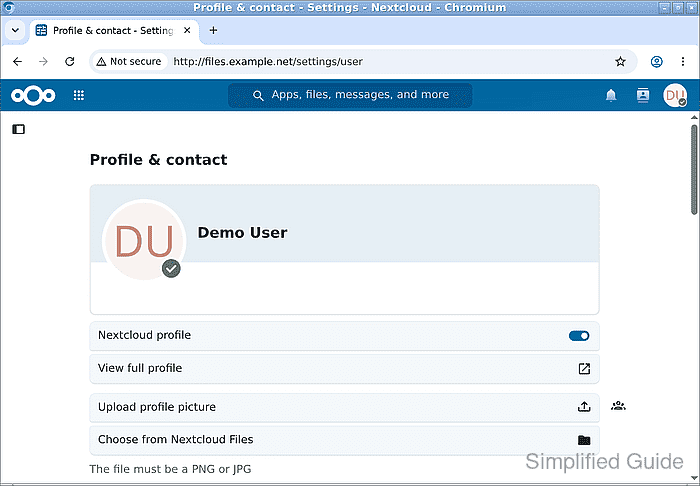
- Open the account menu using your avatar in the upper-right corner.
- Choose Settings from the account menu.
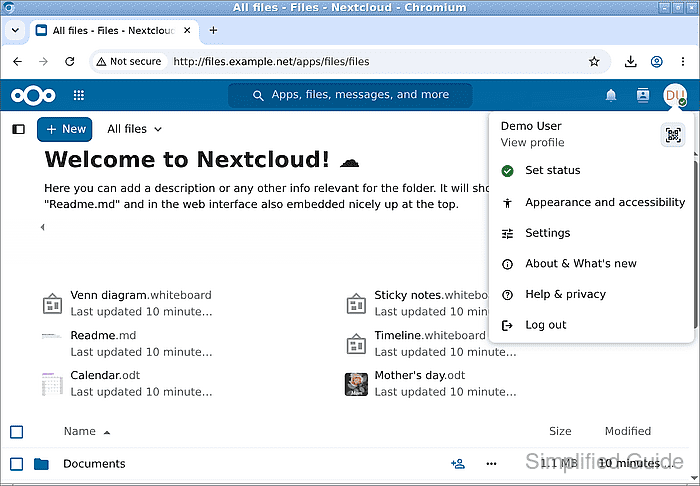
Older releases may call this entry Personal settings.
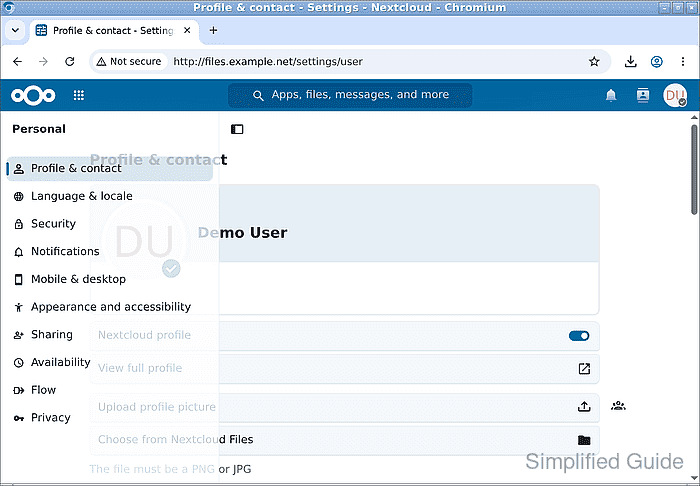
- Expand the settings sidebar using the icon at the upper left if the navigation is hidden.
- Select Security under Personal.
- Select Enable TOTP under TOTP (Authenticator app).
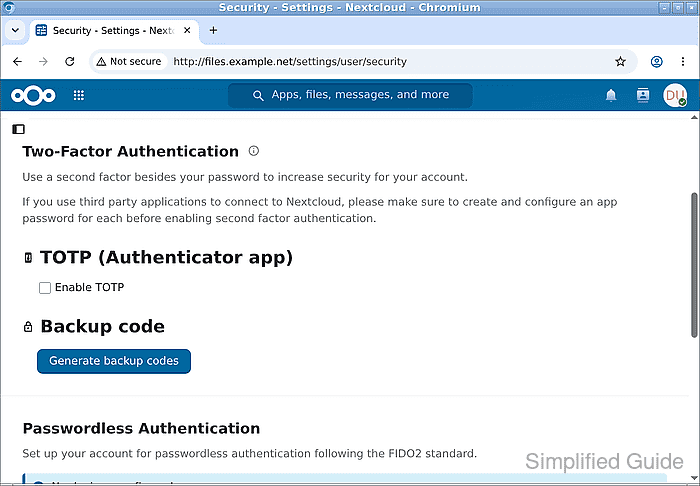
If the provider is missing, your administrator needs to enable the TOTP provider on the server. Nextcloud may request your current password to confirm a sensitive change.
- Add the displayed Nextcloud QR code to your authenticator app.
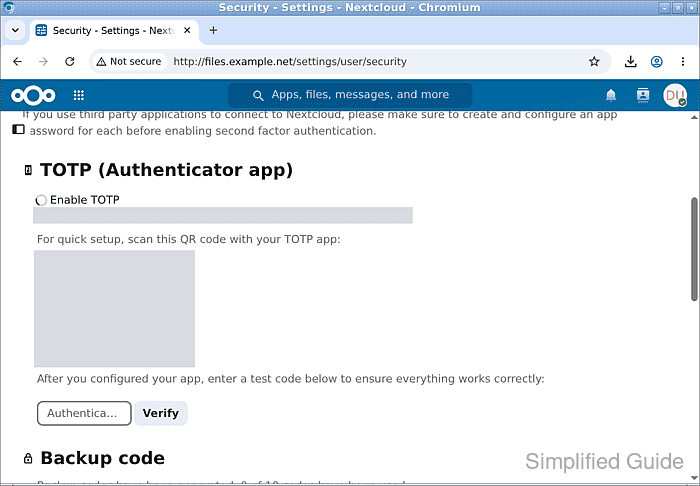
The QR code and text secret give access to the same authenticator codes. Both are concealed in the picture; do not share yours in screenshots, tickets, or messages.
If scanning is unavailable, the text secret above the QR code is the manual setup key for a time-based entry in your authenticator.
- Enter the authenticator's current code in the Authentication code field below the QR code.
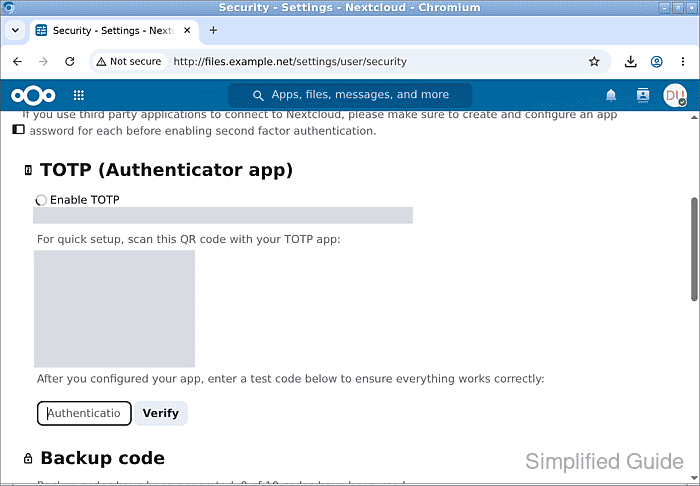
- Click Verify.
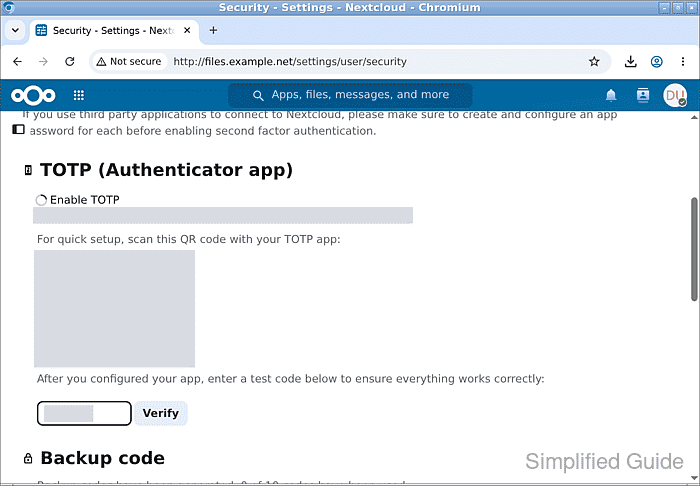
After acceptance, the secret and test-code field disappear and Enable TOTP stays checked. A rejected code may have expired or come from a device with an incorrect clock.
- Click Generate backup codes under Backup code if you have no saved recovery codes.
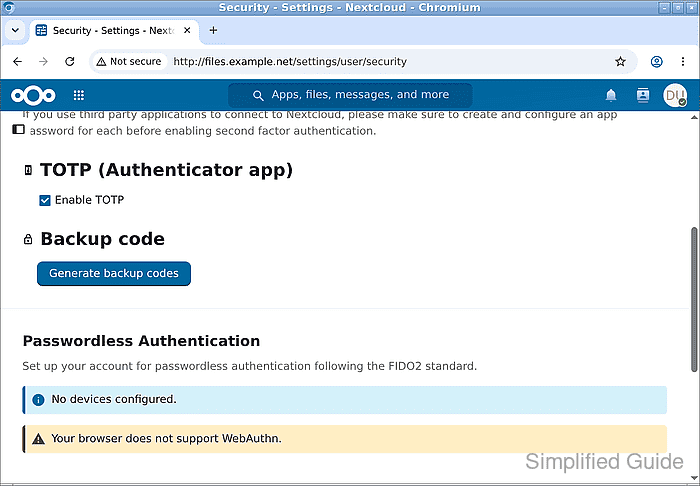
If you already have a securely stored current set, continue at the private-window sign-in check. The Regenerate backup codes button invalidates the previous set.
- Click Save backup codes if you generated a new set.
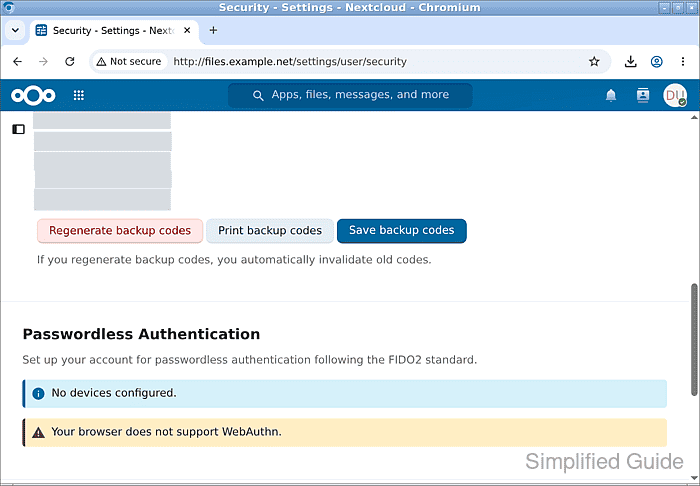
The codes are shown only when generated; they cannot be displayed again after leaving the page.
- Store the downloaded backup-code file securely and separately from your authenticator if you generated a new set.
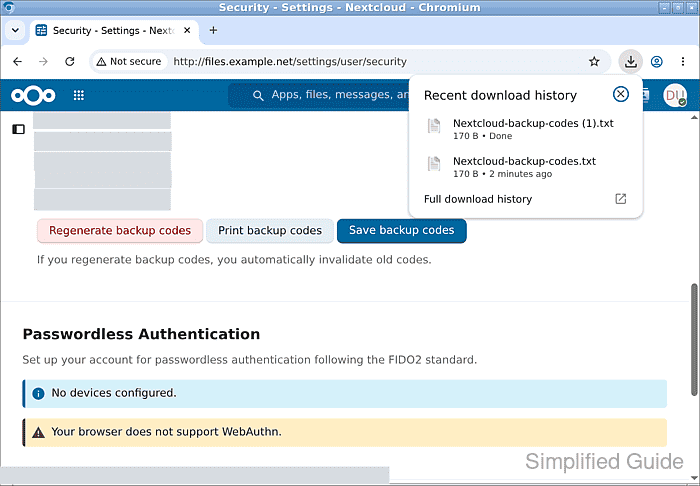
A copy kept only inside this Nextcloud account cannot help when you are locked out of the account.
- Open a private browser window.
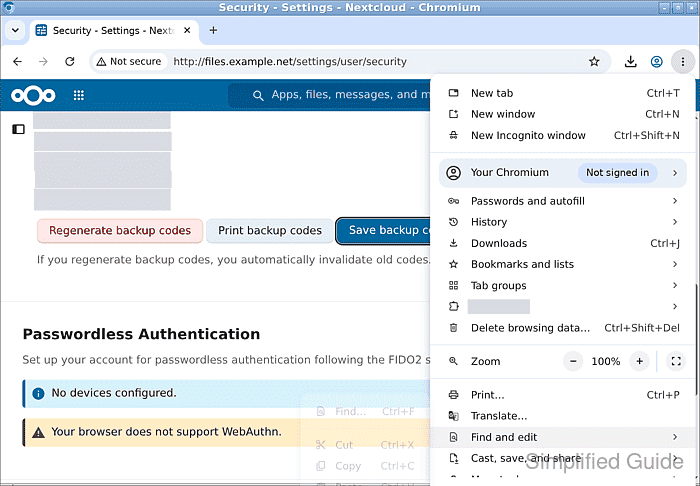
Chromium calls this New Incognito window; other browsers may call it New Private Window.
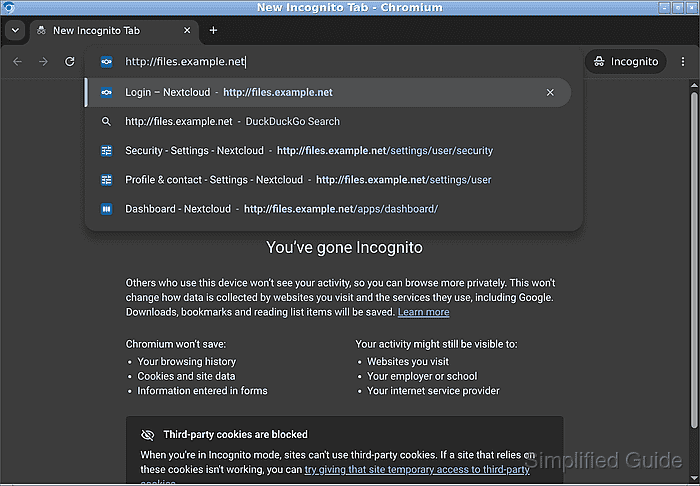
- Open your Nextcloud address in the private window.
- Enter your account name in Account name or email.
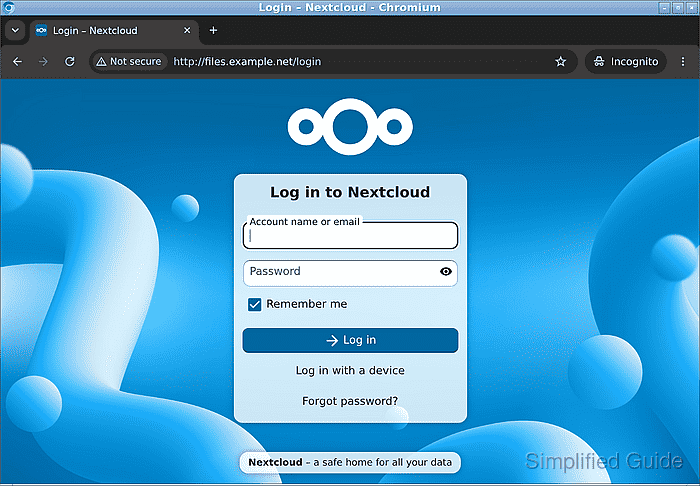
- Enter your account password in Password.
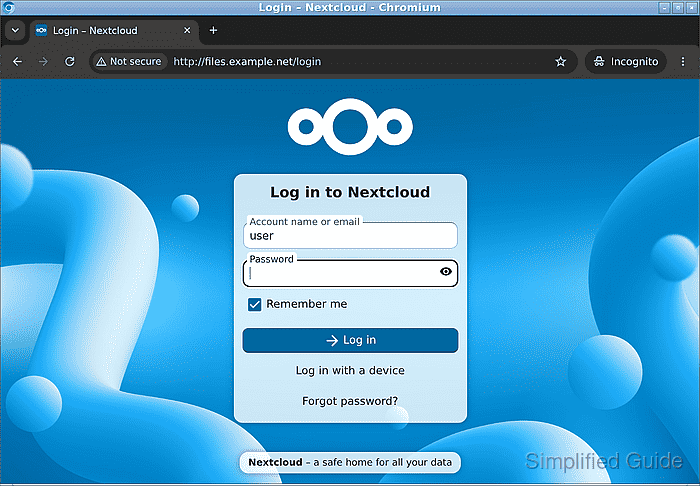
- Click Log in.
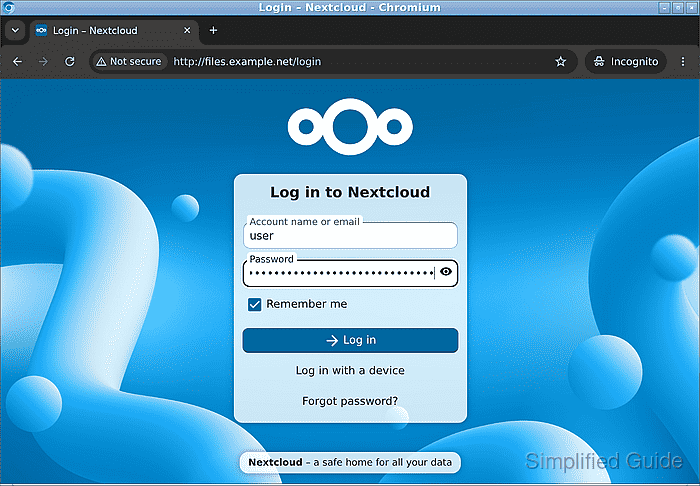
The password alone should lead to a second-factor challenge rather than the account. If several providers are enabled, the server may first offer a choice of methods.
- Enter a fresh authenticator code at the TOTP (Authenticator app) challenge.
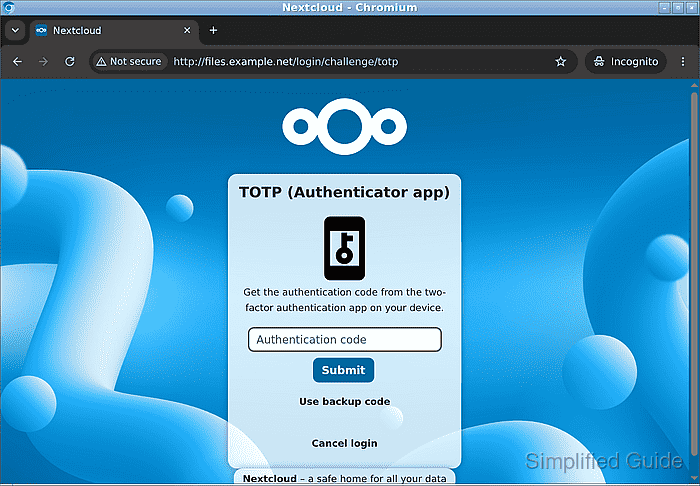
A code already used during setup may be rejected; the next code from the app avoids reuse. If the authenticator is unavailable, Use backup code accepts an unused saved recovery code.
- Click Submit.
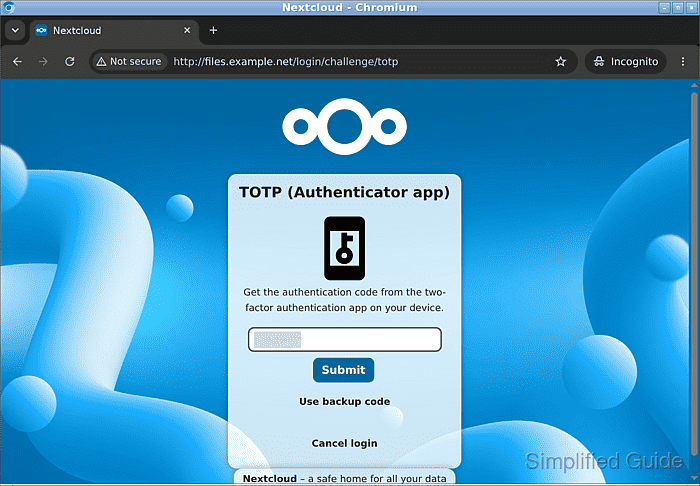
- Confirm that your account's dashboard or files open after the second factor is accepted.