NCPA passive checks let a monitored host run its own metric checks and send the results back to Nagios Core through a receiver such as NRDP. This pattern fits hosts that cannot be polled inbound from the monitoring server, or checks that should run near the application, local files, or private network path they measure.
The NCPA sender uses the [passive] handler, the [nrdp] receiver settings, and one or more [passive checks] entries under /usr/local/ncpa/etc/ncpa.cfg.d. Each passive check entry names the Nagios Core host, service, optional interval, and NCPA API endpoint to run locally.
The receiver and matching Nagios Core objects must exist before NCPA sends results. The host name and service description in the passive check line must match loaded Nagios Core object names, and freshness checking should mark stale services when a sender stops reporting.
Steps to configure NCPA passive checks:
- Confirm the NRDP receiver URL, receiver token, and object names.
NRDP URL: https://monitor.example.net/nrdp/
NRDP token: strong-nrdp-token
Nagios host: web01.example.net
Nagios service: CPU Usage
NCPA config: /usr/local/ncpa/etc/ncpa.cfg
Use the token configured on the NRDP receiver, not the NCPA API token from [api] community_string. Keep the real receiver token out of screenshots, tickets, and shared command logs.
- Confirm Nagios Core accepts passive service results.
$ sudo grep -E '^(accept_passive_service_checks|check_external_commands|command_file|check_result_path|check_service_freshness)=' /etc/nagios4/nagios.cfg
check_external_commands=1
command_file=/var/lib/nagios4/rw/nagios.cmd
check_result_path=/var/lib/nagios4/spool/checkresults
accept_passive_service_checks=1
check_service_freshness=1
NRDP writes accepted results into the external command or check-result path. Enable the receiver first when these values are missing or disabled.
Related: How to receive NRDP passive checks in Nagios Core - Open the main NCPA configuration file on the monitored host.
$ sudoedit /usr/local/ncpa/etc/ncpa.cfg
- Set the passive handler and NRDP receiver values.
- ncpa.cfg
[passive]
handlers = nrdp
sleep = 300

[nrdp]
parent = https://monitor.example.net/nrdp/
token = strong-nrdp-token
hostname = web01.example.net
sleep is the default interval for passive checks that do not set their own interval. Keep passive SSL verification enabled and install the receiver CA certificate when the receiver uses a private certificate.
- Create a separate passive check file.
$ sudoedit /usr/local/ncpa/etc/ncpa.cfg.d/nrdp.cfg
- Add the passive checks that NCPA should run locally.
- nrdp.cfg
[passive checks]
%HOSTNAME%|CPU Usage|300 = cpu/percent --warning 80 --critical 90 --aggregate avg
%HOSTNAME%|Memory Usage|300 = memory/virtual --warning 80 --critical 90 --units Gi
The left side is host, service, and optional interval separated by pipe characters. The %HOSTNAME% macro expands to the hostname value from the [nrdp] section, and HOST can be used as the special host-check service name when sending host results.
- Set readable ownership on the passive check file.
$ sudo chown nagios:nagios /usr/local/ncpa/etc/ncpa.cfg.d/nrdp.cfg
$ sudo chmod 0640 /usr/local/ncpa/etc/ncpa.cfg.d/nrdp.cfg
Current NCPA Linux packages run the service as the nagios user and group by default.
- Create or open the matching Nagios Core object file.
$ sudoedit /etc/nagios4/conf.d/web01-ncpa-passive.cfg
Use an existing host object when web01.example.net is already defined elsewhere. Do not define the same host_name in two object files.
Related: How to add a host in Nagios Core - Add passive host and service objects that match the NCPA submission names.
- web01-ncpa-passive.cfg
define command{
    command_name            check_dummy
    command_line            $USER1$/check_dummy $ARG1$ "$ARG2$"
}

define host{
    use                     linux-server
    host_name               web01.example.net
    alias                   Web 01 Linux host
    address                 192.0.2.10
    active_checks_enabled   0
    passive_checks_enabled  1
    check_command           check_dummy!0!Waiting for NCPA passive result
}

define service{
    use                     generic-service
    host_name               web01.example.net
    service_description     CPU Usage
    active_checks_enabled   0
    passive_checks_enabled  1
    check_freshness         1
    freshness_threshold     600
    check_command           check_dummy!3!No NCPA passive result has been received
}

define service{
    use                     generic-service
    host_name               web01.example.net
    service_description     Memory Usage
    active_checks_enabled   0
    passive_checks_enabled  1
    check_freshness         1
    freshness_threshold     600
    check_command           check_dummy!3!No NCPA passive result has been received
}
Define check_dummy only if the command is not already available. Set freshness_threshold longer than the NCPA passive interval plus normal network delay so missing submissions become visible.
Related: How to configure freshness checks for Nagios Core passive checks - Validate the Nagios Core configuration.
$ sudo nagios4 -v /etc/nagios4/nagios.cfg
Nagios Core 4.4.6
Reading configuration data...
   Read main config file okay...
   Read object config files okay...

Running pre-flight check on configuration data...

Checking objects...
	Checked 10 services.
	Checked 2 hosts.
	Checked 1 host groups.
	Checked 1 contacts.
	Checked 1 contact groups.
	Checked 181 commands.
##### snipped #####
Total Warnings: 0
Total Errors:   0

Things look okay - No serious problems were detected during the pre-flight check
Fix every reported object, command, template, or path error before reloading Nagios Core.
Related: How to validate the Nagios Core configuration - Reload the Nagios Core service.
$ sudo systemctl reload nagios4
Use the service name and control method from the local installation when Nagios Core was installed from source.
Related: How to manage the Nagios Core system service - Restart NCPA on the monitored host.
$ sudo systemctl restart ncpa
NCPA 3 uses one ncpa service for the listener and passive sender. Older NCPA 2 deployments may still expose separate listener and passive services.
- Check the NCPA passive log for a successful receiver response.
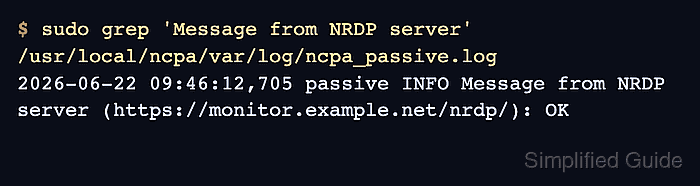
$ sudo grep 'Message from NRDP server' /usr/local/ncpa/var/log/ncpa_passive.log
2026-06-22 09:46:12,705 passive INFO Message from NRDP server (https://monitor.example.net/nrdp/): OK
A receiver response of OK confirms NCPA reached NRDP with an accepted token. Authentication, certificate, or endpoint errors appear in the same passive log.
- Confirm that Nagios Core accepted the passive service result.
$ sudo grep 'PASSIVE SERVICE CHECK: web01.example.net;CPU Usage' /var/log/nagios4/nagios.log
[1782091604] PASSIVE SERVICE CHECK: web01.example.net;CPU Usage;0;OK: Percent was 0.25 %
The host name and service description in this log line must match the object names in Nagios Core. A log entry that says the host or service cannot be found means the receiver worked, but the object definition is missing or named differently.
Related: How to submit a passive check result to Nagios Core

Mohd Shakir Zakaria is a cloud architect with deep roots in software development and open-source advocacy. Certified in AWS, Red Hat, VMware, ITIL, and Linux, he specializes in designing and managing robust cloud and on-premises infrastructures.


