Moving the MySQL or MariaDB data directory to a dedicated filesystem can free space on the root volume, put database files on faster storage, and simplify backup or snapshot planning when database growth no longer fits comfortably under /var.
On Ubuntu, both database servers can read the datadir setting from option files under /etc/mysql and then let systemd start the daemon against that location. A safe move therefore means stopping the service, copying the full contents with ownership and permissions intact, adding or changing the active server option, and keeping the old directory as rollback until startup succeeds.
The package details differ on current Ubuntu releases. MySQL uses /etc/mysql/mysql.conf.d/mysqld.cnf and ships the /etc/apparmor.d/usr.sbin.mysqld profile, while MariaDB uses /etc/mysql/mariadb.conf.d/50-server.cnf and recent Ubuntu packages may report /var/lib/mariadb instead of /var/lib/mysql as the starting directory. If the new path lives on a separate filesystem, make sure it is mounted before the service starts, because a missing mount can expose an empty directory at the same path and cause the move to fail or start against the wrong files.
Steps to change MySQL or MariaDB data directory in Ubuntu:
- Record the current datadir value from the running server.
$ sudo mysql --table --execute "SHOW VARIABLES LIKE 'datadir';"
+---------------+----------------+
| Variable_name | Value          |
+---------------+----------------+
| datadir       | /var/lib/mysql/|
+---------------+----------------+
Add --user=root --password when local administrative access is not configured for sudo mysql. Current Ubuntu MariaDB packages may return /var/lib/mariadb/ instead; use the value shown by this query anywhere the steps refer to /var/lib/mysql.
- Confirm the database service unit that systemd resolves on the host.
$ systemctl status mysql --no-pager
● mysql.service - MySQL Community Server
     Loaded: loaded (/usr/lib/systemd/system/mysql.service; enabled; preset: enabled)
     Active: active (running)
Current Ubuntu MariaDB packages usually keep mysql.service as a compatibility alias even though mariadb.service is the primary unit name. Use mariadb in the service commands only when mysql does not resolve on the host.
Related: How to manage MySQL or MariaDB service with systemctl in Linux - Stop the database service before copying any files.
$ sudo systemctl stop mysql
Stopping the service drops active connections, so schedule the move for a maintenance window or application outage.
- Create the new data directory with the expected owner, group, and mode.
$ sudo install --directory --owner=mysql --group=mysql --mode=0750 /data/mysql
The target filesystem needs normal Linux ownership and permission support, such as ext4 or xfs.
- Confirm that the new path is already on the intended mounted filesystem.
$ df -h /data/mysql
Filesystem      Size  Used Avail Use% Mounted on
/dev/sdb1       200G   20G  170G  11% /data
Do not start the service until the real mounted filesystem is present at the new path. A missing mount can hide the copied files, and current MySQL packages on systemd can initialize an empty data directory when startup sees an empty target path.
- Copy the existing database files to the new path with metadata preserved.
$ sudo cp --archive /var/lib/mysql/. /data/mysql/
Replace /var/lib/mysql with the path returned by the earlier datadir query when it differs from the example.
- Verify the copied directory still belongs to the mysql service account.
$ sudo stat --format "%U:%G %a %n" /data/mysql
mysql:mysql 750 /data/mysql
- Rename the original data directory so it remains available for rollback.
$ sudo mv /var/lib/mysql /var/lib/mysql.old
Keep the rollback copy until the service starts cleanly and the server reports the new datadir. If the original query returned /var/lib/mariadb/, rename that directory to /var/lib/mariadb.old instead.
- Identify the package server option file for the installed database.
$ ls /etc/mysql/mysql.conf.d/mysqld.cnf /etc/mysql/mariadb.conf.d/50-server.cnf 2>/dev/null
/etc/mysql/mysql.conf.d/mysqld.cnf
Use /etc/mysql/mysql.conf.d/mysqld.cnf for MySQL and /etc/mysql/mariadb.conf.d/50-server.cnf for MariaDB. Current packages may leave the packaged datadir example commented, so an empty search result for an active datadir line does not mean the wrong file was selected.
Related: How to locate and modify MySQL and MariaDB configuration files - Open the selected server option file.
$ sudoedit /etc/mysql/mysql.conf.d/mysqld.cnf
- Add or update the datadir setting under the server section.
[mysqld]
datadir = /data/mysql
For MariaDB in /etc/mysql/mariadb.conf.d/50-server.cnf, add the same setting under [mariadbd]. If a commented datadir line already exists, uncomment and change that line instead of adding a duplicate later in the same section.
- Confirm the effective server options now point at the new datadir before startup.
$ my_print_defaults mysqld
--user=mysql
--datadir=/data/mysql
--bind-address=127.0.0.1
##### snipped #####
If more than one --datadir line appears, another later option file is still overriding the setting. For MariaDB, run my_print_defaults mariadbd server instead.
- Check whether the installed package has an AppArmor profile for the database daemon.
$ sudo ls /etc/apparmor.d/usr.sbin.mysqld
/etc/apparmor.d/usr.sbin.mysqld
Current Ubuntu MySQL packages install this profile. Some current Ubuntu MariaDB package installs do not ship /etc/apparmor.d/usr.sbin.mariadbd; skip the AppArmor edit and reload steps when no matching database profile exists.
- Open the local AppArmor override file for the matching profile.
$ sudoedit /etc/apparmor.d/local/usr.sbin.mysqld
Use /etc/apparmor.d/local/usr.sbin.mariadbd instead when /etc/apparmor.d/usr.sbin.mariadbd exists on a MariaDB host.
- Add rules that allow the new data directory path.
/data/mysql/ r,
/data/mysql/** rwk,
The packaged MySQL profile includes the matching local file, so this keeps the path change separate from package-owned AppArmor rules.
- Reload the matching AppArmor profile after the local override change.
$ sudo apparmor_parser --replace /etc/apparmor.d/usr.sbin.mysqld
Replace the profile path with /etc/apparmor.d/usr.sbin.mariadbd when that is the file detected on the host.
- Start the database service against the new data directory.
$ sudo systemctl start mysql
Replace mysql with mariadb when the host does not expose the mysql.service compatibility alias.
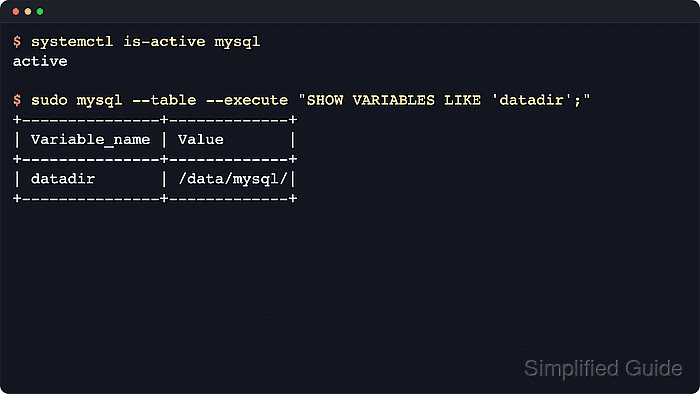
- Confirm that the service returned to the active state.
$ systemctl is-active mysql
active
Replace mysql with mariadb when the host does not expose the mysql.service compatibility alias.
- Verify that the live server now reports the new data directory.
$ sudo mysql --table --execute "SHOW VARIABLES LIKE 'datadir';"
+---------------+-------------+
| Variable_name | Value       |
+---------------+-------------+
| datadir       | /data/mysql/|
+---------------+-------------+
- Review the recent journal if startup fails or AppArmor denies the new path.
$ sudo journalctl --unit=mysql --no-pager --since "10 minutes ago"
##### snipped #####
apparmor="DENIED" operation="open" profile="usr.sbin.mysqld" name="/data/mysql/ibdata1" pid=12345 comm="mysqld"
##### snipped #####
Replace mysql with mariadb when the host does not expose the mysql.service compatibility alias.
Related: How to view the MySQL or MariaDB server error log
Related: apparmor-denial-troubleshoot - Remove the rollback copy only after normal database access has been confirmed from the new location.
$ sudo rm --recursive --force /var/lib/mysql.old
Deleting the rollback directory is irreversible, so keep a verified backup before running rm. Remove /var/lib/mariadb.old instead when that was the original data directory.

Mohd Shakir Zakaria is a cloud architect with deep roots in software development and open-source advocacy. Certified in AWS, Red Hat, VMware, ITIL, and Linux, he specializes in designing and managing robust cloud and on-premises infrastructures.


