Testing network reachability in Windows with ping tells you quickly whether a remote host is answering basic IP traffic before you spend time on port checks, service logs, or application troubleshooting. It is a practical first-pass check when a server name stops responding, a site feels down, or you need to separate a network-path problem from an application problem.
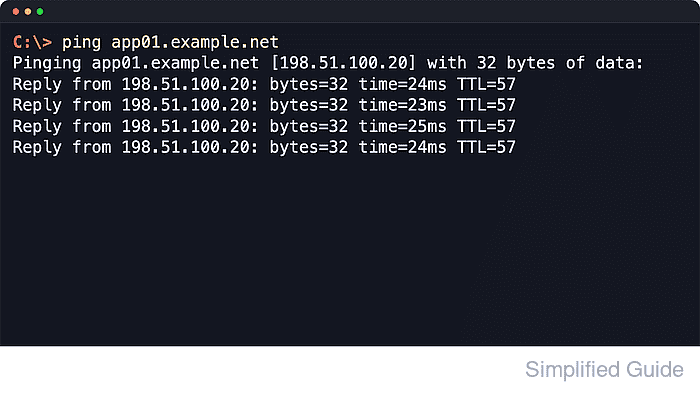
The built-in ping command sends ICMP echo requests to a hostname or IP address and reports whether replies return, along with round-trip times. Microsoft's current command reference describes ping as the primary TCP/IP command for troubleshooting connectivity, reachability, and name resolution, and a hostname test also shows the resolved destination address.
A successful reply confirms only that the destination answered ICMP echo. Current Microsoft troubleshooting guidance also warns that ping alone does not prove overall connectivity, because filtering or service-specific problems can still block the real application path. Basic ping tests do not require elevation on current supported Windows client and server releases.
Related: How to trace a network route in Windows
Related: How to test TCP port connectivity in Windows
Tool: Ping Results Analyzer
Steps to test network reachability in Windows with ping:
- Open Command Prompt.
Administrator privileges are not required for a basic ping test.
- Ping the remote hostname or IP address.
C:\> ping app01.example.net

Pinging app01.example.net [198.51.100.20] with 32 bytes of data:
Reply from 198.51.100.20: bytes=32 time=24ms TTL=57
Reply from 198.51.100.20: bytes=32 time=23ms TTL=57
Reply from 198.51.100.20: bytes=32 time=25ms TTL=57
Reply from 198.51.100.20: bytes=32 time=24ms TTL=57

Ping statistics for 198.51.100.20:
    Packets: Sent = 4, Received = 4, Lost = 0 (0% loss),
Approximate round trip times in milli-seconds:
    Minimum = 23ms, Maximum = 25ms, Average = 24ms
Four replies and zero packet loss mean the remote host answered every probe. The time value is the round-trip latency for each reply, and TTL shows the remaining hop limit when the response reached your system.
- Repeat the test with a literal IP address when you want to isolate network reachability from name resolution.
C:\> ping 198.51.100.20
If the IP address answers but the hostname does not, the route is working and the failure is usually in DNS, the local hosts file, or another naming layer rather than in raw IP reachability.
- Change how many probes Windows sends when you want either a quick answer or a longer-running watch.
C:\> ping /n 1 app01.example.net

C:\> ping /n 10 app01.example.net

C:\> ping /t app01.example.net
The current Microsoft command reference documents a default probe count of 4 and a default payload size of 32 bytes when you run ping without extra switches. Use /n 1 for a single quick probe, /n 10 for a longer fixed test, and /t to keep sending requests until you interrupt the command. Microsoft documents Ctrl+Break for a statistics snapshot and Ctrl+C to stop the continuous test.
- Force one address family when a hostname resolves to both IPv4 and IPv6 addresses.
C:\> ping /4 www.microsoft.com

C:\> ping /6 www.microsoft.com
/4 and /6 matter mainly when the target is a hostname. If you already typed a literal IP address, Windows uses that address family directly.
- Interpret common failure results before moving to the next troubleshooting step.
C:\> ping app01.example.net

Ping request could not find host app01.example.net. Please check the name and try again.

C:\> ping 198.51.100.20

Request timed out.

C:\> ping 198.51.100.77

Reply from 198.51.100.1: Destination host unreachable.
Ping request could not find host points to a name-resolution failure. Current Microsoft troubleshooting guidance says Request timed out means the ICMP echo request did not receive a reply, which can happen because the path or destination is filtering ICMP. The same guidance says Destination host unreachable means the source node's ARP requests are not getting a response.
Related: How to trace a network route in Windows
Related: How to check IP address in Windows - Move to a service-specific test after ping succeeds but the application is still unavailable.
A successful ping proves only that the destination answered ICMP. If a website, database, or remote desktop service still fails, test the required port directly instead of assuming the service itself is up.

Mohd Shakir Zakaria is a cloud architect with deep roots in software development and open-source advocacy. Certified in AWS, Red Hat, VMware, ITIL, and Linux, he specializes in designing and managing robust cloud and on-premises infrastructures.


