Tracing a network route in Windows helps identify where latency, packet loss, or a complete connection failure begins between the local computer and a remote host. When browsing, VPN access, or application traffic works only intermittently, seeing each hop between the source and destination makes it easier to tell whether the problem starts on the local gateway, the ISP edge, or farther upstream.
The built-in tracert command maps the path by sending ICMP echo requests with increasing TTL values. Each router that decrements the packet to zero returns an ICMP Time Exceeded response, so the output shows the hop number, three round-trip timing samples, and the router name or IP address that replied.
The command works in Command Prompt or PowerShell on Windows 10, Windows 11, and current Windows Server releases without elevation for normal traces. Some routers and firewalls do not answer ICMP expiration probes, so a line of asterisks or a Request timed out message does not automatically mean the entire route is broken; using tracert /d also avoids reverse-DNS lookups when name resolution makes the trace slower or noisier.
Related: How to check IP routing table in Windows
Related: How to check IP address in Windows
Steps to trace a network route in Windows with tracert:
- Open Command Prompt or PowerShell.
- Trace the route to the remote hostname or IP address.
C:\> tracert 1.1.1.1
Tracing route to one.one.one.one [1.1.1.1]
over a maximum of 30 hops:

  1     1 ms     1 ms     1 ms  192.168.1.1
  2     8 ms     7 ms     8 ms  100.72.0.1
  3    12 ms    12 ms    11 ms  203.0.113.18
  4    24 ms    23 ms    24 ms  one.one.one.one [1.1.1.1]

Trace complete.
The first column is the hop number, the three middle columns are round-trip timings, and the last column is the router or destination that answered that probe.
- Repeat the trace without reverse-DNS lookups when the output is slow or the router names are distracting.
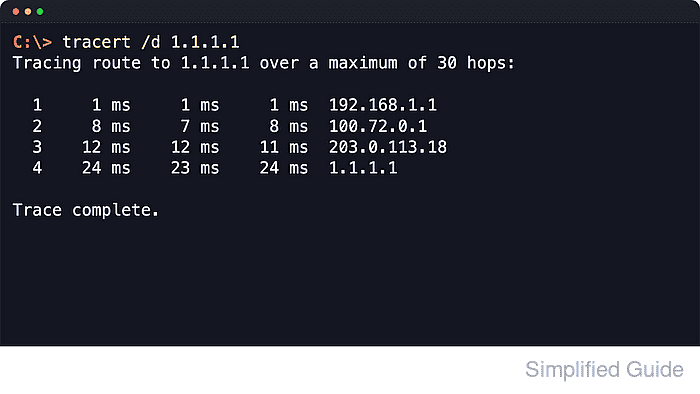
C:\> tracert /d 1.1.1.1
Tracing route to 1.1.1.1 over a maximum of 30 hops:

  1     1 ms     1 ms     1 ms  192.168.1.1
  2     8 ms     7 ms     8 ms  100.72.0.1
  3    12 ms    12 ms    11 ms  203.0.113.18
  4    24 ms    23 ms    24 ms  1.1.1.1

Trace complete.
The /d switch stops hostname resolution for intermediate hops, which usually makes the trace return faster and keeps the output focused on IP addresses.
- Limit the number of hops or shorten the reply wait time when testing a specific path segment or when slow timeouts make troubleshooting harder.
C:\> tracert /d /h 12 /w 1000 1.1.1.1
/h changes the maximum hop count from the default of 30, and /w changes the per-hop timeout from the default of 4000 milliseconds.
- Force the trace to use one address family when the hostname resolves to both IPv4 and IPv6 addresses.
C:\> tracert /4 www.microsoft.com

C:\> tracert /6 www.microsoft.com
Use /4 to stay on an IPv4 path or /6 to inspect the IPv6 route separately.
- Review the last responsive hop when the trace does not reach the destination.
C:\> tracert /d 198.51.100.77
Tracing route to 198.51.100.77 over a maximum of 30 hops:

  1     1 ms     1 ms     1 ms  192.168.1.1
  2     8 ms     7 ms     8 ms  100.72.0.1
  3     *        *        *     Request timed out.
  4     *        *        *     Request timed out.
If the first failed hop is the local gateway or the next upstream router, the problem is usually close to the local network edge. If several hops respond before the timeouts begin, the interruption is farther along the route.

Mohd Shakir Zakaria is a cloud architect with deep roots in software development and open-source advocacy. Certified in AWS, Red Hat, VMware, ITIL, and Linux, he specializes in designing and managing robust cloud and on-premises infrastructures.


