Ordered measurements reveal direction, turning points, and changes between adjacent observations that are easy to miss in a table. A Matplotlib line chart pairs each x value with a y value and connects those positions in sequence.
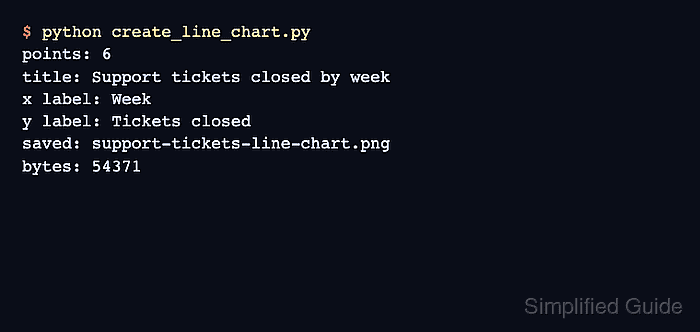
The explicit Figure and Axes interface keeps the input data, plot formatting, and saved output separate. plt.subplots() creates both objects, while ax.plot() draws the connected markers on the axes.
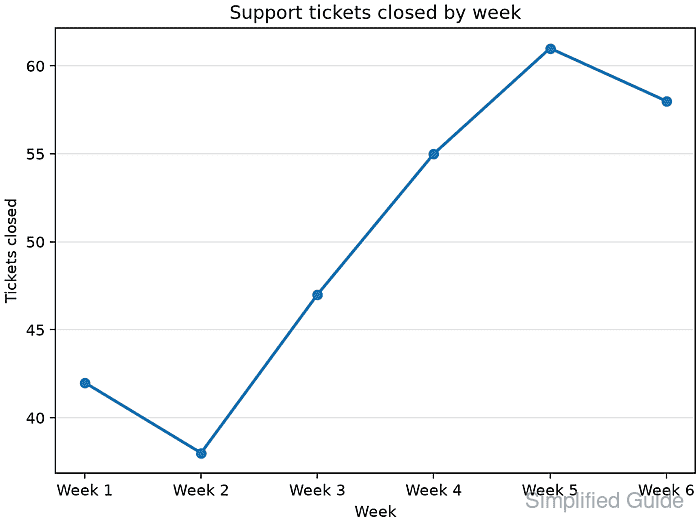
Weekly category labels suit a first chart because their order is already meaningful. The saved PNG should reload as image data and visibly retain all six points, the connected line, the title, and both axis labels.
Related: How to create a scatter plot in Matplotlib
Related: How to set plot colors in Matplotlib
Related: How to add a legend in Matplotlib
Steps to create a Matplotlib line chart:
- Create create_line_chart.py with the ordered labels, values, figure, and axes.
- create_line_chart.py
from pathlib import Path

import matplotlib.pyplot as plt

weeks = ["Week 1", "Week 2", "Week 3", "Week 4", "Week 5", "Week 6"]
tickets_closed = [42, 38, 47, 55, 61, 58]

fig, ax = plt.subplots(figsize=(8, 4.5), layout="constrained")
Each weekly label is paired with the ticket count at the same list position.
- Append the line series and chart labels below the plt.subplots() call.
ax.plot(weeks, tickets_closed, marker="o", linewidth=2)
ax.set(
    title="Support tickets closed by week",
    xlabel="Week",
    ylabel="Tickets closed",
)
ax.grid(axis="y", alpha=0.3)
- Append the PNG export block below the grid setting.
output = Path("support-tickets-line-chart.png")
fig.savefig(output, dpi=120)
plt.close(fig)

print(f"Saved {output} from {len(tickets_closed)} points.")
- Compare the assembled create_line_chart.py file with the complete script.
- create_line_chart.py
from pathlib import Path

import matplotlib.pyplot as plt

weeks = ["Week 1", "Week 2", "Week 3", "Week 4", "Week 5", "Week 6"]
tickets_closed = [42, 38, 47, 55, 61, 58]

fig, ax = plt.subplots(figsize=(8, 4.5), layout="constrained")

ax.plot(weeks, tickets_closed, marker="o", linewidth=2)
ax.set(
    title="Support tickets closed by week",
    xlabel="Week",
    ylabel="Tickets closed",
)
ax.grid(axis="y", alpha=0.3)

output = Path("support-tickets-line-chart.png")
fig.savefig(output, dpi=120)
plt.close(fig)

print(f"Saved {output} from {len(tickets_closed)} points.")
- Run the assembled line chart script.
$ python3 create_line_chart.py
Saved support-tickets-line-chart.png from 6 points.
- Reload the saved PNG with Matplotlib to confirm it contains readable image data.
$ python3 -c "import matplotlib.pyplot as plt; print('Image shape:', plt.imread('support-tickets-line-chart.png').shape)"
Image shape: (540, 960, 4)
The shape reports 540 pixel rows, 960 pixel columns, and four RGBA channels.
- Open support-tickets-line-chart.png to confirm one marked line connects all six weekly values beneath the expected title and axis labels.

Mohd Shakir Zakaria is a cloud architect with deep roots in software development and open-source advocacy. Certified in AWS, Red Hat, VMware, ITIL, and Linux, he specializes in designing and managing robust cloud and on-premises infrastructures.


