Flat process lists can hide which shell, service, or supervisor started a task. Viewing the process tree in Linux shows parent and child relationships, so a background job, helper process, or service worker can be traced back to the process that owns it.
The kernel records a parent process ID for each process and exposes that relationship through /proc. ps can print the process table as an ASCII tree with --forest while still showing selected columns such as PID and PPID, and pstree presents the same hierarchy in a compact tree layout.
Tree output is a live snapshot, so short-lived processes may disappear between commands. Visibility can also depend on /proc mount options, security policy, and account privileges, and pstree may need the psmisc package on minimal installations.
Related: How to view active processes in Linux
Related: How to view processes by user in Linux
Steps to view the Linux process tree:
- Display the process table as a tree with selected columns.
$ ps -e -o pid,ppid,stat,comm --forest
    PID    PPID STAT COMMAND
      1       0 Ss   systemd
    401       1 S    systemd-journald
    742       1 S    cron
    815       1 Ss   sshd
   1448     815 S     \_ bash
   1519    1448 S         \_ sleep
   1520    1448 R         \_ ps
The PPID column is the parent process ID. The indentation in COMMAND shows child processes below their parent.
- Install pstree if the command is missing.
$ sudo apt install --assume-yes psmisc
pstree is part of psmisc on Debian-family distributions. On Fedora or RHEL family systems, install the same package with sudo dnf install --assumeyes psmisc.
- Show a compact process hierarchy with pstree.
$ pstree
systemd-+-cron
        |-sshd---bash-+-pstree
        |             `-sleep
        `-systemd-journald
pstree compacts identical child branches by default. Repeated process names may appear as a count such as 2*[sleep] when several matching children share the same parent.
- Add process IDs to the pstree output.
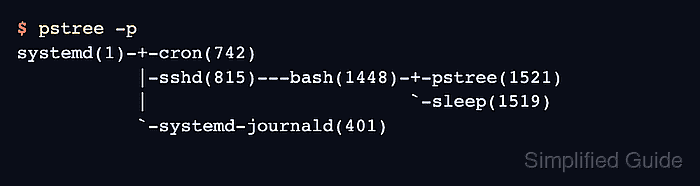
$ pstree -p
systemd(1)-+-cron(742)
           |-sshd(815)---bash(1448)-+-pstree(1521)
           |                        `-sleep(1519)
           `-systemd-journald(401)
The -p option shows PIDs and disables branch compaction, which makes individual child processes easier to match with logs or other process tools.
- Trace one process back to its parents.
$ pstree -s -p 1519
systemd(1)---sshd(815)---bash(1448)---sleep(1519)
Replace 1519 with the PID from the process being investigated. The -s option shows the selected process and its parent chain.
- Confirm the direct children of a known parent process.
$ ps -o pid,ppid,stat,comm --ppid 1448
    PID    PPID STAT COMMAND
   1519    1448 S    sleep
   1522    1448 R    ps
Use --ppid when the full tree is too large and only the immediate children of one parent process need to be checked.

Mohd Shakir Zakaria is a cloud architect with deep roots in software development and open-source advocacy. Certified in AWS, Red Hat, VMware, ITIL, and Linux, he specializes in designing and managing robust cloud and on-premises infrastructures.


