Unloading a kernel module lets a running Linux system stop using a driver or kernel feature without a reboot. It fits maintenance windows where a temporary driver needs to leave memory, a test module must be removed before another run, or a troubleshooting session needs to confirm that a module can be released cleanly.
Linux keeps loadable modules separate from the core kernel image and tracks them in /proc/modules. The lsmod command formats that live module table, including each module's size and current Used by count, while modprobe --remove asks kmod to remove a module through its dependency rules and module dependency database.
Unloading a module requires administrative privileges on ordinary systems, and it works only when nothing is still holding the module in use. Storage, network, graphics, and virtualization drivers can drop live services or access paths when removed, and some features are built directly into the running kernel instead of shipped as removable modules, so confirm the target module name and plan the change during a safe maintenance window before unloading anything critical.
Steps to unload a kernel module with modprobe:
- Check the loaded-module table and locate the target module name before removing anything.
$ lsmod
Module                  Size  Used by
bridge                421888  1 br_netfilter
dummy                  12288  0
nf_tables             380928  0
##### snipped #####
Look for the target in the first column. The Used by field shows the current reference count followed by dependent module names, so a nonzero value means another module or kernel user may still be holding the module open.
- Preview the dependency-aware removal path before making the change.
$ modprobe --dry-run --verbose --remove dummy
rmmod dummy
When removing a module, modprobe can also remove unused dependencies, and it treats hyphens and underscores as the same module name.
- Unload the module after the dry run matches the intended target.
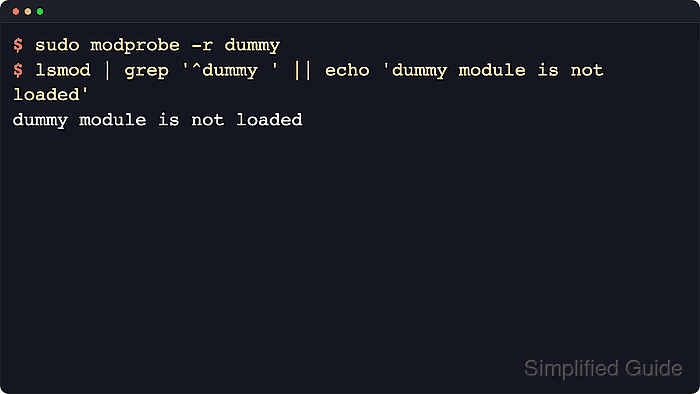
$ sudo modprobe --remove dummy
If the unload works, modprobe normally prints no output.
Do not unload the storage, network, display, or virtualization module that keeps the current system reachable unless the maintenance plan already accounts for the outage.
- Verify that the module directory is absent from /sys/module.
$ ls /sys/module/dummy
ls: cannot access '/sys/module/dummy': No such file or directory
Use the exact module name shown by lsmod. If the directory still exists, the module is still active or was loaded again immediately by userspace.
- Inspect the module's holders if the unload fails because another module still depends on it.
$ ls /sys/module/videobuf2_memops/holders
videobuf2_vmalloc
Each name under /sys/module/<module>/holders is a dependent module that still needs the target. Stop the related service, detach the device, or unload the dependent module first, then retry the original removal command.
- Check the in-use error when removal still fails.
$ sudo modprobe --remove videobuf2_memops
modprobe: FATAL: Module videobuf2_memops is in use.
Do not switch to forced removal as a routine fix. rmmod --force works only on kernels built with force-unload support and can destabilize the running system by removing a module that still owns active resources.
- Check built-in status when the driver works but never appears in lsmod.
$ modinfo loop
name:           loop
filename:       (builtin)
##### snipped #####
A filename: (builtin) result means the feature is compiled into the kernel image, so it cannot be unloaded with modprobe --remove.

Mohd Shakir Zakaria is a cloud architect with deep roots in software development and open-source advocacy. Certified in AWS, Red Hat, VMware, ITIL, and Linux, he specializes in designing and managing robust cloud and on-premises infrastructures.


