A Linux bind mount lets an existing directory appear at a second path without copying data or moving the original tree. This helps when an application expects files under a fixed directory, a chroot needs a narrow filesystem view, or a migration needs a temporary path while the real data stays in place.
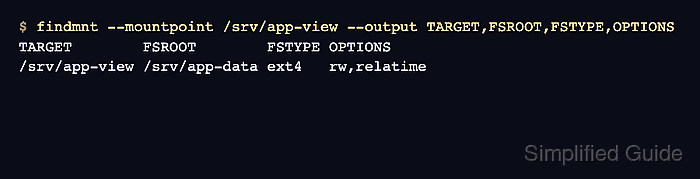
The mount command with the --bind option attaches the source directory to an empty target directory as another mount point for the same underlying filesystem subtree. Programs that read the target path see normal files and directories, while findmnt can show which source subtree is attached there.
A manual bind mount lasts only until it is unmounted or the system reboots. Save the entry in /etc/fstab only after testing the direct mount, because a bad saved mount can delay boot or leave an application path missing until the file is corrected.
Steps to create a Linux bind mount:
- Create the source and target directories.
$ sudo mkdir -p /srv/app-data /srv/app-view
The target directory should be empty before mounting. Files already under the target path stay hidden while the bind mount is active.
- Create a temporary test file in the source directory.
$ printf 'Bind mount source data\n' | sudo tee /srv/app-data/status.txt
Bind mount source data
Use an existing harmless file instead when the source directory already contains production data.
- Attach the source directory to the target path.
$ sudo mount --bind /srv/app-data /srv/app-view
- Confirm that the target path is an active mount point.
$ findmnt --mountpoint /srv/app-view --output TARGET,FSROOT,FSTYPE,OPTIONS
TARGET        FSROOT        FSTYPE OPTIONS
/srv/app-view /srv/app-data ext4   rw,relatime
FSROOT identifies the source subtree exposed through the bind mount. FSTYPE and OPTIONS come from the underlying filesystem and may differ on the local host.
- Read the test file through the bound path.
$ cat /srv/app-view/status.txt
Bind mount source data
For a runtime-only bind mount, stop after this check and unmount it when the second path is no longer needed.
Related: How to unmount a disk in Linux - Back up /etc/fstab before saving a persistent bind mount.
$ sudo cp --archive /etc/fstab /etc/fstab.bak
A malformed /etc/fstab entry can delay boot or leave the target path unmounted. Keep console or recovery access available before changing boot-time mounts.
- Open /etc/fstab with root privileges.
$ sudoedit /etc/fstab
- Add the bind mount entry.
/srv/app-data /srv/app-view none bind 0 0
The fields are the source path, target path, filesystem type, mount options, dump flag, and filesystem-check order. The none type and bind option are the standard fstab form for this directory-to-directory mount.
- Validate the saved fstab entry before relying on it at boot.
$ sudo findmnt --verify --verbose /srv/app-view
/srv/app-view
   [ ] target exists
   [ ] VFS options: bind
   [ ] do not check /srv/app-data source (pseudo/net)
   [ ] do not check /srv/app-data FS type (pseudo/net)
Success, no errors or warnings detected
Correct any reported error before mounting the saved entry or rebooting.
- Unmount the direct test mount before testing the fstab entry.
$ sudo umount /srv/app-view
- Mount the saved entry by its target path.
$ sudo mount /srv/app-view
- Confirm that the persistent entry mounted the same source subtree.
$ findmnt --mountpoint /srv/app-view --output TARGET,FSROOT,FSTYPE,OPTIONS
TARGET        FSROOT        FSTYPE OPTIONS
/srv/app-view /srv/app-data ext4   rw,relatime
- Remove the temporary test file from the source directory.
$ sudo rm /srv/app-data/status.txt

Mohd Shakir Zakaria is a cloud architect with deep roots in software development and open-source advocacy. Certified in AWS, Red Hat, VMware, ITIL, and Linux, he specializes in designing and managing robust cloud and on-premises infrastructures.


