Apache JMeter runs on Windows as a Java application, so a working desktop install needs a Java runtime and the official JMeter binary archive. The Apache ZIP install gives QA engineers a local launcher for creating test plans before the same .jmx files move into command-line load runs.
The Apache binary ZIP extracts into a self-contained apache-jmeter-5.6.3 directory. The Windows launcher is bin\jmeter.bat, and Apache recommends avoiding paths with spaces, so C:\Tools is a safer install location than Program Files.
A complete install prints the JMeter version banner from PowerShell and opens the Swing GUI from the same launcher. Use the GUI for test creation and debugging only; run saved plans in CLI mode when the test is ready for repeatable load execution.
Related: How to check the Java runtime for JMeter
Related: How to start the JMeter GUI
Related: How to run a JMeter test from the command line
Steps to install JMeter on Windows from the Apache ZIP:
- Open Windows PowerShell.
- Check that Java is available.
PS> java -version
openjdk version "21.0.7" 2025-04-15 LTS
OpenJDK Runtime Environment Temurin-21.0.7+6 (build 21.0.7+6-LTS)
OpenJDK 64-Bit Server VM Temurin-21.0.7+6 (build 21.0.7+6-LTS, mixed mode)
Apache JMeter 5.6.3 requires Java 8 or newer. If Windows cannot find java, install a current 64-bit Java runtime and open a new PowerShell window before continuing.
Related: How to check the Java runtime for JMeter - Create the install directory.
PS> New-Item -ItemType Directory -Path C:\Tools -Force
Use a directory without spaces. Apache notes that paths with spaces can cause problems, especially for client-server mode.
- Set the JMeter version for the PowerShell session.
PS> $JMeterVersion = "5.6.3"
- Set the ZIP download path.
PS> $Zip = "$env:TEMP\apache-jmeter-$JMeterVersion.zip"
- Download the official Apache JMeter binary ZIP.
PS> Invoke-WebRequest -Uri "https://dlcdn.apache.org/jmeter/binaries/apache-jmeter-$JMeterVersion.zip" -OutFile $Zip
Use the binary ZIP, not the source ZIP. The Apache download page also publishes sha512 and pgp files beside the archive.
- Verify the downloaded ZIP hash.
PS> certutil -hashfile $Zip SHA512
SHA512 hash of C:\Users\qa\AppData\Local\Temp\apache-jmeter-5.6.3.zip:
387fadca903ee0aa30e3f2115fdfedb3898b102e6b9fe7cc3942703094bd2e65b235df2b0c6d0d3248e74c9a7950a36e42625fd74425368342c12e40b0163076
CertUtil: -hashfile command completed successfully.
Compare the hash with the apache-jmeter-5.6.3.zip.sha512 file from Apache before extracting the archive.
- Extract the archive into C:\Tools.
PS> Expand-Archive -Path $Zip -DestinationPath C:\Tools -Force
- Confirm that the Windows launcher exists.
PS> Test-Path C:\Tools\apache-jmeter-5.6.3\bin\jmeter.bat
True
- Enter the extracted JMeter directory.
PS> Set-Location C:\Tools\apache-jmeter-5.6.3
- Verify that JMeter starts and prints its version banner.
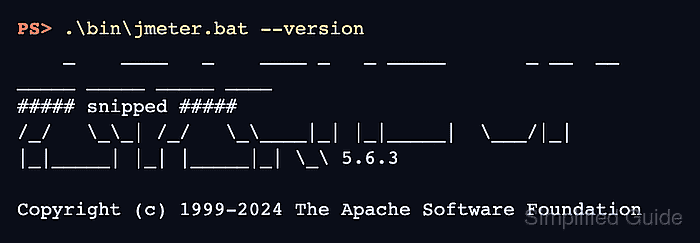
PS> .\bin\jmeter.bat --version
    _    ____   _    ____ _   _ _____       _ __  __ _____ _____ _____ ____
##### snipped #####
/_/   \_\_| /_/   \_\____|_| |_|_____|  \___/|_|  |_|_____| |_| |_____|_| \_\ 5.6.3

Copyright (c) 1999-2024 The Apache Software Foundation
Startup warnings about plugin package scanning can appear before the banner. The install is ready when the launcher reaches the version line instead of a Java or classpath error.
- Start the JMeter GUI once from the same launcher.
PS> .\bin\jmeter.bat
================================================================================
Don't use GUI mode for load testing !, only for Test creation and Test debugging.
For load testing, use CLI Mode (was NON GUI):
   jmeter -n -t [jmx file] -l [results file] -e -o [Path to web report folder]
##### snipped #####
================================================================================
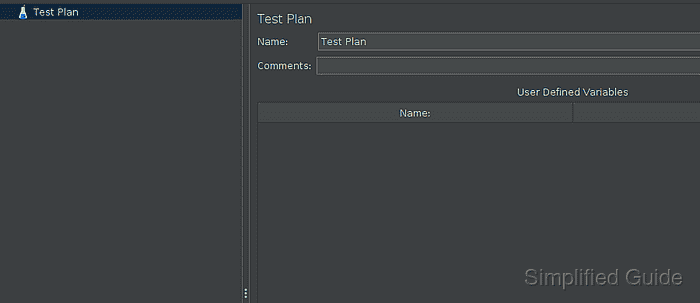
The GUI should open with Test Plan selected. Keep the PowerShell window open while the GUI is running, then use CLI mode for actual load runs.
Related: How to start the JMeter GUI
Related: How to run a JMeter test from the command line

Mohd Shakir Zakaria is a cloud architect with deep roots in software development and open-source advocacy. Certified in AWS, Red Hat, VMware, ITIL, and Linux, he specializes in designing and managing robust cloud and on-premises infrastructures.


