Apache JMeter on macOS gives QA engineers and developers a local workstation for building and checking load-test plans before they run against shared systems. Homebrew is the package-manager path for this setup because it installs the JMeter launcher and the required Java runtime from one terminal workflow.
The Homebrew formula publishes the jmeter package and currently depends on openjdk@21. The installed launcher is linked into the active Homebrew prefix, usually /opt/homebrew/bin on Apple Silicon or /usr/local/bin on Intel Macs, so the shell must load that prefix before jmeter can start.
A complete install appears in Homebrew's package database and in JMeter's own version banner. Use the GUI for building and debugging test plans, then run saved .jmx files from the CLI when the plan is ready for repeatable load tests.
Related: How to start the JMeter GUI
Related: How to run a JMeter test from the command line
Steps to install JMeter on macOS with Homebrew:
- Open a terminal where Homebrew is available.
$ brew --version
Homebrew 6.0.1
If brew is missing, install Homebrew first and open a new terminal that loads the Homebrew environment.
Related: Install Homebrew on macOS - Inspect the JMeter formula metadata.
$ brew info jmeter
==> jmeter: stable 5.6.3 (bottled)
Load testing and performance measurement application
https://jmeter.apache.org/
Not installed
From: https://github.com/Homebrew/homebrew-core/blob/HEAD/Formula/j/jmeter.rb
License: Apache-2.0
==> Dependencies
Required (1): openjdk@21
##### snipped #####
The version can change when Homebrew updates the formula. The dependency line shows the Java runtime that Homebrew will install or reuse for this package.
- Update the local Homebrew metadata.
$ brew update
==> Updating Homebrew...
Already up-to-date.
- Install JMeter from Homebrew.
$ brew install jmeter
Homebrew installs the jmeter formula and its required dependencies. If openjdk@21 is already present, Homebrew reuses it.
- Confirm that Homebrew recorded the installed package.
$ brew list --versions jmeter
jmeter 5.6.3
The exact version follows the formula installed by Homebrew on that Mac.
- Confirm that the current shell resolves the JMeter launcher.
$ command -v jmeter
/opt/homebrew/bin/jmeter
On Intel Macs, the common Homebrew path is /usr/local/bin/jmeter. If the command prints nothing, open a new terminal or load the Homebrew shell environment before retrying.
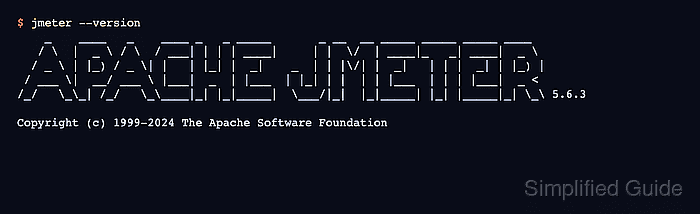
- Verify that JMeter can start and print its version banner.
$ jmeter --version
    _    ____   _    ____ _   _ _____       _ __  __ _____ _____ _____ ____
##### snipped #####
/_/   \_\_| /_/   \_\____|_| |_|_____|  \___/|_|  |_|_____| |_| |_____|_| \_\ 5.6.3

Copyright (c) 1999-2024 The Apache Software Foundation
Startup warnings about plugin package scanning or first-run preferences can appear before the banner on some systems. The install is ready when the launcher prints the JMeter version instead of a Java or command-not-found error.
Related: How to start the JMeter GUI
Related: How to run a JMeter test from the command line

Mohd Shakir Zakaria is a cloud architect with deep roots in software development and open-source advocacy. Certified in AWS, Red Hat, VMware, ITIL, and Linux, he specializes in designing and managing robust cloud and on-premises infrastructures.


