Fullscreen controls help videos, canvases, maps, and preview panels use the whole screen without sending the user to a separate page. The browser Fullscreen API lets JavaScript request that mode for one chosen element after the user clicks or presses a control.
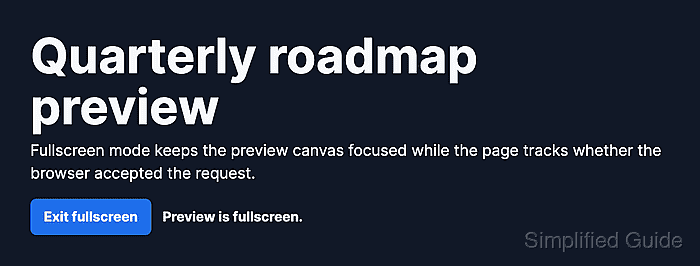
The API is asynchronous. requestFullscreen() asks the browser to promote an element, document.fullscreenElement identifies the active fullscreen element, and document.exitFullscreen() returns the document to normal layout. A fullscreenchange listener keeps button labels and status text aligned when the user exits with Esc or another browser control.
Browsers can reject fullscreen when fullscreen is disabled, the page is inside a frame that does not allow it, or the request is not connected to user activation. Put the exit button inside the element being placed in fullscreen so the control remains visible after the browser accepts the request.
Steps to use the Fullscreen API in JavaScript:
- Add the preview element, fullscreen button, and live status inside the same fullscreen target.
- index.html
<section id="product-preview" class="fullscreen-preview" aria-label="Product preview">
  <div class="preview-card">
    <h1>Quarterly roadmap preview</h1>
    <p>Review the product timeline without the surrounding page layout.</p>
  </div>

  <div class="controls">
    <button id="fullscreen-toggle" type="button" aria-pressed="false">
      Open fullscreen
    </button>
    <p id="fullscreen-status" role="status" aria-live="polite">Preview is inline.</p>
  </div>
</section>
The button stays inside #product-preview so it remains available after that element enters fullscreen.
- Add default, fullscreen, and backdrop styles.
- styles.css
.fullscreen-preview {
  display: grid;
  gap: 1rem;
  padding: 1.25rem;
  border: 1px solid #cbd5e1;
  background: #f8fafc;
  color: #111827;
}

.fullscreen-preview:fullscreen {
  place-content: center;
  min-height: 100vh;
  padding: 4rem;
  background: #111827;
  color: #f8fafc;
}

.fullscreen-preview::backdrop {
  background: #020617;
}
The :fullscreen selector styles the element while it owns fullscreen mode, and ::backdrop styles the area behind it.
- Select the target element, button, and status message.
- fullscreen.js
const preview = document.querySelector("#product-preview");
const toggleButton = document.querySelector("#fullscreen-toggle");
const status = document.querySelector("#fullscreen-status");

if (!preview || !toggleButton || !status) {
  throw new Error("Fullscreen preview markup is missing.");
}

if (!document.fullscreenEnabled || !preview.requestFullscreen) {
  toggleButton.disabled = true;
  status.textContent = "Fullscreen is not available in this browser.";
}
document.fullscreenEnabled can be false when the browser, user preference, frame permissions, or Permissions-Policy blocks fullscreen.
Related: Select DOM elements with JavaScript - Add a helper that reflects the current fullscreen state in the button and status message.
- fullscreen.js
function updateFullscreenState() {
  const isFullscreen = document.fullscreenElement === preview;

  toggleButton.textContent = isFullscreen ? "Exit fullscreen" : "Open fullscreen";
  toggleButton.setAttribute("aria-pressed", String(isFullscreen));
  status.textContent = isFullscreen ? "Preview is fullscreen." : "Preview is inline.";
}
- Request or exit fullscreen from the button click.
- fullscreen.js
toggleButton.addEventListener("click", async () => {
  try {
    if (document.fullscreenElement) {
      await document.exitFullscreen();
      return;
    }

    await preview.requestFullscreen();
  } catch (error) {
    status.textContent = `Fullscreen failed: ${error.message}`;
  }
});
Call requestFullscreen() from the user gesture handler. Browsers can reject a request that runs after unrelated asynchronous work has consumed the activation.
Related: Add a JavaScript event listener - Listen for fullscreen changes and request failures.
- fullscreen.js
document.addEventListener("fullscreenchange", updateFullscreenState);
document.addEventListener("fullscreenerror", () => {
  status.textContent = "Fullscreen request was blocked.";
});

updateFullscreenState();
fullscreenchange fires on both entry and exit, so the helper checks document.fullscreenElement instead of assuming a direction.
- Load the stylesheet and deferred script from the page.
- index.html
<link rel="stylesheet" href="styles.css">
<script src="fullscreen.js" defer></script>
Embedded pages also need iframe permission, such as allowfullscreen or allow="fullscreen", before the child document can enter fullscreen.
Related: Load JavaScript with defer - Open the page in a browser and click Open fullscreen.
- Confirm that the target element owns fullscreen mode.
> document.fullscreenElement?.id "product-preview" > document.querySelector("#fullscreen-status").textContent "Preview is fullscreen." - Click Exit fullscreen.
- Confirm that the page returned to normal layout.
> document.fullscreenElement
null
> document.querySelector("#fullscreen-toggle").textContent.trim()
"Open fullscreen"

Mohd Shakir Zakaria is a cloud architect with deep roots in software development and open-source advocacy. Certified in AWS, Red Hat, VMware, ITIL, and Linux, he specializes in designing and managing robust cloud and on-premises infrastructures.


