Interactive web pages need a way to react after the browser has already rendered the HTML. JavaScript event listeners connect a DOM target, such as a button, to a function that runs when the browser delivers a matching event.
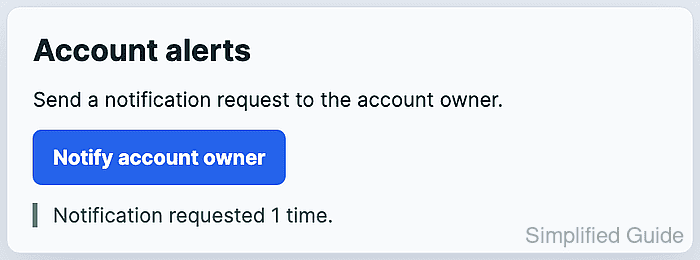
addEventListener() registers a listener on an EventTarget such as an Element, document, or window. The event type is a case-sensitive string like click, and the callback receives the Event object for the action that triggered it.
A small button and status message make the handler visible in the page and easy to check from the browser console. Loading the script with defer lets querySelector() find the target markup before the listener is attached.
Related: Select DOM elements with JavaScript
Related: Load JavaScript with defer
Related: Delegate events for dynamic elements in JavaScript
Steps to add a JavaScript event listener:
- Add a button and a status message to the page.
- index.html
<section class="notification-card">
  <h1>Account alerts</h1>
  <p>Send a notification request to the account owner.</p>
  <button id="notify-button" type="button">Notify account owner</button>
  <p id="notify-status" role="status">No notification requested yet.</p>
</section>
The type=“button” attribute keeps the control from submitting a form when this markup later sits inside one.
- Add a visible state for the event-driven result.
- styles.css
.notification-card {
  display: grid;
  gap: 0.9rem;
  max-width: 34rem;
  padding: 1.25rem;
  border: 1px solid #d8dee8;
  background: #f8fafc;
}

#notify-button {
  width: fit-content;
  border: 0;
  border-radius: 0.45rem;
  padding: 0.75rem 1rem;
  background: #2563eb;
  color: #fff;
  font: inherit;
  font-weight: 700;
}

#notify-status[data-ready="true"] {
  border-left: 4px solid #15803d;
  padding-left: 0.75rem;
  color: #14532d;
}
- Select the button and status elements in JavaScript.
- notify.js
const notifyButton = document.querySelector("#notify-button");
const status = document.querySelector("#notify-status");

if (!notifyButton || !status) {
  throw new Error("Notification markup is missing.");
}
- Register the click handler with addEventListener().
- notify.js
let clickCount = 0;

function handleNotifyClick(event) {
  clickCount += 1;

  const button = event.currentTarget;
  button.dataset.clicked = String(clickCount);

  status.dataset.ready = "true";
  status.textContent = `Notification requested ${clickCount} ${
    clickCount === 1 ? "time" : "times"
  }.`;
}

notifyButton.addEventListener("click", handleNotifyClick);
Use a named handler when later code may need removeEventListener() to detach the same listener. Omit the third argument for a normal bubbling click handler.
- Load the stylesheet and deferred script from the page.
- index.html
<link rel="stylesheet" href="styles.css">
<script src="notify.js" defer></script>
defer lets the browser parse the button and status elements before notify.js runs its selectors.
- Open the page in a browser and click Notify account owner.
- Confirm that the listener updated the status after the first click.
> document.querySelector("#notify-status").textContent "Notification requested 1 time." > document.querySelector("#notify-button").dataset.clicked "1" - Click Notify account owner again and confirm that the next event changed the count once.
> document.querySelector("#notify-button").dataset.clicked
"2"
> document.querySelector("#notify-status").textContent
"Notification requested 2 times."

Mohd Shakir Zakaria is a cloud architect with deep roots in software development and open-source advocacy. Certified in AWS, Red Hat, VMware, ITIL, and Linux, he specializes in designing and managing robust cloud and on-premises infrastructures.


