Browser scripts usually start by finding the page elements they need to read or change. JavaScript can select those DOM elements with the same selector language used by CSS, which keeps the script tied to real markup rather than manual tree traversal.
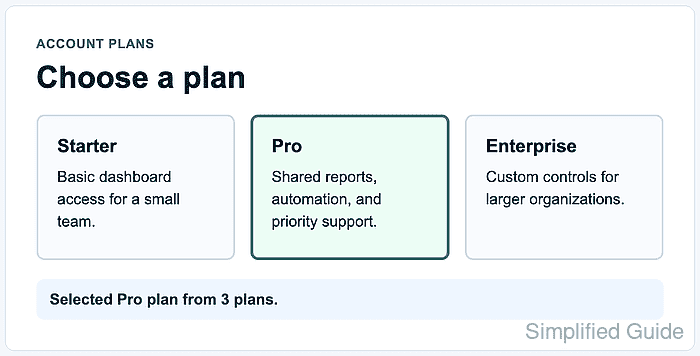
document.querySelector() returns the first matching element or null when no element matches. document.querySelectorAll() returns a static NodeList of all matching elements, so rerun it when the page adds or removes matching markup after the first selection.
Use stable IDs, classes, and data-* attributes for selectors that scripts depend on. When a selector includes a dynamic ID or class value, pass that value through CSS.escape() before building the selector so valid HTML values with punctuation do not become invalid CSS selectors.
Related: Toggle a CSS class with JavaScript
Related: Add a JavaScript event listener
Steps to select DOM elements with JavaScript:
- Add target elements and a status area to the page.
- index.html
<main id="product-list">
  <article id="plan?starter" class="plan-card" data-plan-card data-name="Starter">
    <h2>Starter</h2>
    <p>Basic dashboard access for a small team.</p>
  </article>

  <article id="plan?pro" class="plan-card" data-plan-card data-name="Pro">
    <h2>Pro</h2>
    <p>Shared reports, automation, and priority support.</p>
  </article>

  <article id="plan?enterprise" class="plan-card" data-plan-card data-name="Enterprise">
    <h2>Enterprise</h2>
    <p>Custom controls for larger organizations.</p>
  </article>
</main>

<p id="selection-status" role="status">No plan selected.</p>
The data-plan-card attribute gives the script a selector that is not tied to visual class names. The question mark in each id is valid in HTML but must be escaped when used in a CSS ID selector.
- Add a visible state for the selected element.
- styles.css
.plan-card {
  border: 2px solid #d7deea;
  padding: 1rem;
}

.plan-card.is-selected {
  border-color: #0f766e;
  background: #ecfdf5;
}
- Select the stable page elements.
- product-select.js
const productList = document.querySelector("#product-list");
const status = document.querySelector("#selection-status");

if (!productList || !status) {
  throw new Error("Plan selection markup is missing.");
}
querySelector() returns null when no element matches, so guard required elements before using their properties.
- Select all product cards and clear any old selected state.
- product-select.js
const planCards = document.querySelectorAll("[data-plan-card]");

planCards.forEach((card) => {
  card.classList.remove("is-selected");
  card.setAttribute("aria-selected", "false");
});
querySelectorAll() returns a static NodeList. Use forEach() for one pass over the matched elements, and run the selector again if later code inserts more matching cards.
- Escape the dynamic ID before selecting the target card.
- product-select.js
const selectedPlanId = "plan?pro";
const selectedPlan = document.querySelector(`#${CSS.escape(selectedPlanId)}`);

if (!selectedPlan) {
  throw new Error(`No plan found for ${selectedPlanId}.`);
}
CSS.escape() is needed here because #plan?pro is not a valid raw CSS selector even though plan?pro is a valid HTML ID value.
- Apply the selected state to the matched card.
- product-select.js
selectedPlan.classList.add("is-selected");
selectedPlan.setAttribute("aria-selected", "true");
status.textContent = `Selected ${selectedPlan.dataset.name} plan from ${planCards.length} plans.`;
- Load the stylesheet and deferred script from the HTML page.
- index.html
<link rel="stylesheet" href="styles.css">
<script src="product-select.js" defer></script>
defer lets the browser parse the product cards before the script runs its selectors.
Related: Load JavaScript with defer - Open the page in a browser and confirm the status text.
> document.querySelector("#selection-status").textContent "Selected Pro plan from 3 plans." - Confirm that the all-card selector matched the expected elements.
> document.querySelectorAll("[data-plan-card]").length 3 - Confirm that the escaped ID selector matched the intended card.
> document.querySelector(`#${CSS.escape("plan?pro")}`).classList.contains("is-selected")
true
> document.querySelectorAll("[data-plan-card].is-selected").length
1

Mohd Shakir Zakaria is a cloud architect with deep roots in software development and open-source advocacy. Certified in AWS, Red Hat, VMware, ITIL, and Linux, he specializes in designing and managing robust cloud and on-premises infrastructures.


