CSS classes often carry visible component state such as selected, expanded, hidden, or highlighted. Toggling one class from JavaScript keeps the behavior small while leaving color, spacing, and layout changes in CSS.
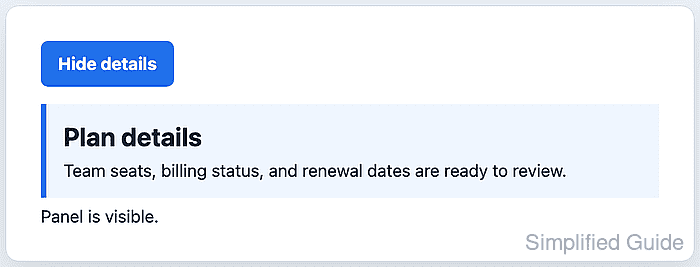
The classList property exposes an element's individual classes without replacing its entire class attribute. Calling toggle(“is-visible”) adds that class when it is missing, removes it when it is present, and returns whether the class remains after the call. Other classes on the element stay intact.
A details panel needs its button state to agree with its visibility. The toggle's return value can keep aria-expanded, the button label, and a status message synchronized with the CSS class. A native button also supports keyboard activation without a separate key handler.
Steps to toggle a CSS class with JavaScript:
- Create index.html in your text editor with a button and its details panel.
- index.html
<!doctype html>
<html lang="en">
<head>
  <meta charset="utf-8">
  <meta name="viewport" content="width=device-width, initial-scale=1">
  <title>Toggle plan details</title>
  <link rel="stylesheet" href="styles.css">
  <script src="toggle-panel.js" defer></script>
</head>
<body>
  <h1>Account notice</h1>
  <button id="toggle-panel" type="button" aria-expanded="false"
          aria-controls="promo-panel">Show details</button>

  <section id="promo-panel" class="notice" aria-label="Plan details">
    <h2>Plan details</h2>
    <p>Team seats, billing status, and renewal dates are ready to review.</p>
  </section>

  <p id="toggle-status" role="status">Panel is hidden.</p>
</body>
</html>
The aria-controls value identifies the controlled panel, and aria-expanded=“false” describes its initial hidden state. The deferred script runs after the browser has parsed these elements. All three files belong in the same folder; no library or web server is needed.
- Create styles.css in the same folder with the hidden and visible panel rules.
- styles.css
body {
  margin: 2rem;
  font: 20px/1.5 system-ui, sans-serif;
  color: #172033;
}

button {
  padding: 0.6rem 1rem;
  font: inherit;
  color: white;
  background: #1f6feb;
  border: 0;
  border-radius: 0.4rem;
  cursor: pointer;
}

.notice {
  display: none;
  margin-top: 1rem;
  padding: 1rem;
  border-inline-start: 0.35rem solid #1f6feb;
  background: #eff6ff;
}

.notice h2, .notice p {
  margin: 0;
}

.notice.is-visible {
  display: block;
}
The panel starts with only notice, so it is hidden. The more specific .notice.is-visible rule displays it only when both classes are present.
- Create toggle-panel.js in the same folder with selectors for the three elements.
- toggle-panel.js
const toggleButton = document.querySelector("#toggle-panel");
const panel = document.querySelector("#promo-panel");
const status = document.querySelector("#toggle-status");
Each selector matches an id in index.html. A mismatched selector returns null instead of an element.
Related: Select DOM elements with JavaScript - Append the click handler at the end of toggle-panel.js.
toggleButton.addEventListener("click", () => {
  const isVisible = panel.classList.toggle("is-visible");

  toggleButton.setAttribute("aria-expanded", String(isVisible));
  toggleButton.textContent = isVisible ? "Hide details" : "Show details";
  status.textContent = isVisible ? "Panel is visible." : "Panel is hidden.";
});
toggle() takes a class name without the leading dot used in a CSS selector. Its return value is true after adding the class and false after removing it, so the same value drives the expanded state and labels. The optional second argument forces a state when a separate condition already determines it, such as panel.classList.toggle(“is-visible”, shouldShow).
Related: Add a JavaScript event listener - Save index.html, styles.css, and toggle-panel.js in your editor.
- Open index.html in a browser.
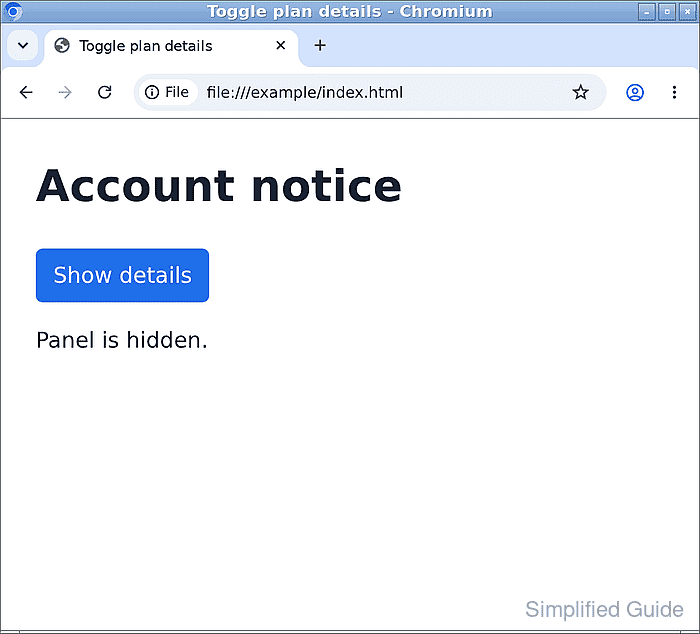
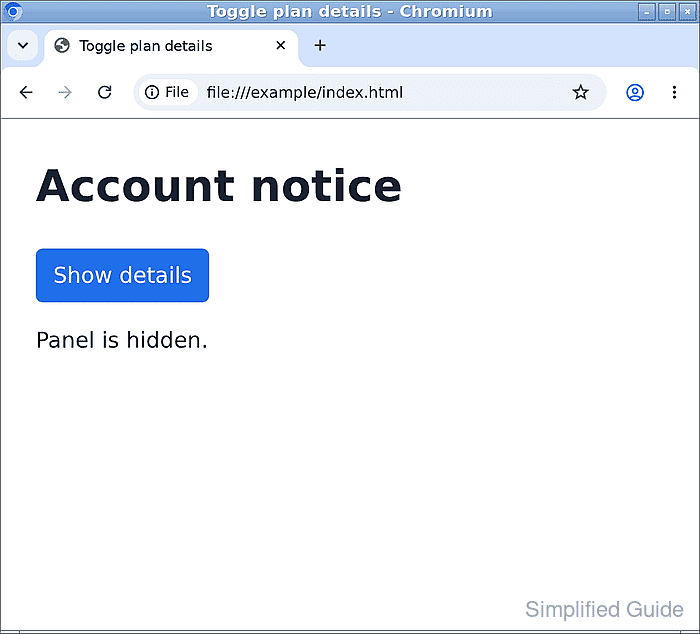
The Show details button and Panel is hidden status should appear without the Plan details panel. A visible panel at this point indicates that the stylesheet has not loaded or its hidden rule is missing.
- Click Show details to reveal the panel.
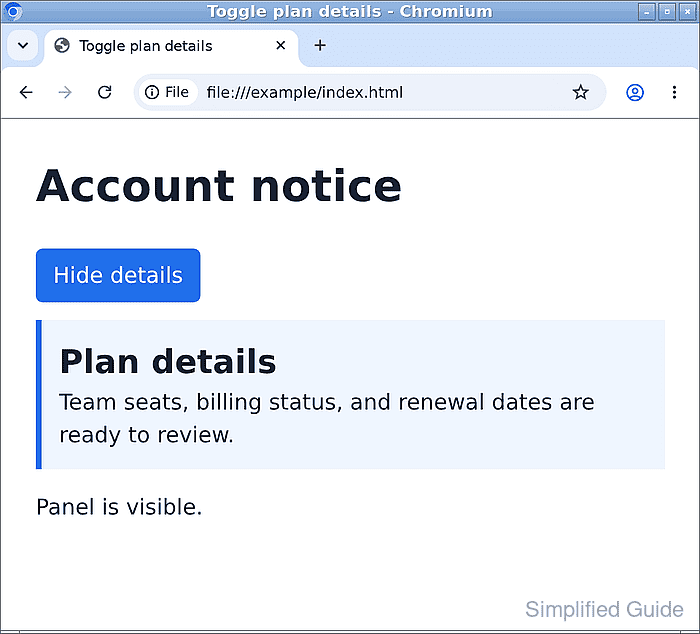
The Plan details panel appears, the button reads Hide details, and the status changes to Panel is visible. If the button does nothing, the script filename and element IDs must match the HTML.
- Click Hide details to toggle the panel closed again.
- Confirm that the panel is hidden again.
The status returns to Panel is hidden, and the button reads Show details again. Successive clicks switch the same class in both directions.