Runtime iptables rules disappear when the host reboots unless a boot-time loader restores them from disk. Saving the ruleset only after it has been tested prevents a firewall from silently returning to an empty or older policy during maintenance, restart, or recovery.
The iptables-save and ip6tables-save commands export the active IPv4 and IPv6 rules in the format that iptables-restore and ip6tables-restore can load later. On Debian and Ubuntu, the iptables-persistent package adds netfilter-persistent plugins that write those exports to /etc/iptables/rules.v4 and /etc/iptables/rules.v6.
Use this path for Debian and Ubuntu hosts that still manage firewall policy through iptables, including the nft-backed iptables backend used by current Ubuntu packages. Saving a broken runtime policy makes the broken policy durable, and loading persistent rules can replace runtime changes made after the last save.
Related: Install iptables on Ubuntu
Related: List iptables rules with counters
Related: Restore iptables rules from a file
Steps to save iptables rules permanently:
- Review the active IPv4 ruleset before saving it.
$ sudo iptables-save
# Generated by iptables-save v1.8.11 (nf_tables) on Fri Jun  5 21:52:03 2026
*filter
:INPUT ACCEPT [0:0]
:FORWARD ACCEPT [0:0]
:OUTPUT ACCEPT [0:0]
-A INPUT -p tcp -m tcp --dport 2222 -j ACCEPT
COMMIT
# Completed on Fri Jun  5 21:52:03 2026
Do not save rules until management access has been tested from a separate session. A rule that blocks SSH or remote administration becomes the boot-time firewall after it is saved.
- Review the active IPv6 ruleset if the host accepts IPv6 traffic.
$ sudo ip6tables-save
# Generated by ip6tables-save v1.8.11 (nf_tables) on Fri Jun  5 21:52:03 2026
*filter
:INPUT ACCEPT [0:0]
:FORWARD ACCEPT [0:0]
:OUTPUT ACCEPT [0:0]
-A INPUT -p tcp -m tcp --dport 2222 -j ACCEPT
COMMIT
# Completed on Fri Jun  5 21:52:03 2026
No output means no IPv6 tables were active in the tested environment. Do not treat an empty IPv6 rules file as protection on a host that routes or accepts IPv6 traffic.
- Refresh the Debian or Ubuntu package index.
$ sudo apt update
- Install the persistence packages.
$ sudo apt install iptables-persistent
The installer may ask whether to save current IPv4 and IPv6 rules. Choose Yes only when the runtime rules have already been reviewed; the explicit save command writes the final files again.
- Confirm the persistence command is available.
$ sudo netfilter-persistent --help
Usage: /usr/sbin/netfilter-persistent (start|stop|restart|reload|flush|save)
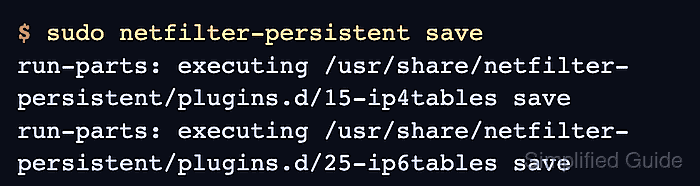
- Save the active rules to the persistent files.
$ sudo netfilter-persistent save
run-parts: executing /usr/share/netfilter-persistent/plugins.d/15-ip4tables save
run-parts: executing /usr/share/netfilter-persistent/plugins.d/25-ip6tables save
- Check the saved rules files.
$ sudo ls -l /etc/iptables/rules.v4 /etc/iptables/rules.v6
-rw-r----- 1 root root 241 Jun  5 21:52 /etc/iptables/rules.v4
-rw-r----- 1 root root 242 Jun  5 21:52 /etc/iptables/rules.v6
/etc/iptables/rules.v4 stores IPv4 rules, and /etc/iptables/rules.v6 stores IPv6 rules. A zero-byte file means that side had no rules to save in the tested environment.
- Test the saved IPv4 file without applying it.
$ sudo iptables-restore --test /etc/iptables/rules.v4
No output means the saved IPv4 file parsed successfully.
- Test the saved IPv6 file when it contains IPv6 rules.
$ sudo ip6tables-restore --test /etc/iptables/rules.v6
No output means the saved IPv6 file parsed successfully.
- Ensure the boot restore service is enabled.
$ sudo systemctl enable netfilter-persistent
The netfilter-persistent systemd unit runs /usr/sbin/netfilter-persistent start before the network is brought up.
- Load the saved files once to follow the same path used at boot.
$ sudo netfilter-persistent start
run-parts: executing /usr/share/netfilter-persistent/plugins.d/15-ip4tables start
run-parts: executing /usr/share/netfilter-persistent/plugins.d/25-ip6tables start
This applies the saved files to the running firewall. Run it only after confirming the saved files contain the rules that should be active.
- Confirm the expected IPv4 rule is present after the load.
$ sudo iptables -S INPUT
-P INPUT ACCEPT
-A INPUT -p tcp -m tcp --dport 2222 -j ACCEPT
- Confirm the expected IPv6 rule is present after the load.
$ sudo ip6tables -S INPUT
-P INPUT ACCEPT
-A INPUT -p tcp -m tcp --dport 2222 -j ACCEPT

Mohd Shakir Zakaria is a cloud architect with deep roots in software development and open-source advocacy. Certified in AWS, Red Hat, VMware, ITIL, and Linux, he specializes in designing and managing robust cloud and on-premises infrastructures.


