Minimal Ubuntu installs, containers, and recovery shells can have kernel Netfilter support without the iptables userspace commands. Installing the distribution package adds the command set needed to inspect or manage iptables rules before any firewall policy is changed.
The iptables package provides the IPv4 and IPv6 command families, including iptables, ip6tables, save and restore helpers, nft-backed commands, and legacy command variants. Current Ubuntu releases manage these command variants through update-alternatives, and the default command normally points to the nftables compatibility backend.
The install is complete when iptables and ip6tables resolve from the shell, both commands print a version line, and the selected backend is visible before any rule-listing, allow, block, NAT, or persistence task begins. Installing the package does not by itself create a host firewall policy.
Steps to install iptables on Ubuntu:
- Open a terminal on the Ubuntu host with sudo privileges.
- Refresh the APT package index.
$ sudo apt update
- Install the iptables package.
$ sudo apt install --assume-yes iptables
Reading package lists...
Building dependency tree...
Reading state information...
The following NEW packages will be installed:
  iptables libedit2 libip4tc2 libip6tc2 libjansson4 libmnl0
  libnetfilter-conntrack3 libnfnetlink0 libnftables1 libnftnl11 libxtables12
  netbase nftables
##### snipped #####
Setting up iptables (1.8.11-2ubuntu3) ...
update-alternatives: using /usr/sbin/iptables-nft to provide /usr/sbin/iptables (iptables) in auto mode
The exact package version changes by Ubuntu release. The package-managed path is the important part because it installs matching command variants and keeps them updated with the system repositories.
- Confirm the IPv4 command is available.
$ command -v iptables
/usr/sbin/iptables
- Confirm the IPv6 command is available.
$ command -v ip6tables
/usr/sbin/ip6tables
IPv4 and IPv6 rules are managed by separate commands. Installing only enough to run iptables does not prove that IPv6 inspection commands are available.
- Print the active iptables backend.
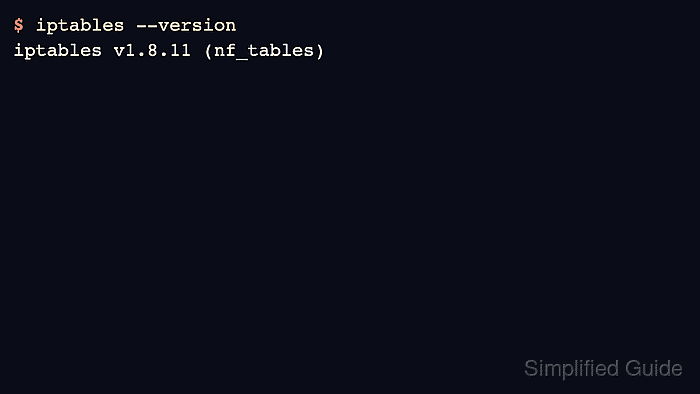
$ iptables --version
iptables v1.8.11 (nf_tables)
(nf_tables) means the command uses the nftables compatibility backend. (legacy) means it uses the older legacy backend.
- Check the IPv6 backend too when the host accepts IPv6 traffic.
$ ip6tables --version
ip6tables v1.8.11 (nf_tables)
- Inspect the selected Ubuntu alternatives entry.
$ update-alternatives --display iptables
iptables - auto mode
  link best version is /usr/sbin/iptables-nft
  link currently points to /usr/sbin/iptables-nft
  link iptables is /usr/sbin/iptables
  slave iptables-restore is /usr/sbin/iptables-restore
  slave iptables-save is /usr/sbin/iptables-save
/usr/sbin/iptables-legacy - priority 10
  slave iptables-restore: /usr/sbin/iptables-legacy-restore
  slave iptables-save: /usr/sbin/iptables-legacy-save
/usr/sbin/iptables-nft - priority 20
  slave iptables-restore: /usr/sbin/iptables-nft-restore
  slave iptables-save: /usr/sbin/iptables-nft-save
The line that says currently points to should match the backend suffix shown by iptables --version.
- Use the installed commands with the selected backend for the next firewall task.
Read the current rules before adding, deleting, or persisting anything. Related: How to list iptables rules with counters
Related: How to save iptables rules permanently

Mohd Shakir Zakaria is a cloud architect with deep roots in software development and open-source advocacy. Certified in AWS, Red Hat, VMware, ITIL, and Linux, he specializes in designing and managing robust cloud and on-premises infrastructures.


