Text and controls on an iPhone or iPad can be difficult to read at their default size. Display Zoom changes the size of text, icons, and controls on supported models while the screen resolution itself stays fixed.
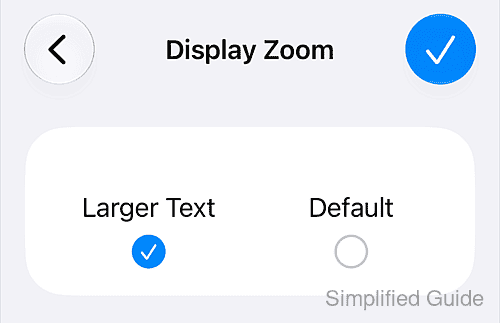
On iOS 27 and iPadOS 27, Display Zoom is under Appearance in Settings and offers preset layouts rather than a custom screen resolution. You cannot enter a pixel size such as 1024 × 768 for the built-in display, and the available presets depend on the device model.
Larger controls make the interface easier to read but leave room for less content at once. Smaller controls fit more content on the same screen. The separate Text Size setting is a better fit when you only want larger text while keeping icons and controls at their usual size.
Steps to change display size on iPhone and iPad:
- Note the size of the text and controls on your current screen for comparison after the change.
- Launch Settings from Spotlight or the home screen.

- Tap Appearance.
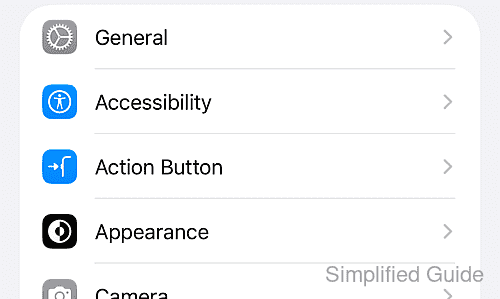
On iOS 26 and iPadOS 26, the same setting is under Display & Brightness.
- Tap Display Zoom.
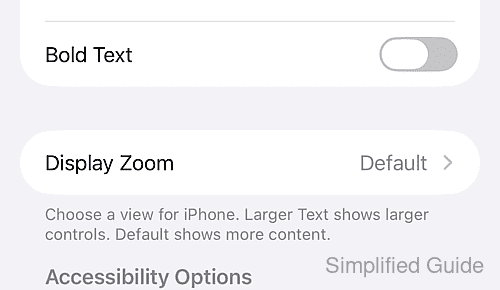
Apple lists More Space for iPad Air (5th generation), iPad Air 11-inch and 13-inch (M2, M3, and M4), iPad Pro 11-inch (1st through 4th generations, M4, and M5), iPad Pro 12.9-inch (5th generation and later), and iPad Pro 13-inch (M4 and M5). Other models may have fewer choices. If Display Zoom is absent, this setting is unavailable on that device and software combination; Text Size can still change text alone. A missing More Space option does not mean that Display Zoom itself is missing.
- Select the available preset that gives you the display size you want.
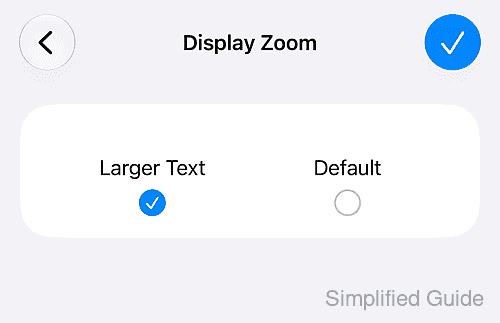
Larger Text enlarges text and controls, while Default restores the standard layout. On supported iPads, More Space makes text and buttons smaller so more content fits onscreen. An iPhone does not offer the iPad's More Space preset.
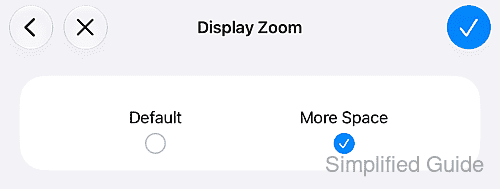
- Tap the checkmark at the top right of the Display Zoom screen.

Versions before iOS 26 and iPadOS 26 show this control as Done.
The next confirmation warns that changing Display Zoom restarts the device, which briefly interrupts its use.
- Confirm the selected display preset in the confirmation dialog.
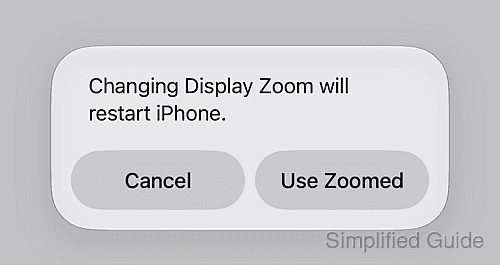
On iPhone, selecting Larger Text is confirmed with Use Zoomed; on a supported iPad, selecting More Space is confirmed with Use More Space.
- Return to the screen you noted before changing Display Zoom.
- Compare the text and control sizes with their previous appearance.
Larger Text should make controls larger; More Space on iPad should make them smaller and fit more content in the same orientation. A change from an enlarged preset to Default should restore the usual size. An unchanged screen can mean that the same preset was already active or the confirmation was canceled.