Adding a border with ImageMagick gives an image fixed padding for thumbnails, contact sheets, preview cards, or uploads that need visible spacing around the original pixels. The command-line workflow is useful when the same border must be applied repeatedly without opening a graphical editor.
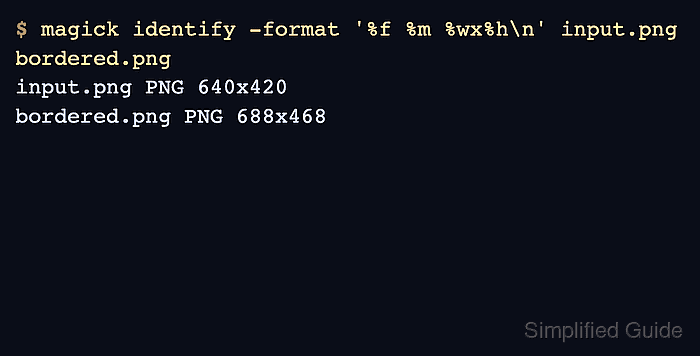
The -border operator surrounds the current image with new pixels, and -bordercolor sets the color used for those pixels. A geometry such as 24x24 adds 24 pixels to the left and right edges and 24 pixels to the top and bottom edges, so a 640x420 input becomes 688x468 after the border is written.
Use the ImageMagick 7 magick command when it is available. Older systems may still package the ImageMagick 6 convert command, but the examples below use the current unified command form. For transparent PNG files, test the output before replacing the original because the default composition can let the border color fill transparent interior pixels.
Steps to add a border with ImageMagick:
- Open a terminal in the directory containing the source image.
- Check the input image dimensions before writing the bordered copy.
$ magick identify -format '%f %m %wx%h\n' input.png
input.png PNG 640x420
magick identify reports the filename, format, and pixel dimensions without changing the file.
- Add a 24-pixel dark border and write the result to a new file.
$ magick input.png -bordercolor '#222222' -border 24x24 bordered.png
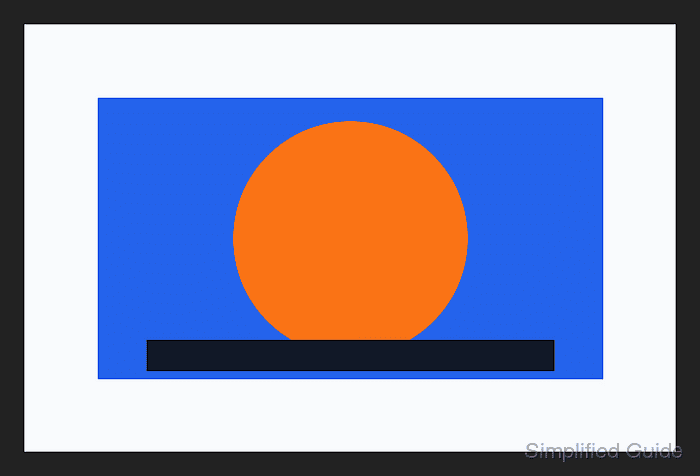
Place -bordercolor before -border so the border operation uses the requested color. To keep transparent interior pixels transparent, add -compose Copy before -bordercolor and verify the result.
- Confirm the output dimensions increased by twice the border width.
$ magick identify -format '%f %m %wx%h\n' input.png bordered.png
input.png PNG 640x420
bordered.png PNG 688x468
A 24x24 border adds 48 pixels to the width and 48 pixels to the height because the same amount is added on both opposite edges.
- Sample a border pixel when the exact color matters.
$ magick bordered.png -format '%[pixel:p{10,10}]\n' info:
srgb(34,34,34)
The sampled pixel is inside the added border. srgb(34,34,34) is the decimal form of #222222.