Changing an image from one file format to another with ImageMagick lets an upload form, web pipeline, print handoff, or downstream tool receive the file type it expects while the original source file remains untouched.
ImageMagick 7 uses the magick command for direct format conversion. For ordinary images, the input file is read first and the destination filename extension selects the writer used for the output file.
A JPEG to PNG conversion should be checked from both the image tool and the operating system before replacing links or handing the file to another process. Keep the source image until the converted file reports the requested format, expected dimensions, and opens in the application that will use it.
Steps to convert image format with ImageMagick:
- Identify the source image format and dimensions before converting it.
$ magick identify source.jpg
source.jpg JPEG 1200x800 1200x800+0+0 8-bit sRGB 44578B 0.000u 0:00.000
Replace source.jpg with the image that needs a copy in another format.
- Convert the image by writing a new filename with the destination extension.
$ magick source.jpg converted.png
ImageMagick leaves source.jpg in place and writes a separate converted.png file. Use an explicit output prefix such as png:converted-image when the destination filename has no useful extension.
- Verify that ImageMagick reads the destination as the requested format and expected size.
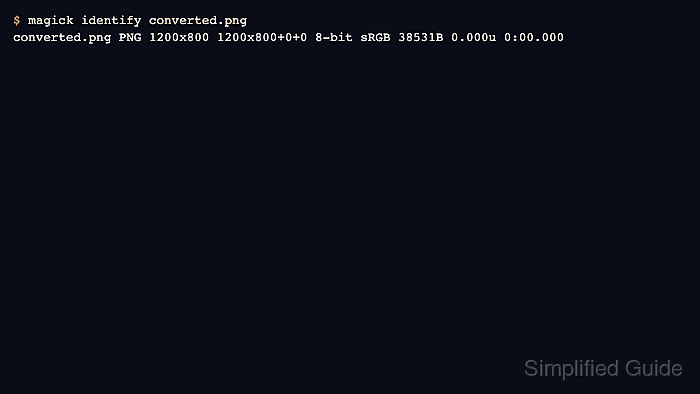
$ magick identify converted.png
converted.png PNG 1200x800 1200x800+0+0 8-bit sRGB 38531B 0.000u 0:00.000
The format field should show PNG. The dimensions should match the source unless the conversion command also resized, cropped, or rotated the image.
- Confirm the file type before handing the converted image to another tool.
$ file converted.png
converted.png: PNG image data, 1200 x 800, 8-bit/color RGB, non-interlaced
Use the destination application's own import or preview check too when the output goes into a CMS, asset pipeline, or print workflow.

Mohd Shakir Zakaria is a cloud architect with deep roots in software development and open-source advocacy. Certified in AWS, Red Hat, VMware, ITIL, and Linux, he specializes in designing and managing robust cloud and on-premises infrastructures.


