Haystack pipelines often start as Python objects in notebooks or scripts, but review, deployment, and repeat runs need a portable definition. Saving a pipeline to YAML captures component configuration and graph wiring so the same pipeline shape can be loaded outside the original Python process.
Pipeline.dump() writes the serialized definition to a file-like stream, and Pipeline.load() reads that stream back into a new Pipeline object. The file records component types, initialization parameters, connections, and pipeline metadata rather than generated answers or temporary runtime output.
Secret-bearing components need extra care before serialization. Use environment-backed Secret objects for credentials and review the saved YAML before sharing it, because the pipeline file is source-controlled configuration that another process may later load and execute.
Related: How to create a pipeline in Haystack
Related: How to run a pipeline in Haystack
Related: How to use API key secrets in Haystack
Steps to save and load a Haystack pipeline:
- Create save_support_pipeline.py with a serializable DocumentCleaner pipeline.
- save_support_pipeline.py
from pathlib import Path

from haystack import Document, Pipeline
from haystack.components.preprocessors import DocumentCleaner

pipeline_file = Path("support_cleaner_pipeline.yaml")

pipeline = Pipeline()
pipeline.add_component(
    "cleaner",
    DocumentCleaner(remove_empty_lines=True, remove_extra_whitespaces=True),
)

result = pipeline.run(
    {
        "cleaner": {
            "documents": [Document(content=" Reset   your password\n\n")],
        }
    }
)

with pipeline_file.open("w", encoding="utf-8") as file:
    pipeline.dump(file)

print(f"original_content={result['cleaner']['documents'][0].content}")
print(f"saved_file={pipeline_file}")
DocumentCleaner is a built-in component, so the load process can recreate it from the component type stored in the saved YAML.
- Run the save script.
$ python save_support_pipeline.py
original_content=Reset your password
saved_file=support_cleaner_pipeline.yaml
Use the same Python environment where haystack-ai is installed.
Related: How to install Haystack with pip - Inspect the saved YAML definition.
$ cat support_cleaner_pipeline.yaml
components:
  cleaner:
    init_parameters:
      ascii_only: false
      keep_id: false
      remove_empty_lines: true
      remove_extra_whitespaces: true
      remove_regex: null
      remove_repeated_substrings: false
      remove_substrings: null
      replace_regexes: null
      strip_whitespaces: false
      unicode_normalization: null
    type: haystack.components.preprocessors.document_cleaner.DocumentCleaner
connection_type_validation: true
connections: []
max_runs_per_component: 100
metadata: {}
The saved file should show the component type and initialization parameters before it is loaded elsewhere.
Tool: YAML Validator - Create load_support_pipeline.py to load the saved pipeline file.
- load_support_pipeline.py
from pathlib import Path

from haystack import Document, Pipeline

pipeline_file = Path("support_cleaner_pipeline.yaml")

with pipeline_file.open("r", encoding="utf-8") as file:
    pipeline = Pipeline.load(file)

result = pipeline.run(
    {
        "cleaner": {
            "documents": [Document(content=" Reset   your password\n\n")],
        }
    }
)

expected_content = "Reset your password"

print(f"loaded_type={type(pipeline).__name__}")
print(f"loaded_content={result['cleaner']['documents'][0].content}")
print(f"round_trip_match={result['cleaner']['documents'][0].content == expected_content}")
Load only pipeline files from trusted project sources. Loading a YAML pipeline asks Haystack to instantiate the component classes named in the file, and project-defined components must be importable in the loading environment.
- Run the load script from the directory that contains support_cleaner_pipeline.yaml.
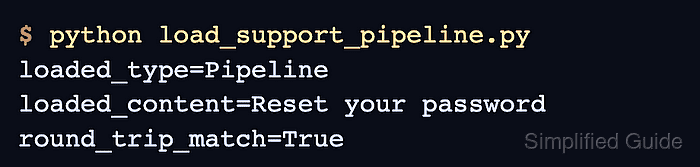
$ python load_support_pipeline.py
loaded_type=Pipeline
loaded_content=Reset your password
round_trip_match=True
round_trip_match=True confirms that the restored pipeline produced the same cleaned document content as the original pipeline.

Mohd Shakir Zakaria is a cloud architect with deep roots in software development and open-source advocacy. Certified in AWS, Red Hat, VMware, ITIL, and Linux, he specializes in designing and managing robust cloud and on-premises infrastructures.


