Inviting a user to Grafana adds a person to the current organization with a chosen organization role. Use an invitation when the user should accept access with their own account instead of sharing an administrator login or manually creating a password for them.
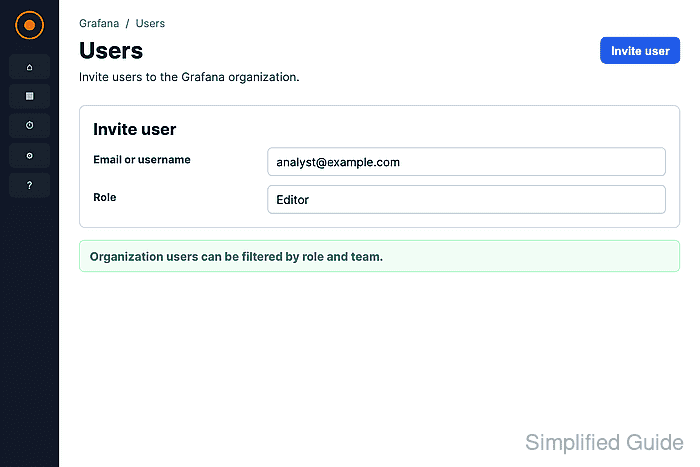
The invite form is under Administration → Users and access → Users → Organization users. An organization administrator can enter an email address for a new user or a username for an existing Grafana user, then assign Viewer, Editor, Admin, or No basic role.
The Send invite email switch requires working email delivery in Grafana. When email is not configured, leave the switch off and use Pending Invites to copy the invite link for a separate message.
Steps to invite a Grafana user:
- Open Administration → Users and access → Users.
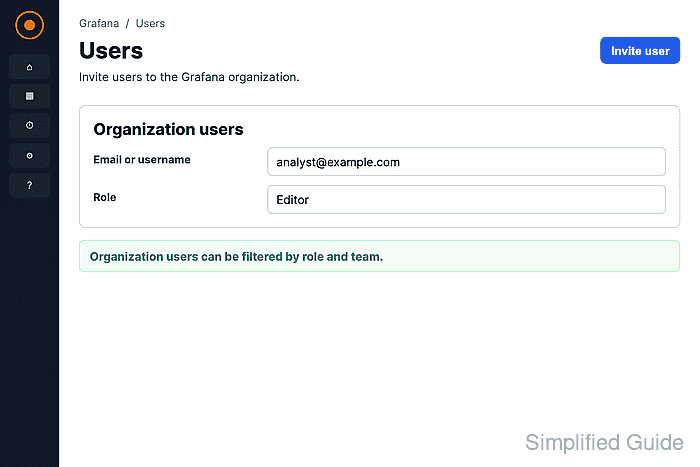
- Click Organization users.
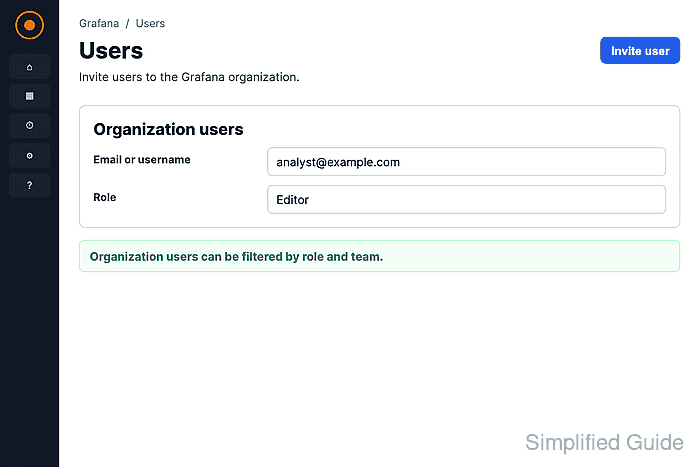
Use the organization switcher first if your account belongs to multiple organizations and the invitation belongs somewhere other than the current organization.
- Click Invite.
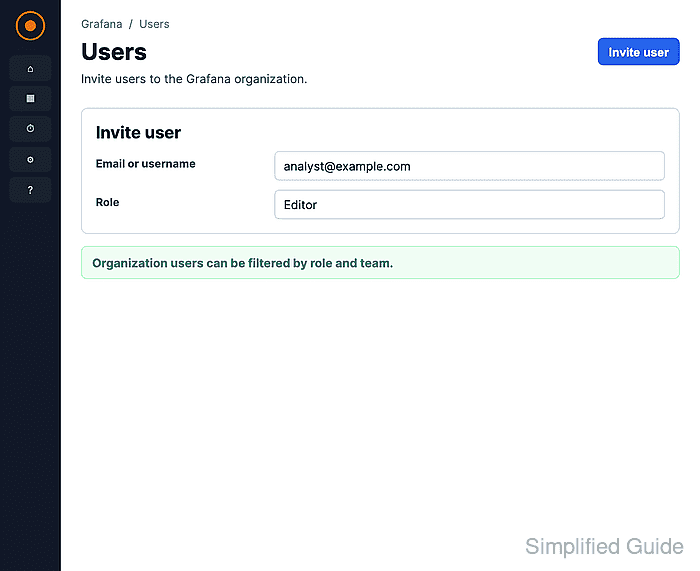
- Enter the invitee email address or existing Grafana username in Email or username.
- Enter the display name in Name when the user account does not already exist.
Name is optional. Grafana creates the user account on first sign-in when the invitation uses a new email address.
- Select the organization role the user should receive.
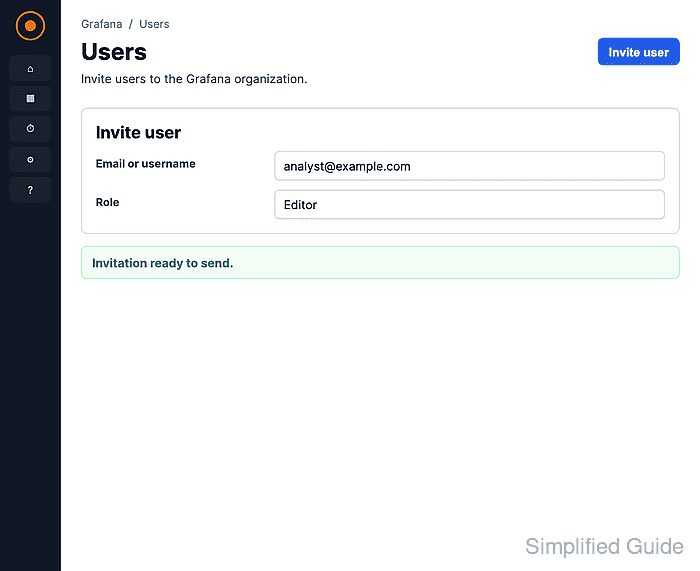
Viewer can view dashboards and query data sources. Editor can edit dashboards and folders. Admin can manage organization users, teams, data sources, and settings. Use No basic role only when RBAC or another permission model will grant the required access.
- Turn Send invite email on only when Grafana email delivery is configured.
Leave it off to create the invite without email and copy the invitation link from Pending Invites.
- Click Submit.
- Click Pending Invites and confirm that the invitee appears with Copy Invite available.

Mohd Shakir Zakaria is a cloud architect with deep roots in software development and open-source advocacy. Certified in AWS, Red Hat, VMware, ITIL, and Linux, he specializes in designing and managing robust cloud and on-premises infrastructures.


