Creating a Grafana team groups users who need the same dashboard, folder, data source, and alert permissions. Use a team when access should follow a service group, support rotation, project, or platform function instead of being assigned one user at a time.
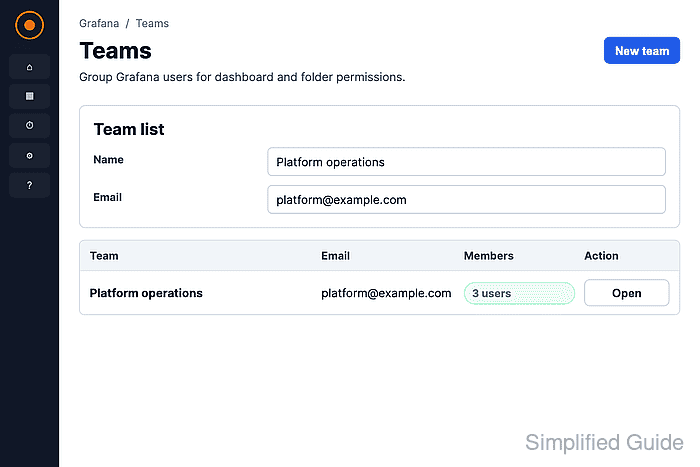
The team is created from Administration → Users and access → Teams in the Grafana web UI. Use an organization administrator account, or another account with permission to manage teams, so the new team can be saved and managed after creation.
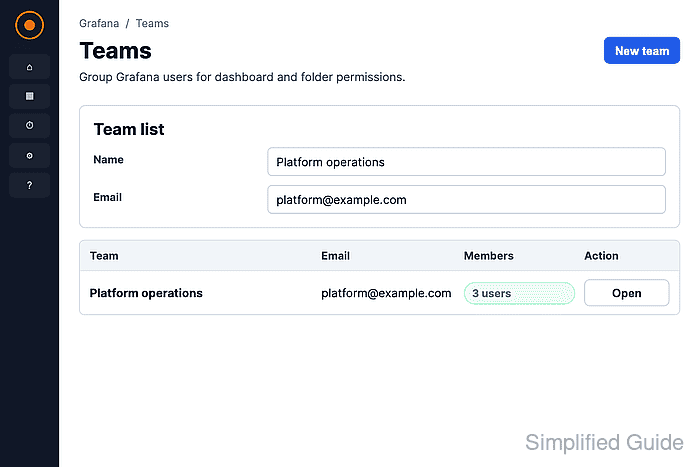
A new team has a name, an optional email address for the team avatar, and a members page where users can be added later. Grafana instances with team folders enabled may also offer an auto-create folder option during setup; leave that off unless the team should immediately own a dedicated folder.
Steps to create a Grafana team:
- Open Administration → Users and access → Teams.
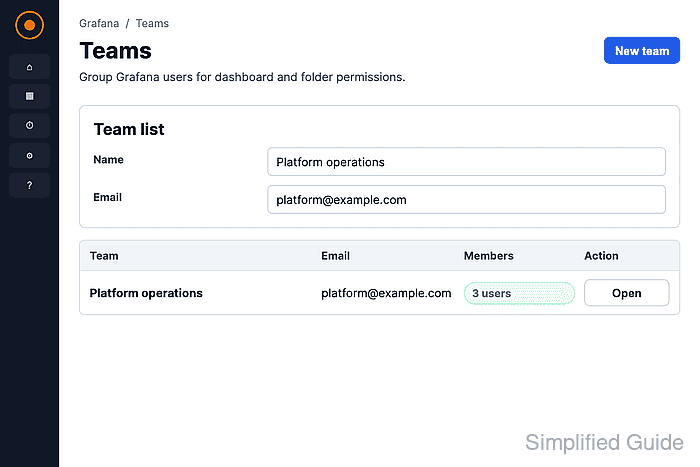
- Click New team.
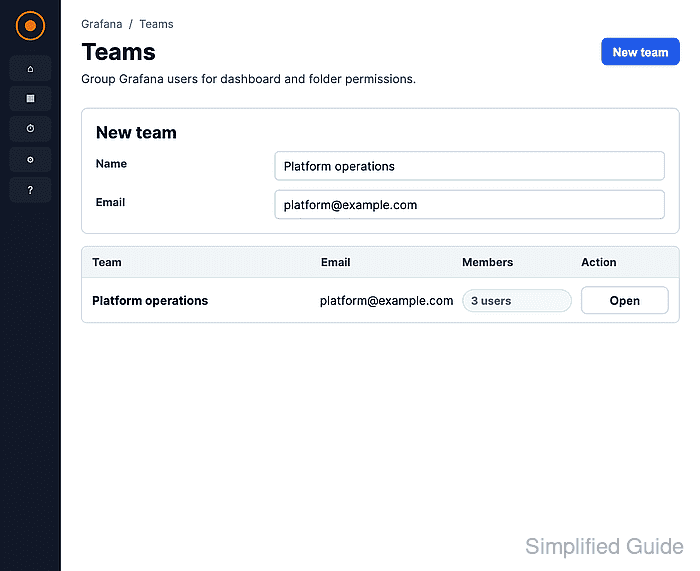
- Enter a unique team name in Name and, if needed, a shared address in Email.
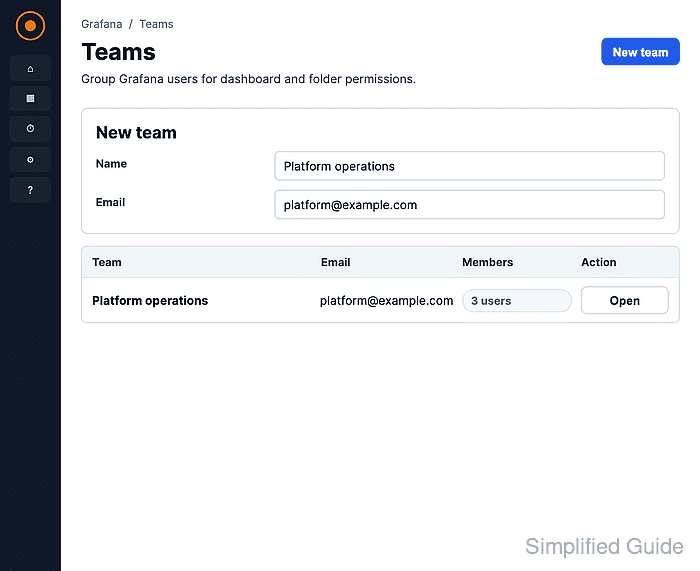
The Email field is optional and is mainly used for the team avatar. Use a shared address only when the address belongs to the team, not to an individual user.
- Click Create.
Grafana opens the team page after creation. Use Add member only after the team exists and the member account is already available in the organization.
- Return to Administration → Users and access → Teams and confirm that the team row appears with the expected name, email address, and member count.

Mohd Shakir Zakaria is a cloud architect with deep roots in software development and open-source advocacy. Certified in AWS, Red Hat, VMware, ITIL, and Linux, he specializes in designing and managing robust cloud and on-premises infrastructures.


