Generic OAuth login lets a self-hosted Grafana server send users to an external OAuth2 or OpenID Connect provider and accept the returned identity for Grafana sessions. Use it when the identity provider is not covered by Grafana's dedicated GitHub, Google, GitLab, Okta, Microsoft Entra ID, or LDAP authentication pages.
Packaged Linux installs read custom settings from /etc/grafana/grafana.ini. The identity provider must have an OAuth client whose redirect URI is the public Grafana URL with /login/generic_oauth appended, and Grafana must know the provider authorization, token, and UserInfo endpoints.
Grafana supports only one Generic OAuth provider per instance. Use a single OpenID Connect provider, keep the callback URL exact, require an email claim, and test with a non-admin account before relying on group or role mapping for production access.
Related: How to install Grafana on Ubuntu
Related: How to configure HTTPS for Grafana
Related: How to configure LDAP authentication in Grafana
Steps to configure generic OAuth login in Grafana:
- Collect the OAuth client values from the identity provider.
Prepare the public Grafana URL, client ID, client secret, authorization endpoint, token endpoint, UserInfo endpoint, JWKS endpoint, scopes, allowed email domain, group claim name, and the groups that should become Viewer, Editor, or Admin in Grafana.
- Register the Grafana callback URL with the OAuth provider.
https://grafana.example.com/login/generic_oauth
Use the exact public scheme, hostname, and path that users enter in the browser. A different trailing slash, proxy hostname, or HTTP/HTTPS mismatch can make the provider reject the login request.
Tool: OAuth Redirect URI Policy Checker - Back up the Grafana configuration file.
$ sudo cp /etc/grafana/grafana.ini /etc/grafana/grafana.ini.before-oauth
- Open the Grafana configuration file.
$ sudoedit /etc/grafana/grafana.ini
- Add the public root URL and Generic OAuth settings.
- /etc/grafana/grafana.ini
[server]
root_url = https://grafana.example.com/

[auth.generic_oauth]
enabled = true
name = Example SSO
allow_sign_up = true
client_id = grafana-production
client_secret = replace-with-client-secret
scopes = openid profile email offline_access
auth_url = https://login.example.com/oauth2/authorize
token_url = https://login.example.com/oauth2/token
api_url = https://login.example.com/oauth2/userinfo
use_refresh_token = true
validate_id_token = true
jwk_set_url = https://login.example.com/.well-known/jwks.json
groups_attribute_path = groups
allowed_groups = grafana-admins grafana-editors grafana-viewers
allowed_domains = example.com
role_attribute_path = contains(groups[*], 'grafana-admins') && 'Admin' || contains(groups[*], 'grafana-editors') && 'Editor' || 'Viewer'
name becomes the login button label. Include openid profile email for OpenID Connect providers because Grafana requires an email address for successful Generic OAuth sign-up and login. Replace offline_access when the provider uses a different refresh-token scope.
/etc/grafana/grafana.ini now contains a client secret. Keep the file readable only by the Grafana service account and administrators, or move the secret to Grafana environment expansion before production use.
- Restart the Grafana service.
$ sudo systemctl restart grafana-server
- Confirm that Grafana is active after the restart.
$ sudo systemctl is-active grafana-server
active
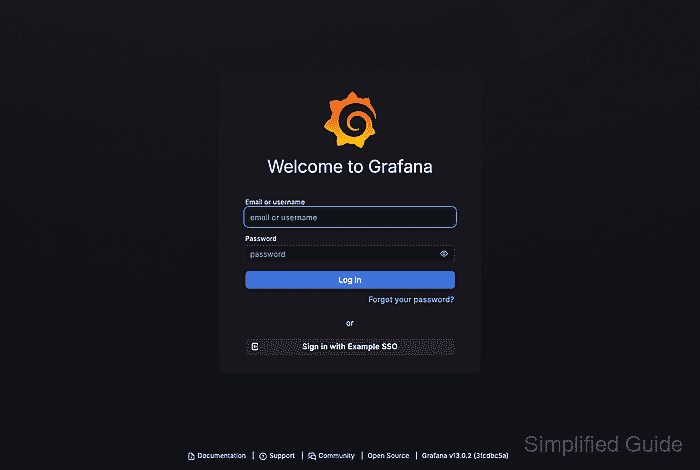
- Open the Grafana login page and confirm the OAuth button appears.
https://grafana.example.com/login
The button label should match the name value, such as Sign in with Example SSO.
- Check that Grafana redirects to the provider with the registered callback URL.
$ curl --include --silent https://grafana.example.com/login/generic_oauth
HTTP/2 302
location: https://login.example.com/oauth2/authorize?client_id=grafana-production&redirect_uri=https%3A%2F%2Fgrafana.example.com%2Flogin%2Fgeneric_oauth&response_type=code&scope=openid+profile+email+offline_access&state=##### snipped #####
The redirect_uri value must match the callback URL registered in the provider. The state value changes for each request.
- Sign in with a non-admin test user through the OAuth button.
If Grafana returns to the login page with an error, check the provider client secret, callback URL, email claim, allowed domain, and groups claim before changing role mappings.
- Verify the test user's Grafana role from an administrator session.
Open Administration → Users and access → Users, select the test account, and confirm the organization role matches the group claim used by role_attribute_path.

Mohd Shakir Zakaria is a cloud architect with deep roots in software development and open-source advocacy. Certified in AWS, Red Hat, VMware, ITIL, and Linux, he specializes in designing and managing robust cloud and on-premises infrastructures.


