Grafana folders group dashboards and related resources so teams can find the views they maintain. Creating a folder before adding dashboards keeps a shared Grafana instance from becoming one flat list and gives later permission changes a clear boundary.
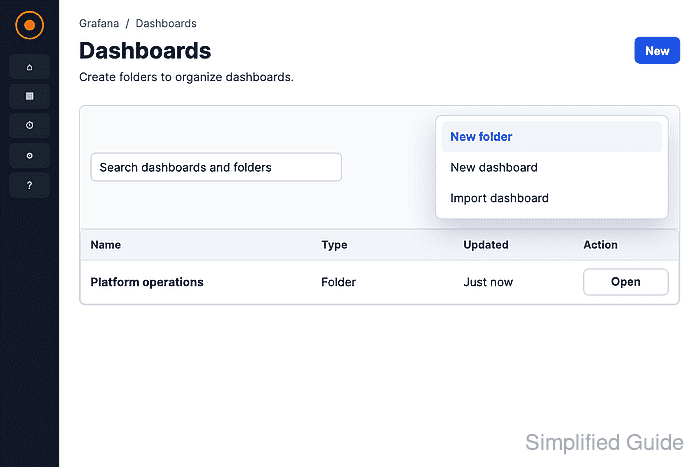
The folder is created from the Dashboards page in the Grafana web UI. A root-level folder requires folder-creation permission, while a subfolder requires Edit or Admin access to the parent folder.
Use a unique folder name without underscores or percent signs; avoid slashes when the folder will hold alert rules. New folders created in the UI inherit default role permissions, with Admin users receiving Admin access, Editor users receiving Edit access, and Viewer users receiving View access.
Steps to create a Grafana folder:
- Open Dashboards from the primary menu.
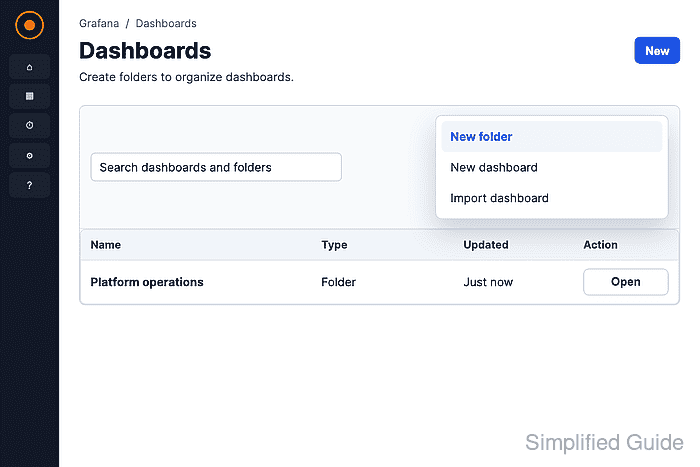
Open a parent folder first when creating a subfolder; Grafana supports nested folders up to four levels deep.
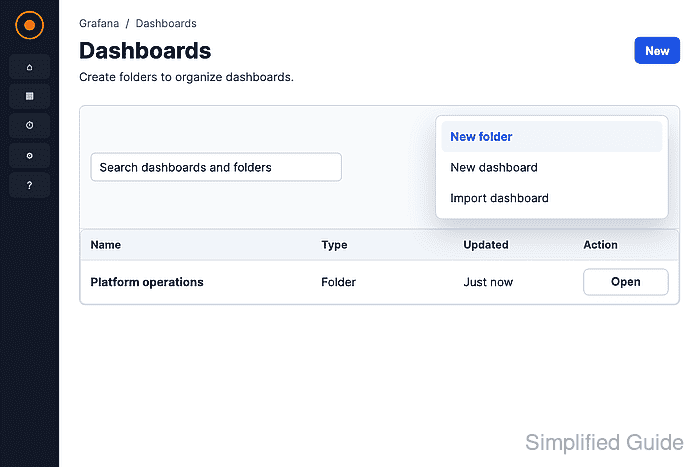
- Click New and select New folder.
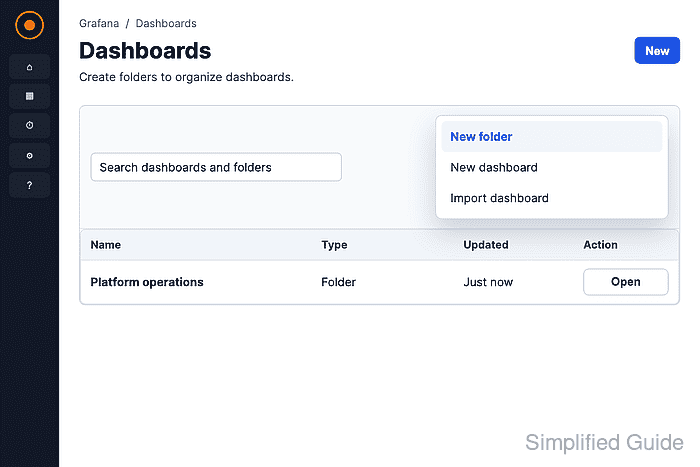
- Enter a unique name in Folder name.
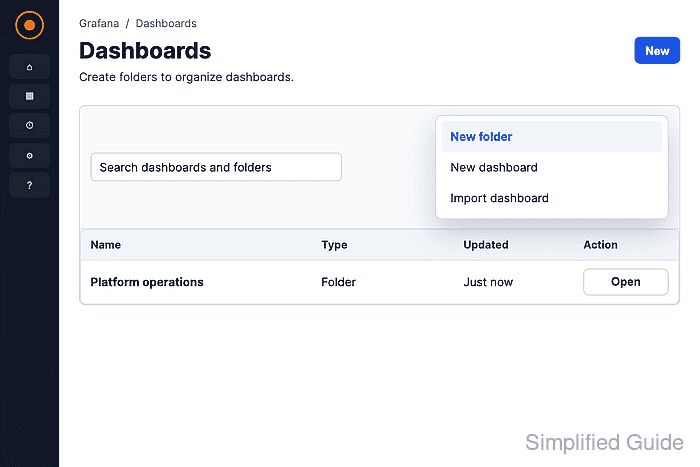
- Click Create.
- Confirm that the folder header shows the folder name and the Folder created message appears.

Mohd Shakir Zakaria is a cloud architect with deep roots in software development and open-source advocacy. Certified in AWS, Red Hat, VMware, ITIL, and Linux, he specializes in designing and managing robust cloud and on-premises infrastructures.


