Securing the LGTM stack with TLS and secrets protects Grafana users, telemetry writers, and backend APIs from plaintext credentials and unauthenticated traffic. Production values files should reference secrets and certificate resources instead of containing passwords, access keys, or private keys directly.
Use Kubernetes Secret objects, an external secrets controller, or the platform's secret manager for credentials. Use Ingress or gateway TLS for browser and API entry points, and keep any internal mTLS settings aligned with the chart and service mesh that own the traffic path.
The visible proof should show secret object names, certificate metadata, and HTTPS responses, not secret values. Mask real hostnames, account IDs, and generated tokens in screenshots and task transcripts before saving evidence.
Steps to secure the LGTM stack with TLS and secrets:
- Create the namespace before adding secret objects.
$ kubectl create namespace monitoring
namespace/monitoring created
- Create or sync the object storage credential secret.
$ kubectl create secret generic lgtm-object-storage \
  --namespace monitoring \
  --from-literal=AWS_ACCESS_KEY_ID='<access-key-id>' \
  --from-literal=AWS_SECRET_ACCESS_KEY='<secret-access-key>'
secret/lgtm-object-storage created
Use an external secret source in production when available. Avoid storing literal credentials in shell history, CI logs, task reports, or committed scripts.
- Create or reference a TLS secret for the public endpoint.
$ kubectl create secret tls lgtm-gateway-tls \
  --namespace monitoring \
  --cert=tls.crt \
  --key=tls.key
secret/lgtm-gateway-tls created
- Confirm the secret objects exist without printing their values.
$ kubectl get secret --namespace monitoring
NAME                  TYPE                 DATA
lgtm-gateway-tls      kubernetes.io/tls    2
lgtm-object-storage   Opaque               2
- Reference the credential secret from chart values.
- values-storage-secrets.yaml
extraEnvFrom:
  - secretRef:
      name: lgtm-object-storage
Each chart exposes secret references differently. Use the chart's supported extraEnv, extraEnvFrom, envFrom, or existing-secret setting instead of inventing a custom key.
- Reference the TLS secret from the ingress values.
- values-ingress.yaml
ingress:
  enabled: true
  hosts:
    - grafana.example.com
  tls:
    - secretName: lgtm-gateway-tls
      hosts:
        - grafana.example.com
- Render the values before applying them.
$ helm template grafana grafana/grafana \
  --namespace monitoring \
  --values values/grafana.yaml \
  --values values-ingress.yaml
##### snipped #####
kind: Ingress
metadata:
  name: grafana
Rendering catches many wrong keys before a release touches the cluster.
- Upgrade the release with the secret and ingress values.
$ helm upgrade --install grafana grafana/grafana \
  --namespace monitoring \
  --values values/grafana.yaml \
  --values values-ingress.yaml \
  --wait
Release "grafana" has been upgraded. Happy Helming!
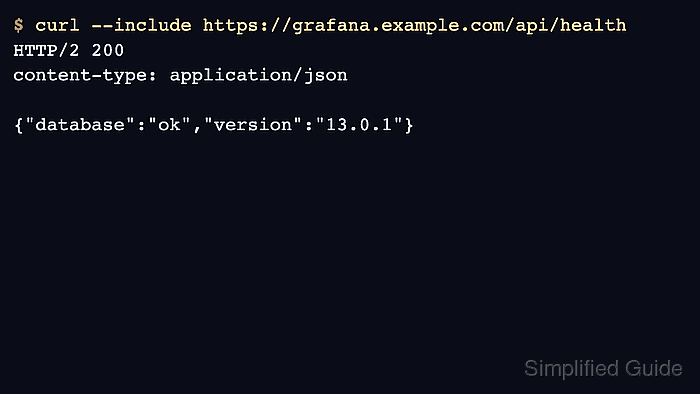
- Check the HTTPS endpoint.
$ curl --silent --include https://grafana.example.com/api/health HTTP/2 200 content-type: application/json {"database":"ok","version":"13.0.1"} - Inspect the certificate subject and issuer.
$ openssl s_client -connect grafana.example.com:443 \
  -servername grafana.example.com </dev/null
##### snipped #####
subject=CN=grafana.example.com
issuer=CN=Example Intermediate CA
- Run one backend data source test through Grafana after TLS is enabled.
$ curl --silent --user admin:<password> \
  https://grafana.example.com/api/datasources
##### snipped #####
"name":"Loki"

Mohd Shakir Zakaria is a cloud architect with deep roots in software development and open-source advocacy. Certified in AWS, Red Hat, VMware, ITIL, and Linux, he specializes in designing and managing robust cloud and on-premises infrastructures.


