Exporting a Grafana dashboard saves the dashboard definition as a file that can be reviewed, stored, imported, or moved into an as-code workflow. The JSON export contains the dashboard layout, panels, variables, queries, and data source references rather than the time-series data behind the panels.
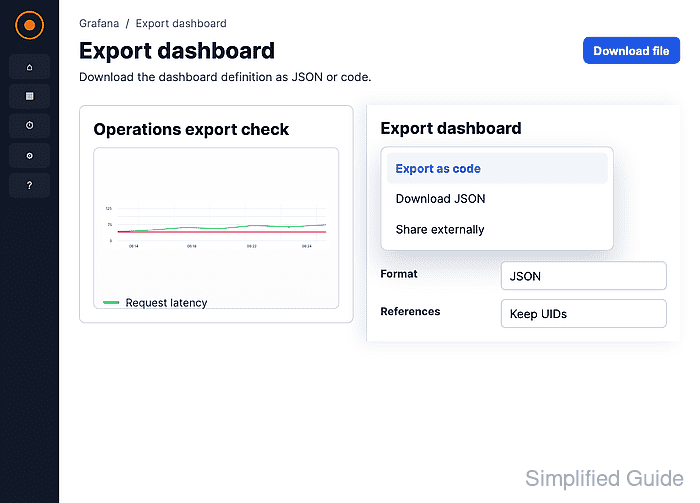
The Export as code drawer creates either a V2 Resource file or a Classic dashboard model. V2 Resource matches Grafana's current dashboard resource schema, while Classic remains common for dashboard catalog uploads and older import workflows.
The exported file may include instance-specific metadata unless Share dashboard with another instance is enabled. Keep the file with other dashboard backups, review the data source references before importing it elsewhere, and avoid treating the export as a copy of data source credentials or alerting configuration.
Related: How to import a Grafana dashboard
Related: How to back up Grafana dashboards
Related: How to provision Grafana dashboards from files
Steps to export a Grafana dashboard as JSON:
- Open Dashboards and select the dashboard to export.
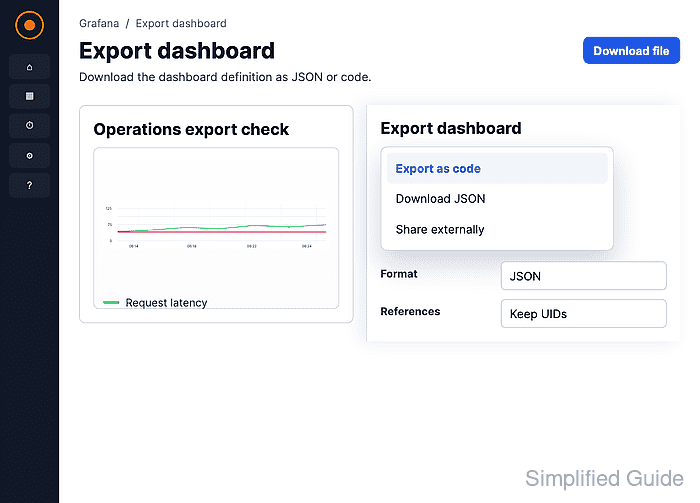
- Click the export drop-down in the dashboard toolbar.
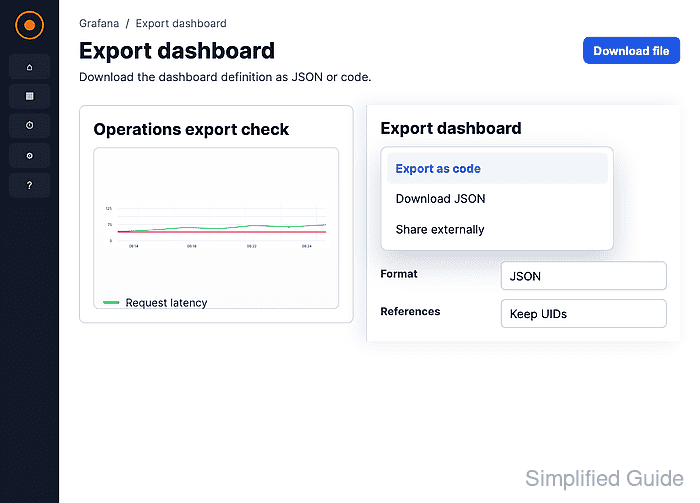
- Select Export as code.
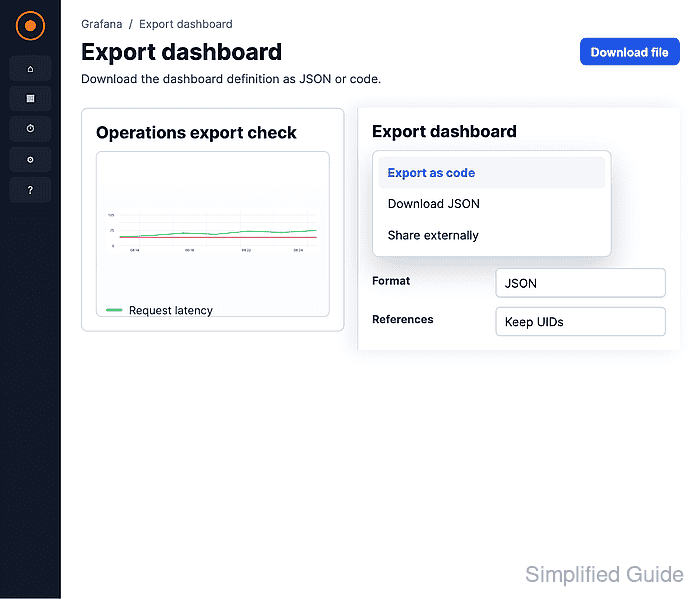
- Expand Advanced options.
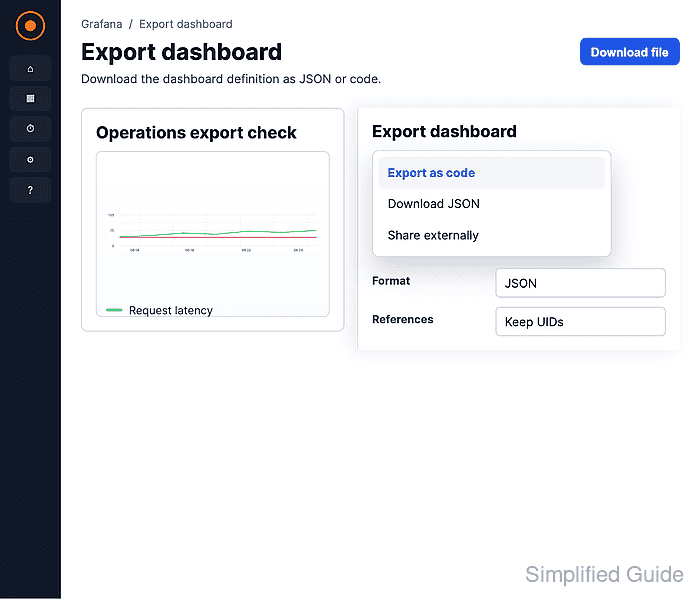
- Select V2 Resource under Model.
Choose Classic instead when publishing to the Grafana community catalog or importing into an older workflow that expects the legacy dashboard model.
- Keep JSON selected under Format.
YAML is available for V2 Resource exports when the receiving workflow expects YAML.
- Enable Share dashboard with another instance only when the file is meant for a different Grafana instance.
The switch removes details tied to the source instance before copying or downloading the definition.
- Click Download file.
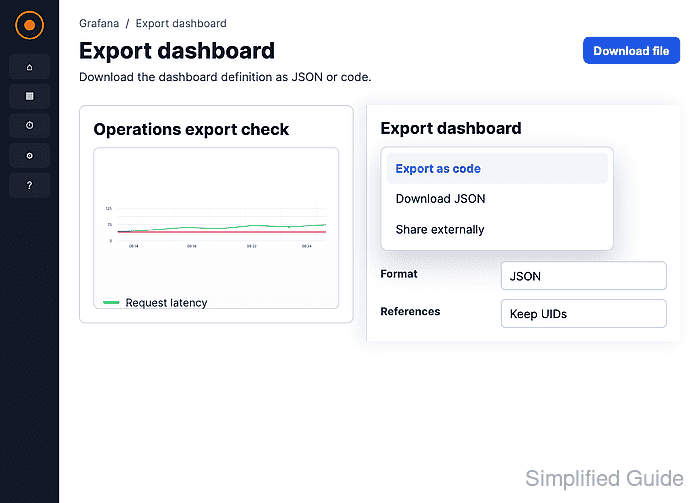
- Check the downloaded JSON file for the dashboard title.
$ jq -r '.spec.title // .title' operations-export-check.json
Operations export check
The title should match the dashboard opened in Grafana. A V2 Resource export also includes apiVersion and kind fields at the top of the file.

Mohd Shakir Zakaria is a cloud architect with deep roots in software development and open-source advocacy. Certified in AWS, Red Hat, VMware, ITIL, and Linux, he specializes in designing and managing robust cloud and on-premises infrastructures.


