Backing up Grafana dashboards preserves the panels, variables, time ranges, tags, and data source references operators need before cleanup, migration, or bulk editing. The current Grafana dashboard API can list dashboard resource names and return each selected dashboard as JSON, so dashboard definitions can be saved without copying the full server database.
Grafana exposes dashboard resources through the dashboard API in recent releases. The resource name in metadata.name is the value used at the end of the dashboard API URL, while metadata.uid is a server-generated identifier that should not be used as the path value for this API.
Dashboard JSON backups do not include data source credentials, alerting rules, plugin binaries, or time-series data. Keep the files with a dated backup set, verify the exported titles before relying on them, and run a separate import test when the backup is meant for migration or recovery.
Steps to back up Grafana dashboards with the dashboard API:
- Set the Grafana URL and service account token for the shell session.
$ export GRAFANA_URL="https://grafana.example.com"
$ export GRAFANA_TOKEN="glsa_REDACTED_SERVICE_ACCOUNT_TOKEN"
Use a token for the organization that owns the dashboards and grant dashboard read access only when backup automation does not need write access.
- List dashboard resource names and titles.
$ curl --silent --show-error --fail \
  --header "Authorization: Bearer $GRAFANA_TOKEN" \
  "$GRAFANA_URL/apis/dashboard.grafana.app/v1/namespaces/default/dashboards?limit=100" \
  | jq -r '.items[] | [.metadata.name, .spec.title] | @tsv'
ops-backup	Operations backup check
service-latency	Service latency overview
Use the first column as the dashboard resource name for export. If the full JSON response contains metadata.continue, request the next page before finalizing the backup list.
- Create a local directory for the exported JSON files.
$ mkdir -p backup-dashboards
- Export the first selected dashboard by resource name.
$ curl --silent --show-error --fail \
  --header "Authorization: Bearer $GRAFANA_TOKEN" \
  "$GRAFANA_URL/apis/dashboard.grafana.app/v1/namespaces/default/dashboards/ops-backup" \
  --output backup-dashboards/ops-backup.json
- Export each additional selected dashboard with its own output file.
$ curl --silent --show-error --fail \
  --header "Authorization: Bearer $GRAFANA_TOKEN" \
  "$GRAFANA_URL/apis/dashboard.grafana.app/v1/namespaces/default/dashboards/service-latency" \
  --output backup-dashboards/service-latency.json
Repeat this step once for each dashboard resource name chosen from the list output. Keep filenames aligned with resource names so import reviews can trace each file back to the original dashboard.
- Verify the saved dashboard names and titles.
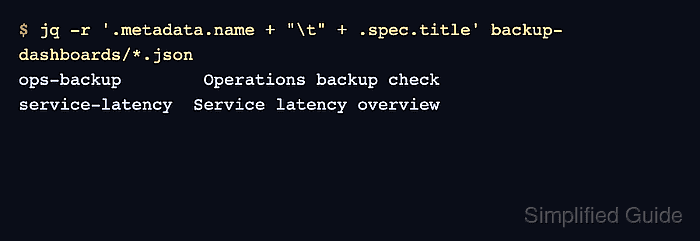
$ jq -r '.metadata.name + "\t" + .spec.title' backup-dashboards/*.json
ops-backup	Operations backup check
service-latency	Service latency overview
The output should match the dashboards selected for backup.
Tool: JSON Validator - Review panel data source references before storing the backup set.
$ jq -r '.metadata.name as $dashboard | .spec.panels[]? | [$dashboard, .title, (.datasource.uid // "mixed")] | @tsv' backup-dashboards/*.json
ops-backup	Request rate	grafana
service-latency	Latency p95	grafana
Missing or unexpected data source UIDs do not make the JSON invalid, but they affect whether the dashboard can render correctly after import.

Mohd Shakir Zakaria is a cloud architect with deep roots in software development and open-source advocacy. Certified in AWS, Red Hat, VMware, ITIL, and Linux, he specializes in designing and managing robust cloud and on-premises infrastructures.


