Provisioning Grafana dashboards from files lets an administrator keep dashboard definitions with the rest of the server configuration. A dashboard JSON file can be reviewed, versioned, mounted into a container, and loaded again after the Grafana host or container is rebuilt.
Grafana uses a dashboard provider YAML file under the provisioning/dashboards directory to find one or more dashboard JSON files on disk. Packaged Linux installs commonly read provider files from /etc/grafana/provisioning/dashboards, while containers use that same path inside the container when a host file or image layer is mounted there.
File provisioning is for self-hosted Grafana instances with filesystem access. Grafana Cloud does not load local provisioning files, and provisioned dashboards remain controlled by the files even when an administrator can view them in the UI. Use a stable dashboard uid so links keep working when the same dashboard is loaded into a fresh instance.
Related: How to export a Grafana dashboard
Related: How to import a Grafana dashboard
Related: How to provision Grafana data sources from files
Steps to provision Grafana dashboards from files:
- Create the dashboard provisioning and dashboard JSON directories.
$ sudo install -d -m 0755 /etc/grafana/provisioning/dashboards /var/lib/grafana/dashboards
For containers, mount the provider file to /etc/grafana/provisioning/dashboards and the dashboard JSON directory to the path used in the provider.
- Open a dashboard provider file.
$ sudoedit /etc/grafana/provisioning/dashboards/operations.yaml
- Add a file provider for the dashboard directory.
apiVersion: 1

providers:
  - name: Operations dashboards
    orgId: 1
    folder: Operations
    folderUid: operations
    type: file
    disableDeletion: false
    updateIntervalSeconds: 30
    allowUiUpdates: false
    options:
      path: /var/lib/grafana/dashboards
updateIntervalSeconds controls how often Grafana checks the path for dashboard file changes. Use a value above 10 when bind mounts or network filesystems do not deliver filesystem watch events consistently.
Tool: YAML Validator - Open the dashboard JSON file.
$ sudoedit /var/lib/grafana/dashboards/ops-overview.json
- Add the dashboard definition.
{
  "uid": "ops-overview",
  "title": "Operations overview",
  "tags": [
    "provisioned",
    "operations"
  ],
  "timezone": "browser",
  "schemaVersion": 39,
  "version": 1,
  "refresh": "30s",
  "panels": [
    {
      "id": 1,
      "title": "Provisioning status",
      "type": "text",
      "gridPos": {
        "h": 6,
        "w": 12,
        "x": 0,
        "y": 0
      },
      "options": {
        "mode": "markdown",
        "content": "Dashboard loaded from provisioning files."
      }
    }
  ]
}
Export an existing dashboard first when replacing this minimal text panel with a real dashboard. Remove instance-specific id values and keep a stable uid.
Related: How to export a Grafana dashboard
Tool: JSON Validator - Reload dashboard provisioning with a Grafana server administrator account.
$ curl --silent --show-error --request POST --user "$GRAFANA_ADMIN_USER:$GRAFANA_ADMIN_PASSWORD" http://grafana.example.internal:3000/api/admin/provisioning/dashboards/reload
{"message":"Dashboards config reloaded"}
The Admin API reload endpoint requires Basic Authentication with a Grafana server administrator account. Restart grafana-server instead when the Admin API is not reachable.
Related: How to manage the Grafana service with systemctl - Confirm Grafana stored the dashboard as a provisioned dashboard.
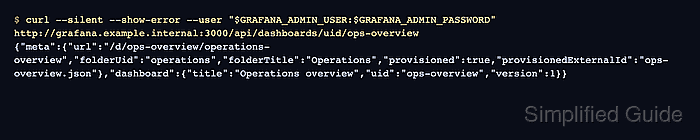
$ curl --silent --show-error --user "$GRAFANA_ADMIN_USER:$GRAFANA_ADMIN_PASSWORD" http://grafana.example.internal:3000/api/dashboards/uid/ops-overview
{"meta":{"type":"db","slug":"operations-overview","url":"/d/ops-overview/operations-overview","folderUid":"operations","folderTitle":"Operations","provisioned":true,"provisionedExternalId":"ops-overview.json"},"dashboard":{"panels":[{"title":"Provisioning status","type":"text"}],"refresh":"30s","schemaVersion":39,"tags":["provisioned","operations"],"timezone":"browser","title":"Operations overview","uid":"ops-overview","version":1}}
provisioned set to true and provisionedExternalId set to the JSON filename mean Grafana loaded the dashboard through the file provider.
- Search for the dashboard in the target folder.
$ curl --silent --show-error --user "$GRAFANA_ADMIN_USER:$GRAFANA_ADMIN_PASSWORD" 'http://grafana.example.internal:3000/api/search?query=Operations%20overview' [{"uid":"ops-overview","title":"Operations overview","url":"/d/ops-overview/operations-overview","type":"dash-db","tags":["operations","provisioned"],"folderUid":"operations","folderTitle":"Operations","isDeleted":false}] - Review the Grafana log if the dashboard does not appear.
$ sudo journalctl -u grafana-server -b
##### snipped #####
logger=provisioning.dashboard level=info msg="starting to provision dashboards"
logger=provisioning.dashboard level=info msg="finished to provision dashboards"
##### snipped #####
A YAML parse error, unreadable dashboard directory, duplicate dashboard uid, or invalid dashboard JSON can prevent the provider from loading the file. Fix the file or path, then reload dashboard provisioning again.

Mohd Shakir Zakaria is a cloud architect with deep roots in software development and open-source advocacy. Certified in AWS, Red Hat, VMware, ITIL, and Linux, he specializes in designing and managing robust cloud and on-premises infrastructures.


