Feature branch releases keep unfinished work away from main until the branch is ready to review, merge, and publish. The release point is the controlled merge from the reviewed branch into the release line, followed by a push to the shared remote and branch cleanup.
A compact Git flow starts from an updated main branch, creates a task branch, commits the change there, pushes it for review, compares it with main, merges it with the project merge policy, and pushes main after the decision is made. Setting the upstream on the first branch push lets later status and pull output show the relationship to origin/feature/docs.
Use these steps inside a clone that has permission to push to origin and where main is the branch that receives releases. Keep unrelated local changes out of the release branch, update main before merging shared work, and delete the local and remote feature branch names only after the merge is on main and any required tests or review checks have passed.
Related: How to create and switch to a Git branch
Related: How to compare two Git branches with diff
Related: How to merge a Git branch into main
Related: How to delete a remote Git branch
Steps to run a feature branch release flow in Git:
- Open a terminal inside the repository clone that will publish the release merge.
- Switch to the branch that receives the release.
$ git switch main
Already on 'main'
Your branch is up to date with 'origin/main'.
- Update main from the remote without allowing a merge commit during the update.
$ git pull --ff-only origin main
From git@repo.example.net:team/project
 * branch            main       -> FETCH_HEAD
Already up to date.
--ff-only stops the pull if the local branch and remote branch have diverged, which keeps the release base explicit before a feature branch is created.
- Create and switch to the feature branch from the current main tip.
$ git switch -c feature/docs
Switched to a new branch 'feature/docs'
Use the branch naming pattern required by the project, such as feature/docs, fix/login-error, or release/2026-06-06. Related: How to create and switch to a Git branch
- Make the release change in the working tree and inspect the changed paths before staging.
$ git status --short
?? docs/release-notes.md
The example adds one release notes file. Your branch may show modified, renamed, or deleted paths instead.
- Stage the paths that belong in the feature branch.
$ git add docs/release-notes.md
- Commit the feature branch work.
$ git commit -m 'Add release notes'
[feature/docs c0bbbba] Add release notes
 1 file changed, 1 insertion(+)
 create mode 100644 docs/release-notes.md
- Push the feature branch and set its upstream tracking branch.
$ git push -u origin feature/docs
To git@repo.example.net:team/project.git
 * [new branch]      feature/docs -> feature/docs
branch 'feature/docs' set up to track 'origin/feature/docs'.
The first push creates the shared branch that reviewers, CI jobs, or pull-request tooling can inspect.
- Confirm that the local branch is clean and tracking the remote branch.
$ git status --short --branch
## feature/docs...origin/feature/docs
No file rows below the branch line means the working tree has no staged or unstaged changes left to commit.
- Review the branch summary against main before merging.
$ git diff --stat main...feature/docs
 docs/release-notes.md | 1 +
 1 file changed, 1 insertion(+)
The three-dot form compares the feature branch to its merge base with main, which matches the usual review view of what the branch introduced. Related: How to compare two Git branches with diff
- Switch back to main as the merge target.
$ git switch main
Switched to branch 'main'
Your branch is up to date with 'origin/main'.
- Merge the reviewed feature branch into main using the project merge policy.
$ git merge --no-ff feature/docs -m 'Merge feature/docs into main'
Merge made by the 'ort' strategy.
 docs/release-notes.md | 1 +
 1 file changed, 1 insertion(+)
 create mode 100644 docs/release-notes.md
--no-ff records a merge commit even when a fast-forward is possible. Use the merge mode required by the project, such as squash merge, fast-forward-only merge, or a signed merge commit.
If Git stops for conflicts, resolve the files, stage the resolutions, and finish the merge before pushing main. Related: How to resolve a Git merge conflict
- Push the updated main branch to the remote.
$ git push origin main
To git@repo.example.net:team/project.git
   b4d4e85..ff67002  main -> main
- Verify that main contains the release merge.
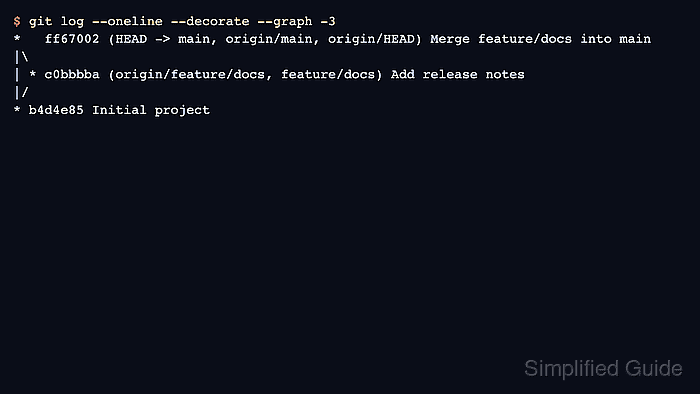
$ git log --oneline --decorate --graph -3
*   ff67002 (HEAD -> main, origin/main, origin/HEAD) Merge feature/docs into main
|\
| * c0bbbba (origin/feature/docs, feature/docs) Add release notes
|/
* b4d4e85 Initial project
- Delete the remote feature branch after the release merge is pushed.
This removes the shared branch name from the remote. Do not run it until the branch is merged, intentionally abandoned, or no longer needed by reviewers or automation.
$ git push origin --delete feature/docs
To git@repo.example.net:team/project.git
 - [deleted]         feature/docs
Related: How to delete a remote Git branch
- Delete the merged local feature branch.
$ git branch -d feature/docs
Deleted branch feature/docs (was c0bbbba).
git branch -d refuses to delete a branch that Git cannot prove is merged into its upstream or HEAD. Related: How to delete a local Git branch
- Confirm that the remote no longer advertises the feature branch.
$ git ls-remote --heads origin feature/docs
No output from git ls-remote –heads means origin has no branch named feature/docs.

Mohd Shakir Zakaria is a cloud architect with deep roots in software development and open-source advocacy. Certified in AWS, Red Hat, VMware, ITIL, and Linux, he specializes in designing and managing robust cloud and on-premises infrastructures.


