Cherry-picking a Git commit moves one specific change from another branch onto the branch you are working on without merging the rest of that branch. Backports, hotfix branches, and release branches often need that smaller transfer when the source branch contains other commits that should stay out.
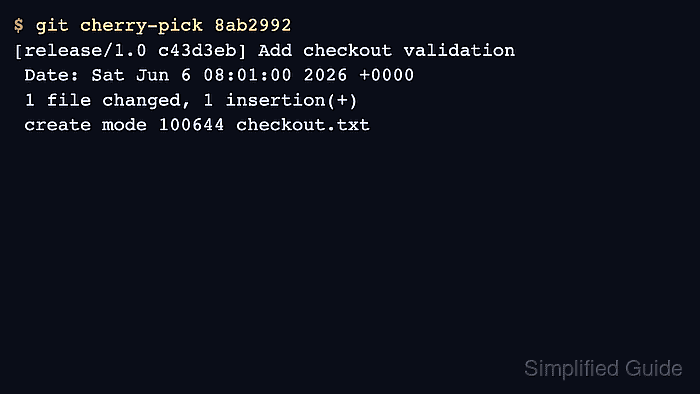
git cherry-pick <commit> reads the selected commit, applies the change to the current branch, and records a new commit there. The new commit usually has a different hash because its parent is different, even when the file changes and commit message match the original.
The target branch should have a clean working tree before the pick starts. If the change does not apply cleanly, Git stops with a cherry-pick in progress so you can resolve conflicts and continue, or abort and return to the pre-pick branch state.
Related: How to view Git commit history
Related: How to compare two Git branches with diff
Related: How to revert a Git commit
Steps to cherry-pick a Git commit:
- Identify the source commit that contains the change to copy.
$ git log --oneline feature/payments -2
747442e Update payment banner
8ab2992 Add checkout validation
Copy the hash for the exact commit you want. In this example, only 8ab2992 should move to the target branch; the later banner.txt change should remain on feature/payments.
- Switch to the branch that should receive the commit.
$ git switch release/1.0
Switched to branch 'release/1.0'
- Confirm the target branch has no uncommitted tracked changes.
$ git status --short
No output from git status –short means the working tree is clean.
- Cherry-pick the selected source commit.
$ git cherry-pick 8ab2992
[release/1.0 c43d3eb] Add checkout validation
 Date: Sat Jun 6 08:01:00 2026 +0000
 1 file changed, 1 insertion(+)
 create mode 100644 checkout.txt
Add -x when backporting between public branches and you want the new commit message to record the original commit hash.
If Git reports conflicts, resolve the files, stage them with git add, then run git cherry-pick –continue. Use git cherry-pick –abort to return to the branch state before the pick. Related: How to resolve a Git merge conflict
- Verify that the picked change became the new commit on the target branch.
$ git show --name-only --oneline HEAD
c43d3eb Add checkout validation
checkout.txt
The new hash c43d3eb is expected because Git created a new commit on release/1.0 from the source commit's change.
- Confirm unrelated source-branch files did not come across.
$ git ls-files
README.md
checkout.txt
The source branch also had banner.txt, but it is absent from release/1.0 because only the selected commit was copied.
- Check that the branch is clean after the cherry-pick.
$ git status --short

Mohd Shakir Zakaria is a cloud architect with deep roots in software development and open-source advocacy. Certified in AWS, Red Hat, VMware, ITIL, and Linux, he specializes in designing and managing robust cloud and on-premises infrastructures.


