Firebase Test Lab gives Espresso instrumentation tests a managed Android device when a local emulator does not represent the device set used by testers and customers. Running the app APK and androidTest APK through Test Lab catches device, API level, locale, and orientation differences while keeping the same AndroidJUnitRunner test package used by local runs.
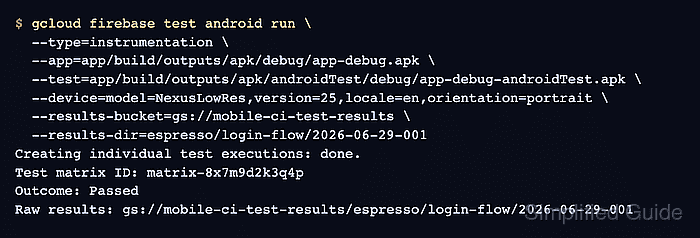
The gcloud firebase test android run command uploads the app under test, uploads the test APK, starts an instrumentation matrix, and waits for the result unless --async is used. The current gcloud syntax prefers repeated --device flags over the older device dimension flags, so the device tuple should come from the Test Lab device catalog.
Use a unique result directory for every run, especially in CI. Reusing the same --results-dir can mix artifacts from different matrices in the same Cloud Storage path, which makes JUnit XML, logcat output, screenshots, and video harder to trust later.
Steps to run Espresso tests in Firebase Test Lab:
- Build the app APK and instrumentation test APK.
$ ./gradlew :app:assembleDebug :app:assembleDebugAndroidTest
BUILD SUCCESSFUL in 14s
44 actionable tasks: 4 executed, 40 up-to-date
Replace :app and debug with the module and build variant that produce the APKs you want to test.
- Verify that the app APK and test APK exist.
$ ls app/build/outputs/apk/debug/app-debug.apk \
  app/build/outputs/apk/androidTest/debug/app-debug-androidTest.apk
app/build/outputs/apk/androidTest/debug/app-debug-androidTest.apk
app/build/outputs/apk/debug/app-debug.apk
- List available Android device models for the target Firebase project.
$ gcloud firebase test android models list \
  --project=mobile-ci-prod
MODEL_ID     MAKE      MODEL_NAME    FORM
NexusLowRes  Generic   LowRes        VIRTUAL
Nexus6       Motorola  Nexus 6       PHYSICAL
##### snipped #####
Use a model, Android version, locale, and orientation combination supported by the catalog. The run command fails before execution if the device tuple is not available.
- Run the Espresso instrumentation test in Firebase Test Lab.
$ gcloud firebase test android run \
  --project=mobile-ci-prod \
  --type=instrumentation \
  --app=app/build/outputs/apk/debug/app-debug.apk \
  --test=app/build/outputs/apk/androidTest/debug/app-debug-androidTest.apk \
  --device=model=NexusLowRes,version=25,locale=en,orientation=portrait \
  --results-bucket=gs://mobile-ci-test-results \
  --results-dir=espresso/login-flow/2026-06-29-001 \
  --timeout=15m
Creating individual test executions: done.
Test matrix ID: matrix-8x7m9d2k3q4p
Outcome: Passed
Raw results: gs://mobile-ci-test-results/espresso/login-flow/2026-06-29-001
Add another --device flag for each additional Test Lab device after the first run is passing. Keep --results-dir unique for each matrix.
- Download the raw Test Lab artifacts from the result path.
$ gcloud storage cp --recursive \
  gs://mobile-ci-test-results/espresso/login-flow/2026-06-29-001 \
  test-lab-results/login-flow-001 \
  --project=mobile-ci-prod
Copying gs://mobile-ci-test-results/espresso/login-flow/2026-06-29-001/test_result_1.xml to file://test-lab-results/login-flow-001/test_result_1.xml
Copying gs://mobile-ci-test-results/espresso/login-flow/2026-06-29-001/logcat to file://test-lab-results/login-flow-001/logcat
Copying gs://mobile-ci-test-results/espresso/login-flow/2026-06-29-001/video.mp4 to file://test-lab-results/login-flow-001/video.mp4
- Confirm that the downloaded artifacts include the result files needed for review.
$ ls -R test-lab-results/login-flow-001
test-lab-results/login-flow-001:
logcat
test_result_1.xml
video.mp4
The exact artifact set depends on the app, device, and Test Lab options, but a passing instrumentation run should leave machine-readable JUnit output plus device evidence such as logs, screenshots, or video.
Tool: JUnit Test Report Analyzer

Mohd Shakir Zakaria is a cloud architect with deep roots in software development and open-source advocacy. Certified in AWS, Red Hat, VMware, ITIL, and Linux, he specializes in designing and managing robust cloud and on-premises infrastructures.


