Adding the Kubernetes integration to a Fleet-managed Elastic Agent policy lets Elastic collect pod, node, container log, event, and state metrics from a Kubernetes cluster. Use it when Elastic Agent Pods are already enrolled through Fleet and the cluster needs to appear in Elastic data streams, dashboards, and Discover searches.
Fleet stores the integration policy in Kibana, and Fleet Server distributes the revised policy to the enrolled Elastic Agent Pods. The Kubernetes package expects node-level collection from a DaemonSet, kube-state-metrics for state_* metrics, and leader election for cluster-wide data such as events.
Start with one Kubernetes agent policy and one data stream namespace before expanding audit logs, control plane metrics, or advanced routing. Managed Kubernetes services can hide scheduler, controller-manager, and some audit-log sources, so the first proof should focus on pods, nodes, container logs, and kube-state-metrics-backed state documents.
Steps to add Kubernetes integration to Elastic Agent with Fleet:
- Choose the Fleet policy that manages the Elastic Agent Pods in the Kubernetes cluster.
The policy should already have enrolled agents running inside the target cluster.
Related: How to create an Elastic Agent policy in Fleet
Related: How to install a Fleet-managed Elastic Agent - Confirm the Elastic Agent Pods are running on the Kubernetes nodes that should be monitored.
$ kubectl get pods -n elastic-agent -l app.kubernetes.io/name=elastic-agent
NAME                          READY   STATUS    RESTARTS   AGE
agent-pernode-prod-4k9gm      1/1     Running   0          18m
agent-pernode-prod-jx72p      1/1     Running   0          18m
Adjust the namespace and label selector when the Helm release or manifest uses different names.
- Confirm the kube-state-metrics service name and namespace.
$ kubectl get service kube-state-metrics -n elastic-agent
NAME                 TYPE        CLUSTER-IP     EXTERNAL-IP   PORT(S)    AGE
kube-state-metrics   ClusterIP   10.96.40.118   <none>        8080/TCP   18m
The default integration host works when kube-state-metrics runs in the same namespace as Elastic Agent.
- Open Kibana → Management → Integrations.
- Search for Kubernetes and open the Kubernetes integration.
- Click Add Kubernetes.
- Set the integration name and namespace for the cluster.
Integration name: kubernetes-prod-observability
Namespace: default
The namespace becomes part of data stream names such as metrics-kubernetes.pod-default and logs-kubernetes.container_logs-default.
- Keep the default pod, node, container log, event, and state metric data streams enabled for the first rollout.
Disable datasets that the agent Pods cannot reach, then add them later after the baseline pod and node data streams are visible.
- Set the kube-state-metrics host for every enabled state metric dataset.
kube-state-metrics:8080
If kube-state-metrics runs in another namespace, use a service DNS name such as kube-state-metrics.elastic-agent.svc:8080 instead of the short host name.
- Leave scheduler and controller-manager metricsets disabled unless the cluster exposes reachable endpoints for them.
Managed Kubernetes services often hide control plane Pods or endpoints, so enabling those datasets without a reachable service can leave integration units degraded.
- Open Existing hosts under Where to add this integration?.
- Select the Elastic Agent policy that manages the Kubernetes agent Pods.
- Click Save and continue.
- Select Add Elastic Agent later if Kibana prompts for agent installation.
The agent Pods are already enrolled, so the saved integration only needs to be distributed through the existing policy.
- Confirm the policy page shows the Kubernetes integration in the integrations list.
- Open Fleet → Agents and wait for the Kubernetes agents to return to Healthy on the latest policy revision.
Policy changes can take a few minutes to reach every agent Pod through Fleet Server.
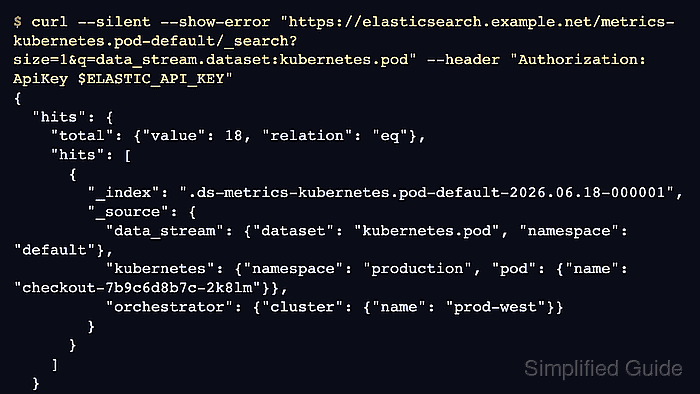
Related: How to monitor Elastic Agent health in Fleet - Query a Kubernetes pod metrics data stream after one or two collection periods.
$ curl --silent --show-error "https://elasticsearch.example.net/metrics-kubernetes.pod-default/_search?size=1&q=data_stream.dataset:kubernetes.pod" --header "Authorization: ApiKey $ELASTIC_API_KEY"
{
  "hits": {
    "total": {
      "value": 18,
      "relation": "eq"
    },
    "hits": [
      {
        "_index": ".ds-metrics-kubernetes.pod-default-2026.06.18-000001",
        "_source": {
          "data_stream": {
            "dataset": "kubernetes.pod",
            "namespace": "default",
            "type": "metrics"
          },
          "kubernetes": {
            "namespace": "production",
            "pod": {
              "name": "checkout-7b9c6d8b7c-2k8lm"
            }
          },
          "orchestrator": {
            "cluster": {
              "name": "prod-west"
            }
          }
        }
      }
    ]
  }
}
Use the namespace selected in the integration policy. The endpoint, API key, cluster name, and pod name shown here are sanitized placeholders.
- Search for Kubernetes data in Discover.
data_stream.dataset : "kubernetes.pod" and kubernetes.pod.name : *
Check fields such as kubernetes.namespace, kubernetes.node.name, kubernetes.pod.name, and orchestrator.cluster.name before expanding the rollout.
- Open the Kubernetes integration Assets tab and load the [Metrics Kubernetes] Pods dashboard.

Mohd Shakir Zakaria is a cloud architect with deep roots in software development and open-source advocacy. Certified in AWS, Red Hat, VMware, ITIL, and Linux, he specializes in designing and managing robust cloud and on-premises infrastructures.


