An Elastic Agent policy in Fleet gives enrolled agents a shared set of integrations, outputs, namespace, and monitoring settings. Create a separate policy when a group of hosts needs different data collection, rollout timing, or environment labeling from the default policy.
Fleet stores the policy in Kibana and Elasticsearch, then Fleet Server distributes the policy to enrolled agents. A new policy can start with the System integration so servers begin collecting host logs and metrics as soon as agents enroll.
Policy creation requires a Kibana role that can manage Fleet agent policies. Choose a name and default namespace that match the target host group before saving, because the namespace becomes part of the data stream identity used by integrations that send data through the policy.
Steps to create an Elastic Agent policy in Fleet:
- Open Kibana and go to Management → Fleet → Agent policies.
The user must have Fleet agent policy management privileges before the Create agent policy action is available.
- Click Create agent policy.
- Enter a policy name that identifies the host group, such as linux-baseline.
Keep names stable enough for enrollment tokens, audit notes, and later integration assignments to stay recognizable.
- Add a description if the policy will be shared by multiple teams.
- Set the Namespace field for data collected through the policy.
Use a namespace such as default, production, or staging that matches the data stream naming plan for the environment.
- Leave Collect system logs and metrics enabled when the policy should include baseline host telemetry.
Fleet adds the System integration by default when this option remains selected.
- Review optional output, monitoring, or protection settings if they appear in the policy form.
Most optional fields can be changed later from the policy Settings tab, but enrolled agents receive saved policy changes through Fleet Server.
- Preview the API request if the policy change needs an auditable request before it is saved.
> POST kbn:/api/fleet/agent_policies?sys_monitoring=true
{
  "name": "linux-baseline",
  "description": "Linux servers managed by Fleet",
  "namespace": "default",
  "monitoring_enabled": ["logs", "metrics"]
}
Preview API request can open the same creation request in Dev Tools Console for teams that review Fleet changes as API calls.
- Click Create agent policy to save the policy.
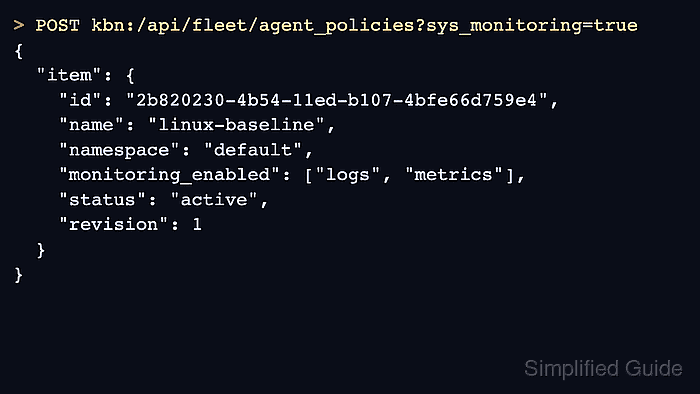
- Confirm that Fleet shows an active policy revision for the new policy.
{
  "item": {
    "id": "2b820230-4b54-11ed-b107-4bfe66d759e4",
    "name": "linux-baseline",
    "namespace": "default",
    "monitoring_enabled": ["logs", "metrics"],
    "status": "active",
    "revision": 1
  }
}
The JSON response appears when the request is opened and run from the API preview. In the UI-only path, the same proof is the saved policy details page and the row on Agent policies.
- Return to Agent policies and confirm the new row shows the expected name and namespace.
- Open the policy and confirm the integrations list matches the creation choice.
A policy created with system collection enabled should include the System integration. An empty policy is ready for a later integration-specific setup.
Related: How to add the System integration to an Elastic Agent policy

Mohd Shakir Zakaria is a cloud architect with deep roots in software development and open-source advocacy. Certified in AWS, Red Hat, VMware, ITIL, and Linux, he specializes in designing and managing robust cloud and on-premises infrastructures.


