Fleet shows Elastic Agent health from Kibana so an operator can tell whether enrolled hosts are checking in, applying policy, reporting integration errors, or disappearing from management. Use it during rollout checks, ingest gaps, and upgrade windows before moving to host-level troubleshooting.
The Agents tab under Management → Fleet is the primary view for Fleet-managed agents. Elastic labels agents as Healthy, Unhealthy, Orphaned, Updating, Offline, Inactive, Unenrolled, or Uninstalled; the details page adds policy revision, last activity, last check-in message, resource metrics, integration health, and raw agent JSON.
Use the UI when triaging a small set of hosts and use the Fleet API when a status count needs to feed an external monitor or change report. Offline agents still have valid API keys, while Inactive agents have been offline longer than the configured inactivity timeout and are removed from the main Fleet view by default.
Steps to monitor Elastic Agent health in Fleet:
- Open Kibana → Management → Fleet → Agents.
- Review the status counts above the agent table.
Healthy means the agent is enrolled and checking in with no policy or binary update in progress. Unhealthy covers error or degraded states that usually need host, permission, integration, or policy review.
- Filter the table by Status for Unhealthy, Offline, Updating, or Orphaned agents.
- Sort by Last activity to find hosts that stopped checking in most recently.
The Agents tab displays up to 10,000 agents, so use filters or search queries when a deployment is larger than the visible table limit.
- Click the host name for the agent that needs review.
- Check the Agent details overview for status, policy name, policy revision, version, memory usage, CPU usage, last activity, and last check-in message.
- Expand the Integrations pane and inspect any alert, warning, degraded, or failed unit.
Fleet currently shows integration health for agent inputs, not agent outputs. Use the raw agent JSON or logs when an output failure is suspected.
- Select Actions → View agent JSON when the visible panes do not show enough detail.
Look at status, last_known_status, last_checkin, last_checkin_message, policy_revision, components, units, and unhealthy_reason before changing the policy or the host service.
- Open Agent activity to check whether a recent policy change, upgrade, reassignment, diagnostic request, or unenrollment action is still in progress.
Agents can show Updating while they apply a policy, update the binary, or complete enrollment or unenrollment work.
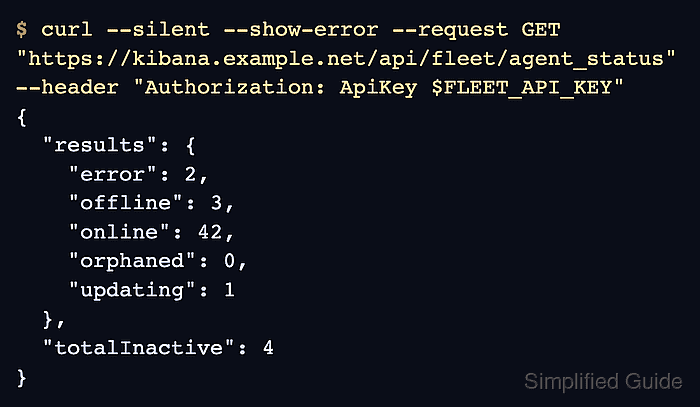
- Request an API status summary when the health counts need to be saved outside Kibana.
$ curl --silent --show-error --request GET "https://kibana.example.net/api/fleet/agent_status" --header "Authorization: ApiKey $FLEET_API_KEY"
{
  "results": {
    "active": 48,
    "all": 54,
    "error": 2,
    "events": 0,
    "inactive": 4,
    "offline": 3,
    "online": 42,
    "orphaned": 0,
    "other": 0,
    "unenrolled": 0,
    "uninstalled": 0,
    "updating": 1
  },
  "totalInactive": 4
}
Use the space-specific API path when checking a non-default Kibana space. The API key or user must have fleet-agents-read privileges.
- Treat nonzero error, offline, orphaned, or updating counts as follow-up items, then reopen one matching agent in Fleet for the detailed message.
Do not unenroll or force-remove an offline agent only because it is absent from the host. Confirm the hostname, policy, last check-in, and operational owner first, because unenrollment removes its Fleet API keys.

Mohd Shakir Zakaria is a cloud architect with deep roots in software development and open-source advocacy. Certified in AWS, Red Hat, VMware, ITIL, and Linux, he specializes in designing and managing robust cloud and on-premises infrastructures.


