Adding the System integration to an Elastic Agent policy gives enrolled hosts baseline operating-system logs and metrics through Fleet. Use it when a policy was created without system collection or when an existing host group needs CPU, memory, filesystem, network, auth, syslog, or Windows event data in Elastic.
Fleet stores the integration policy in Kibana, installs the System package assets if needed, and sends the new policy revision to every agent enrolled in the selected policy. The policy namespace becomes part of data stream names such as metrics-system.cpu-default and logs-system.syslog-default.
Start with one editable policy that already has a healthy enrolled agent. Host log paths and Windows event channels differ by operating system, so leave only data streams the target hosts can read and verify ingestion with Discover or an Elasticsearch search after the policy revision reaches the agent.
Steps to add the System integration to an Elastic Agent policy in Fleet:
- Open Kibana → Management → Fleet → Agent policies.
- Open the policy that should collect baseline host telemetry.
The policy must be editable. Hosted or centrally managed policies can restrict integration changes.
- Click Add integration.
- Search for System and select the System integration.
- Click Add System.
- Set Integration name to a label that identifies the policy scope.
linux-baseline-system
- Leave Collect logs from System instances and Collect metrics from System instances enabled unless the policy should collect only one data type.
System log data streams cover Windows Application, System, and Security channels, plus Linux and macOS auth and syslog events. Metric data streams cover host resources such as CPU, load, memory, filesystem, process, and network behavior.
- Expand the log sections and adjust host-specific paths or channels.
For macOS hosts, add /var/log/system.log under System syslog logs when that file is the active system log source.
- Expand the metric sections and disable any data streams the policy should not run.
If every data stream is disabled while the System integration remains enabled, Fleet uses the default data streams.
- Open Existing hosts and confirm the target agent policy is selected.
Use the policy namespace unless this integration needs its own namespace for separate data-stream matching and access control.
- Click Save and continue.
- Open the policy's Integrations list and confirm that System appears on the policy.
- Open Fleet → Agents and wait for an agent on the policy to return to Healthy on the latest policy revision.
Policy changes can take a few minutes to reach the host through Fleet Server.
Related: How to monitor Elastic Agent health in Fleet - Search for a system metric document in Discover.
data_stream.dataset : "system.cpu" and data_stream.namespace : "default"
For log proof, use a dataset that matches the host operating system, such as system.syslog or system.auth on Linux and macOS, or system.application, system.system, or system.security on Windows.
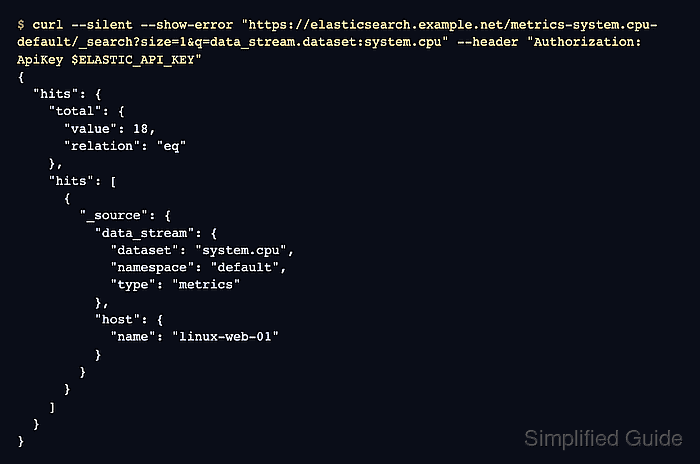
- Run an Elasticsearch search when the ingest proof needs to be saved outside Kibana.
$ curl --silent --show-error "https://elasticsearch.example.net/metrics-system.cpu-default/_search?size=1&q=data_stream.dataset:system.cpu" --header "Authorization: ApiKey $ELASTIC_API_KEY"
{
  "hits": {
    "total": {
      "value": 18,
      "relation": "eq"
    },
    "hits": [
      {
        "_index": ".ds-metrics-system.cpu-default-2026.06.18-000001",
        "_source": {
          "data_stream": {
            "dataset": "system.cpu",
            "namespace": "default",
            "type": "metrics"
          },
          "host": {
            "name": "linux-web-01"
          },
          "system": {
            "cpu": {
              "total": {
                "norm": {
                  "pct": 0.18
                }
              }
            }
          }
        }
      }
    ]
  }
}
Use the namespace selected in the integration policy. The sample host name and API endpoint are sanitized placeholders.

Mohd Shakir Zakaria is a cloud architect with deep roots in software development and open-source advocacy. Certified in AWS, Red Hat, VMware, ITIL, and Linux, he specializes in designing and managing robust cloud and on-premises infrastructures.


